Microsoft Introduces Simpler Options for Pausing and Installing Windows Updates
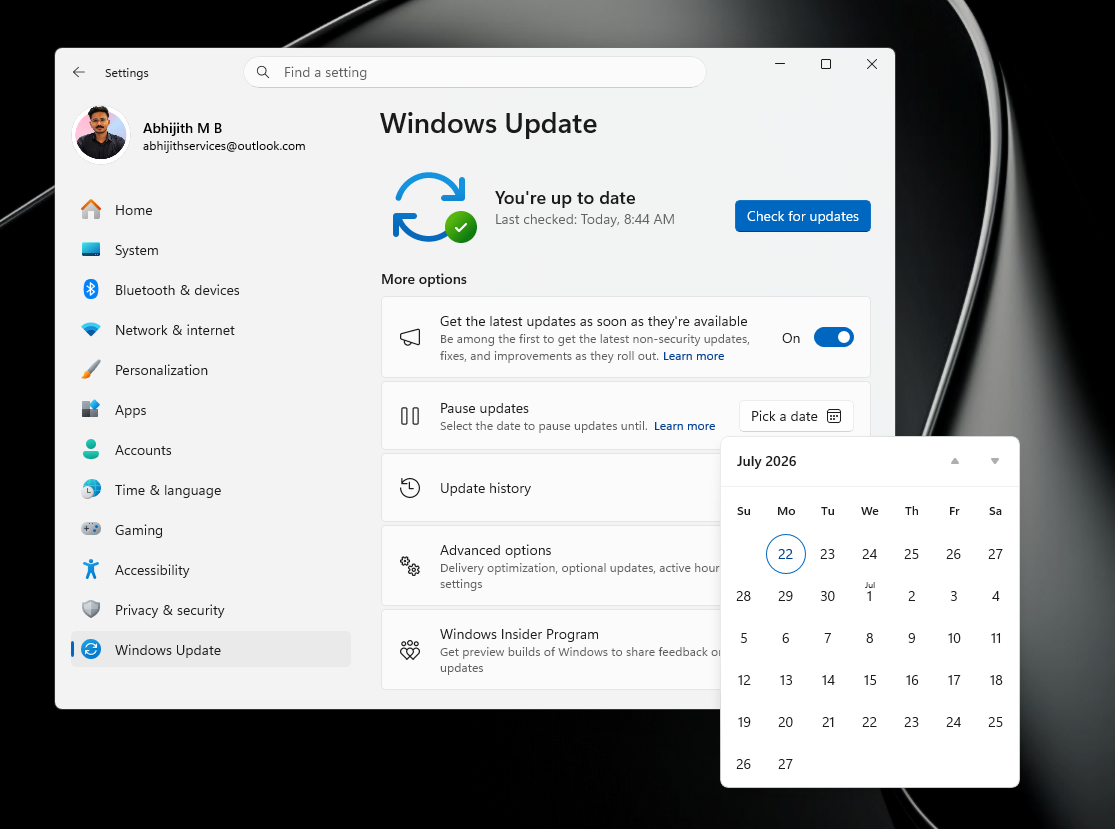
Microsoft has unveiled a new calendar-based feature for pausing Windows updates, enabling users to choose a specific end date within a 35-day limit. Available with Windows 11 KB5095093, this feature also lets users extend an ongoing pause before it expires, provided the new end date remains within the 35-day window.
While this feature doesn’t allow for permanently disabling updates, it offers flexibility for users to delay updates manually. If no action is taken, Windows will automatically resume updates after the pause period ends, ensuring system security and reliability.
Advantages of the Calendar-Based Pause
With this new feature, users can:
- Select specific end dates for pauses, making it easier to schedule around personal plans, travel, or busy work periods.
- Avoid disruptions caused by unexpected reboots during crucial moments.
How the New Windows Update Calendar Pause Works
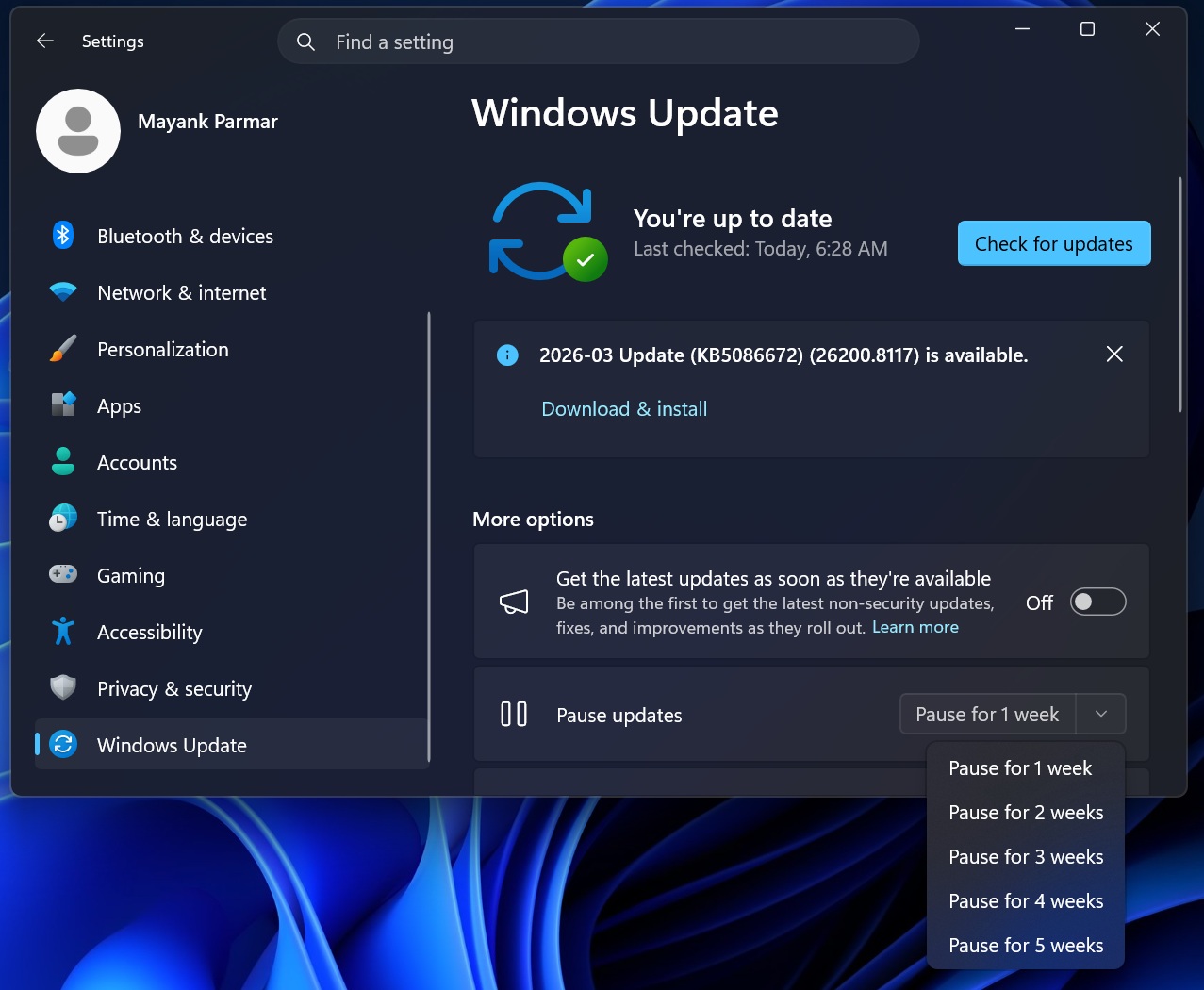
This update replaces the previous dropdown menu, which offered fixed one-week increments for pausing updates. Users can now pick a specific date directly from a calendar in Settings > Windows Update. Although the maximum pause remains 35 days, the calendar streamlines the process by removing the need to calculate weeks manually.
It’s important to note that this pause is not a permanent solution. Once the pause expires, Windows will check for updates again and may automatically download and install pending updates.
Key Points to Keep in Mind About the Pause Feature:
- Pauses can only extend up to 35 days from the current date.
- Users can reset the pause period manually by selecting a new end date, but the new date must also fall within the 35-day limit from the current day.
- Previously paused time does not carry over. For example, if you paused updates for 20 days, the new pause can only extend up to 35 days from today, not beyond.
- Updates will automatically resume after the pause expires to maintain system security.
How to Set Up the Calendar Pause in Windows Updates
To set a pause end date, go to Settings > Windows Update and use the calendar interface to choose a specific date. This provides users with a straightforward way to delay updates without relying on week-based increments.

Extending the Update Pause
Microsoft allows users to extend the pause period as long as the new end date falls within the 35-day limit. This means users can continually delay updates by manually resetting the pause window. However, this practice is not recommended due to potential security risks.
If no action is taken, updates will automatically resume once the current pause period ends, ensuring systems remain up-to-date and secure.
Consolidated Monthly Restarts for Updates
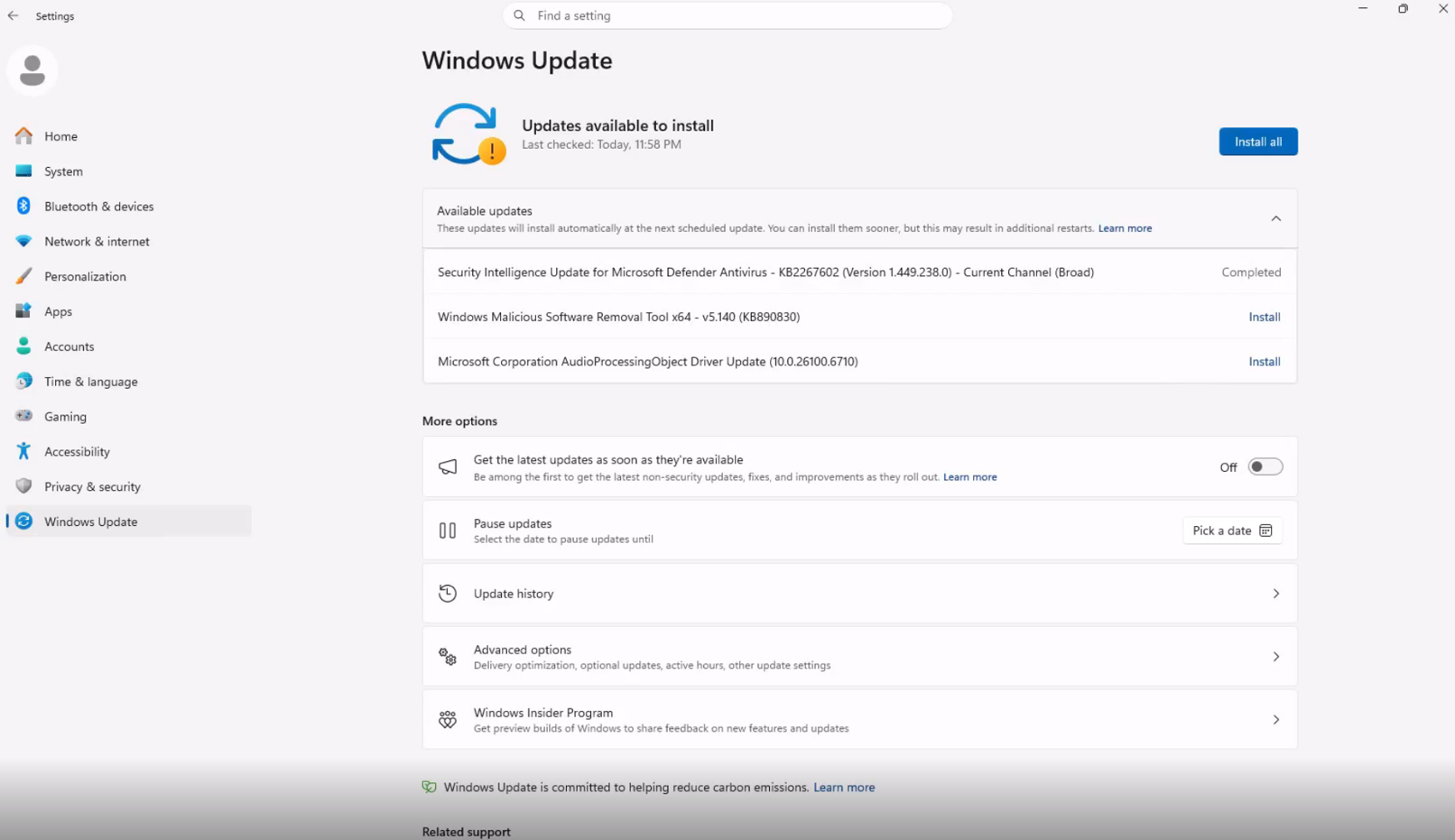
Alongside the calendar pause feature, Microsoft is enhancing the update installation process by reducing the number of required restarts. Driver, .NET, and firmware updates will now align with the monthly quality update, resulting in a single monthly reboot for most updates.
This change is currently available to Windows Insider preview users and will soon roll out to the public. Updates will continue downloading in the background, but the consolidation minimizes interruptions by bundling restarts.
For users who want to see what’s being downloaded during these bundled updates, detailed information will remain accessible.
Improved Shut Down Options
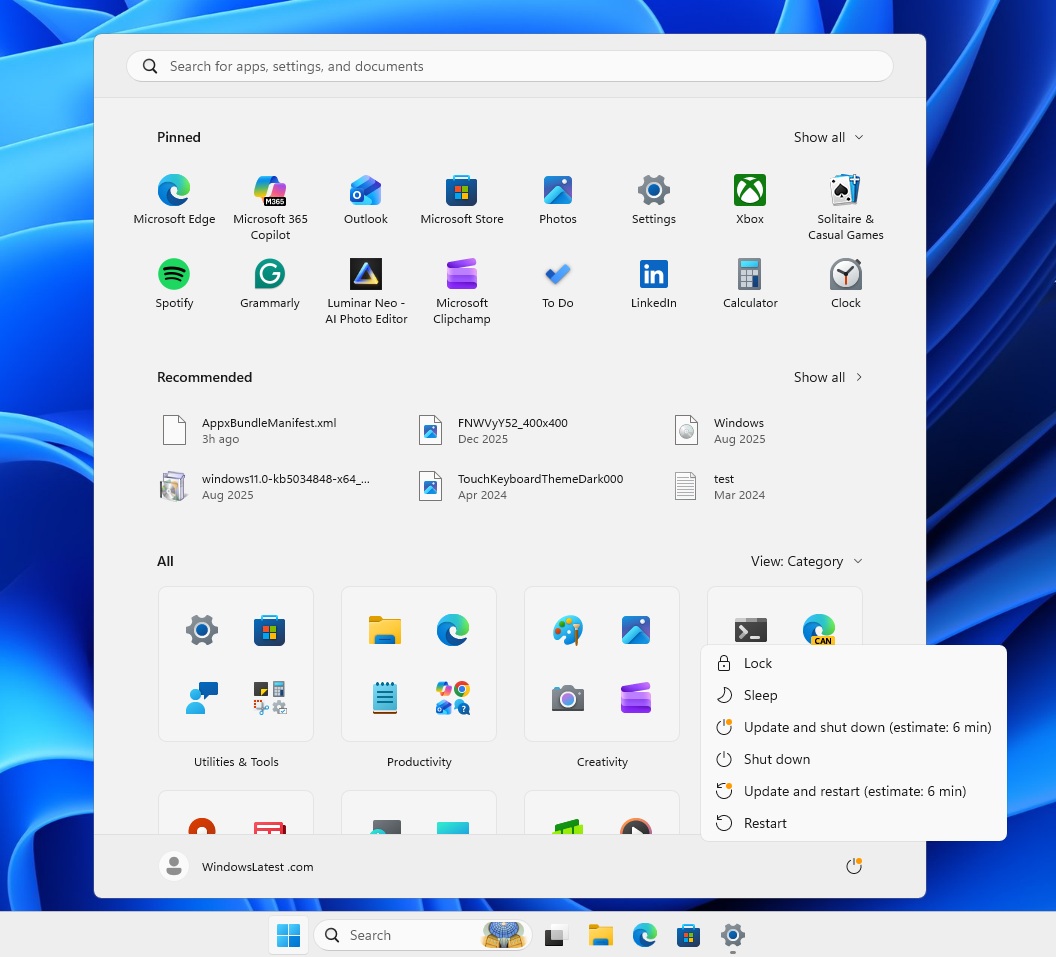
Another notable enhancement addresses the long-standing issue with the "Update and shut down" behavior. Now, the Power menu will consistently display Restart and Shut down options, even when updates are pending. Choosing Shut down will turn off the PC without installing updates first.
Tests on Build 26300.8289 confirm that this fix works as intended, giving users more control over their shutdown process.
Availability of These Changes
The calendar pause feature is already included in the June optional update KB5095093. The consolidated single monthly restart and the Power menu fix are currently available to Windows Insiders in the Experimental and Beta channels. A broader rollout to all users is expected in the coming weeks.
For more updates on Windows features, consider making us your preferred source on Google Discover and Google Search.