Windows 11 KB5132061 Adds New Features, Offline Installer (.msu) Download Links Now Available
Windows 11 KB5132061 is now rolling out with a new setting that lets you customize the right-click menu, along with performance improvements for apps such as Edge and Firefox. The update also makes the right-click menu load faster. As with all updates, the November 2026 Patch Tuesday release is available through Windows Update, and MS has published direct download links for the KB5132061 offline installer (.msu).
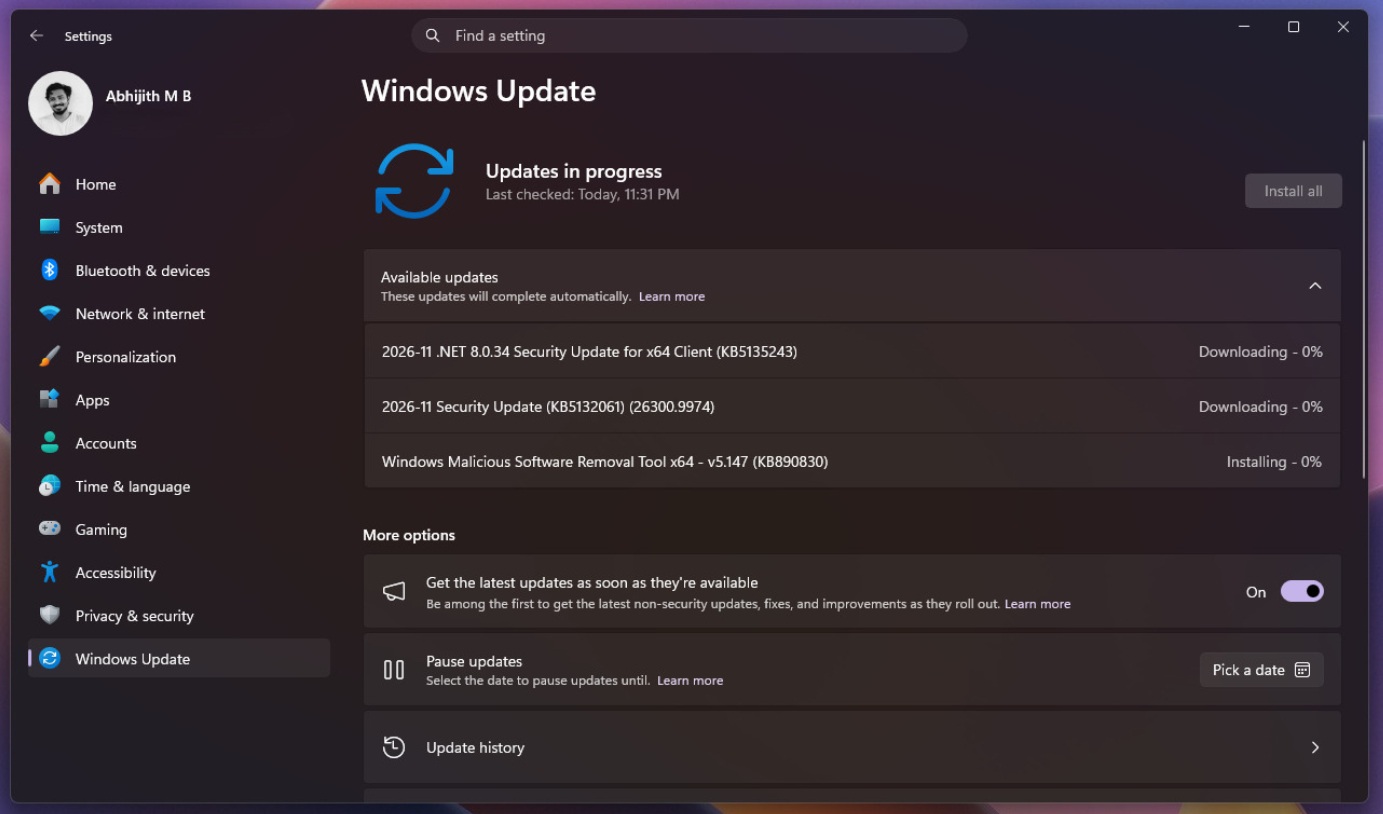
Windows 11 KB5132061 is a mandatory security update, so it will download and install automatically as long as Windows Update is enabled and allowed to check for updates. In testing, the update appeared as “2026-11 Security Update (KB5132061) (26300.9974)” and installed automatically within a few minutes.
If you are using Windows 11 26H2, you will receive Build 26300.9974. For Windows 11 25H2, the build number is 26200.9974. However, there are no visible differences because both versions are based on the same core release, version 24H2.
If you are still using Windows 11 24H2, you will not receive new updates because support ended in October 2026.
In addition to the November 2026 cumulative update, MS has published other updates, including one for the .NET Framework.
For example, “2026-11 .NET 8.0.34 Security Update for x64 Client (KB5135243)” also appeared when checking for updates. Users will also receive a new version of the malicious software removal tool, listed as “Windows Malicious Software Removal Tool x64 – v5.147 (KB890830).”
Download Links for Windows 11 KB5132061
Windows 11 KB5132061 Direct Download Links: 64-bit and ARM64. The update is also available through the MS Update Catalog, which provides offline installers in the .msu format. However, most users will not need them. The Update Catalog is recommended primarily when managing hundreds of PCs or when Windows Update repeatedly fails.
Updating through Windows Update in Settings is faster and requires a smaller download. Through Windows Update, the update is approximately 1–1.5 GB, while the Update Catalog package is approximately 5 GB. By comparison, Windows 10 updates were typically under 300 MB through Windows Update and close to 900 MB through the Update Catalog. Windows 11 updates are larger because they now include AI models for supported PCs.
To download Windows 11 Build 26300.9974 (26H2) or Build 26200.9974 (25H2), open Settings > Windows Update and check for updates.
What’s New in Windows 11 Build 26300.9974 (26H2) and Build 26200.9974 (25H2)?
Everything included in this update is rolling out gradually, so you may not notice any visible changes immediately.
Windows 11’s right-click menu is receiving a major upgrade and can now be fully customized. If you install KB5132061 and gain access to the “Customize menu” feature, you can choose which options appear when you right-click anywhere in Windows 11, including within File Explorer.
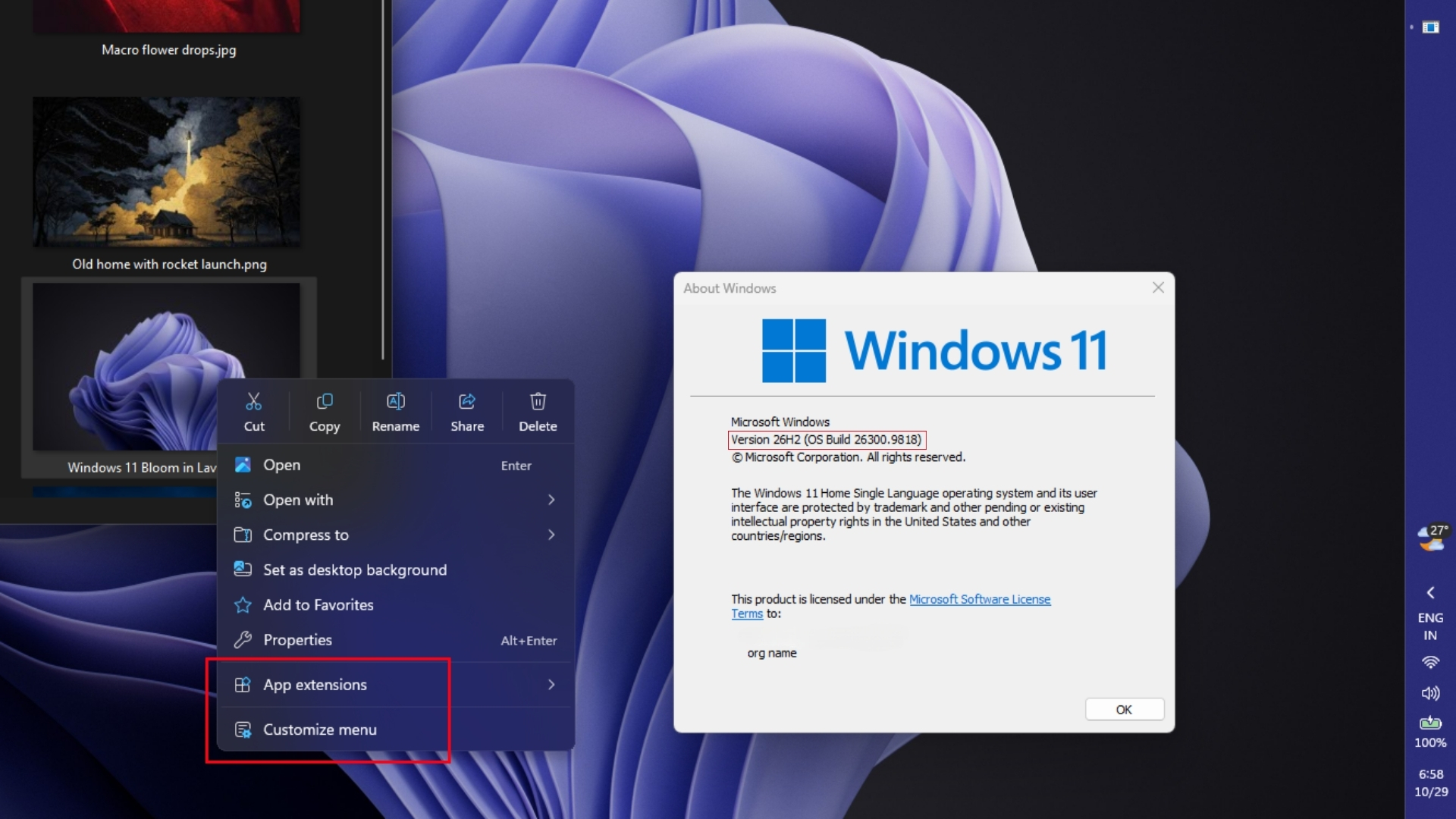
For example, right-clicking an image may display options such as “Edit in Paint” or “Edit in Notepad.” Although these options can be useful, some users may prefer to keep only the Photos option, which opens the image in the MS Photos app. Other available commands include rotating an image and compressing files into a ZIP archive.
Installing more apps typically adds more extensions to the right-click menu. Windows 11 now allows you to customize the menu fully, including removing options you do not want.
AutoPlay and Folder Options Gain Dark Mode, While File Explorer Search Becomes Easier to Read
The AutoPlay dialog, which appears when you connect a phone, camera, or USB drive, receives a modern design with dark mode and text-scaling support in Windows 11 KB5132061.
AutoPlay notifications also remain in the notification center, allowing you to open them later. This is a useful addition because users no longer need to disconnect and reconnect a device simply to display the notification again.
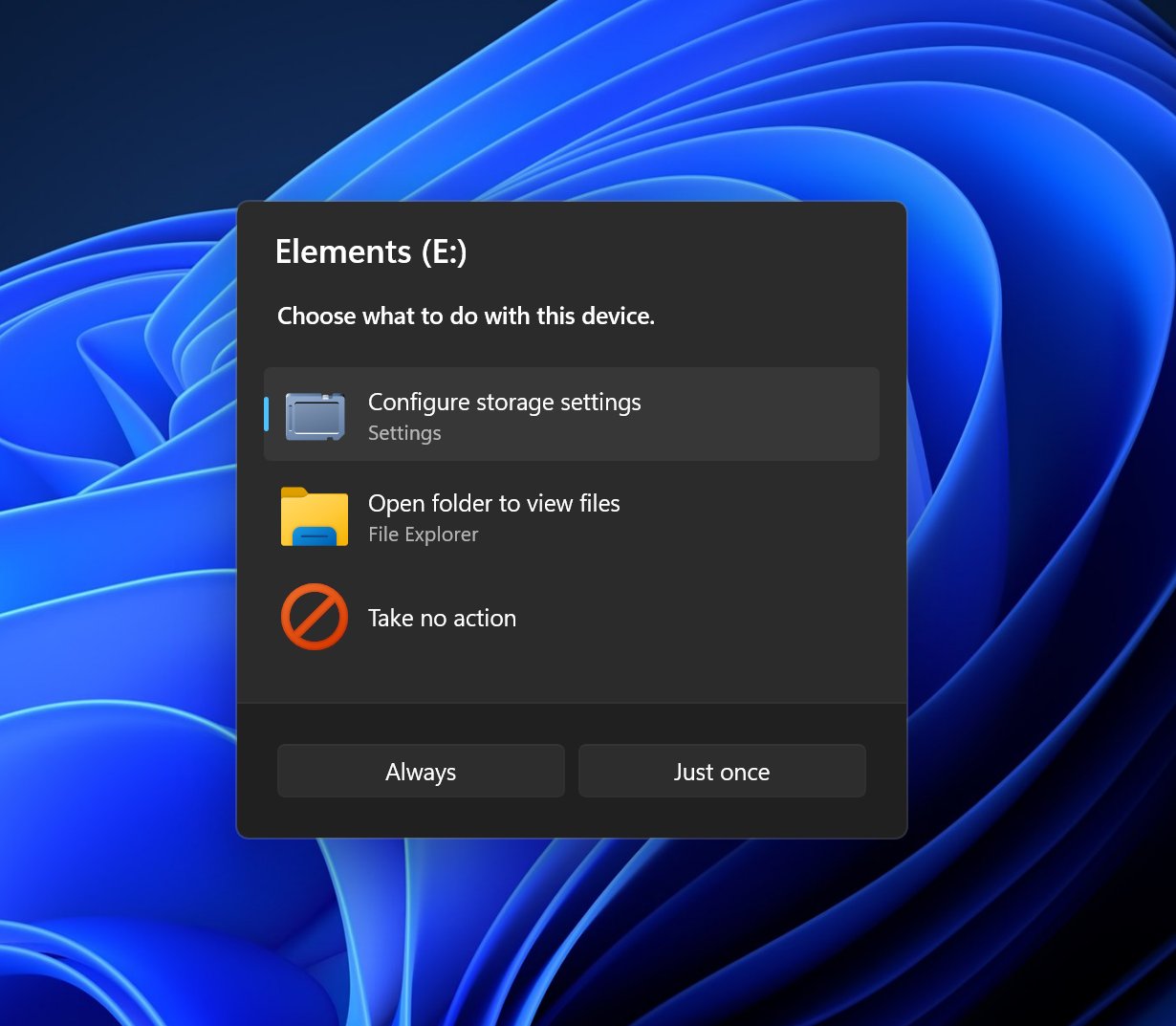
Following the addition of more readable file sizes in August, File Explorer is receiving three smaller but useful changes.
MS says it is finally replacing Windows 11’s outdated dialog boxes, with AutoPlay and Folder Options now modernized. However, the Properties dialog opened from the new right-click menu still resembles the Windows 95-era design because its modern WinUI version remains in development.
Settings Regroups Privacy Controls, and the Device Info Card Expands to More Countries
The Settings app has undergone a steady redesign since the April update, and the Privacy & security page is next. With Windows 11 KB5132061, Camera, Microphone, and Location controls are grouped together. The main page also shows which apps have used them, information that was previously hidden on linked pages.
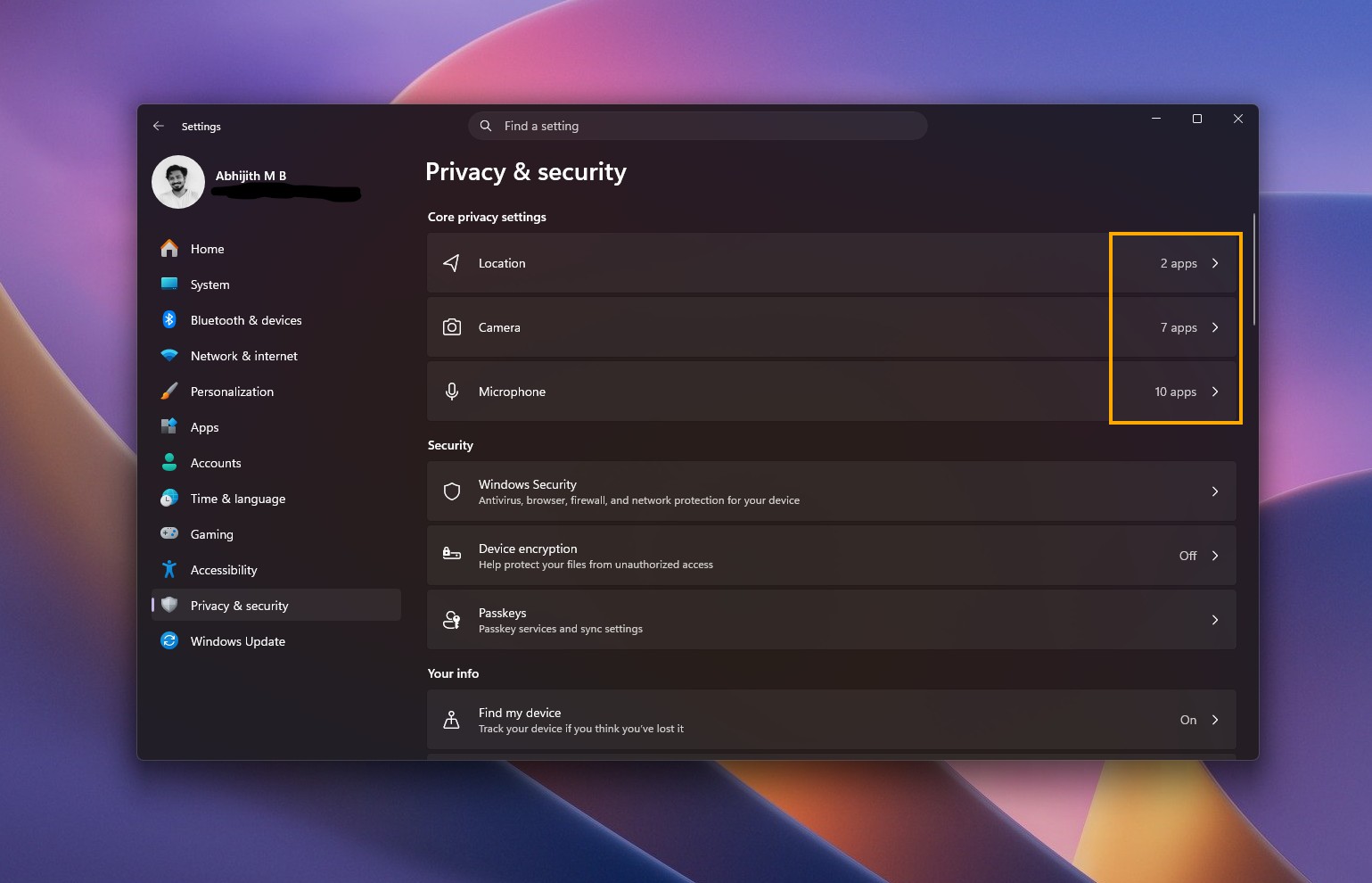
The Device Info card on the Settings home page, which displays key specifications and usage information at a glance, is expanding beyond the United States to additional markets. It requires a MS account, while full device details remain available under Settings > System > About. MS has also made minor visual changes to the temporary files section under Settings > System > Storage.
Magnifier Gains Per-Monitor Zoom, and Narrator Can Read Math
Accessibility tools received significant attention in October, and Magnifier gains three additional improvements with Windows 11 KB5132061.
New Contrast theme toggle in Magnifier. Credit: Windows Latest.
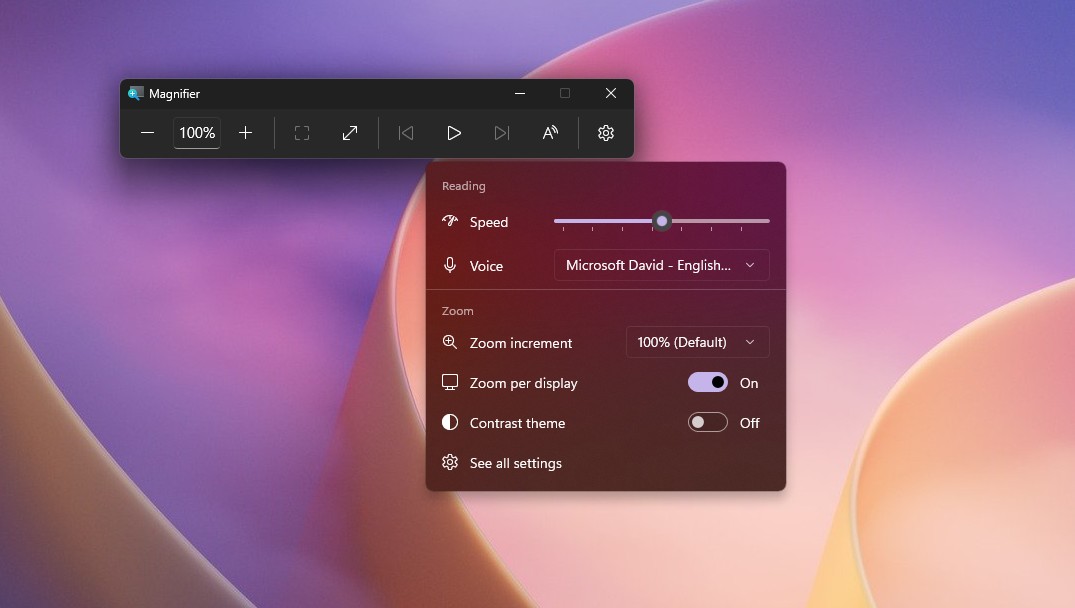
Narrator can now read and navigate mathematical equations in Word, PowerPoint, and web pages using Edge 153.0.4234.32, Chrome 153.0.8010.18, or later versions. Press Narrator key + Alt + N, then use the arrow keys to move through an equation. The feature supports English (US and UK), Traditional Chinese, Finnish, German, and Spanish.
Live Captions also gains an Include screen reader audio setting. It is disabled by default, so captions will not transcribe Narrator, JAWS, or NVDA unless you enable it under Settings > Accessibility > Captions.
MS says it is not aware of any major issues affecting Windows 11 KB5132061.
Windows Latest depends on readers like you. Make us your preferred source on Google Discover and Google Search, and help our independent reporting reach more people.