Windows 11 Now Warns That Switching to a Local Account Could Risk BitLocker File Lockout
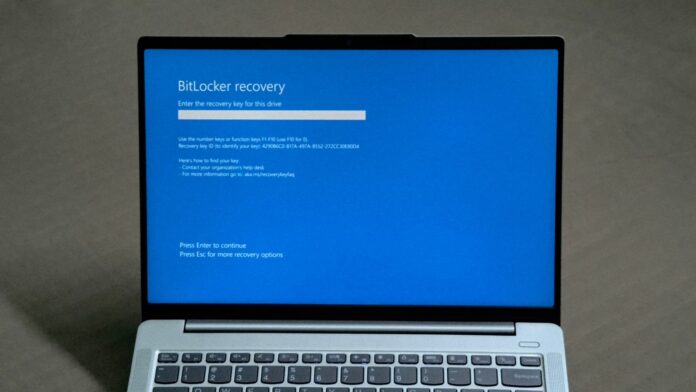
MS is testing a new Windows 11 prompt that asks users to back up their BitLocker recovery key when switching from a MS account to a local account. Switching accounts will not lock you out of your PC. However, if Windows later requests the 48-digit recovery key and you cannot find it, your encrypted files may be permanently inaccessible.
Most people are unaware that their drive is encrypted. A Windows 11 PC configured with a MS account typically enables encryption quietly, which improves security, and stores the recovery key in that MS account. This makes the key easy to forget after you stop using the account to sign in.
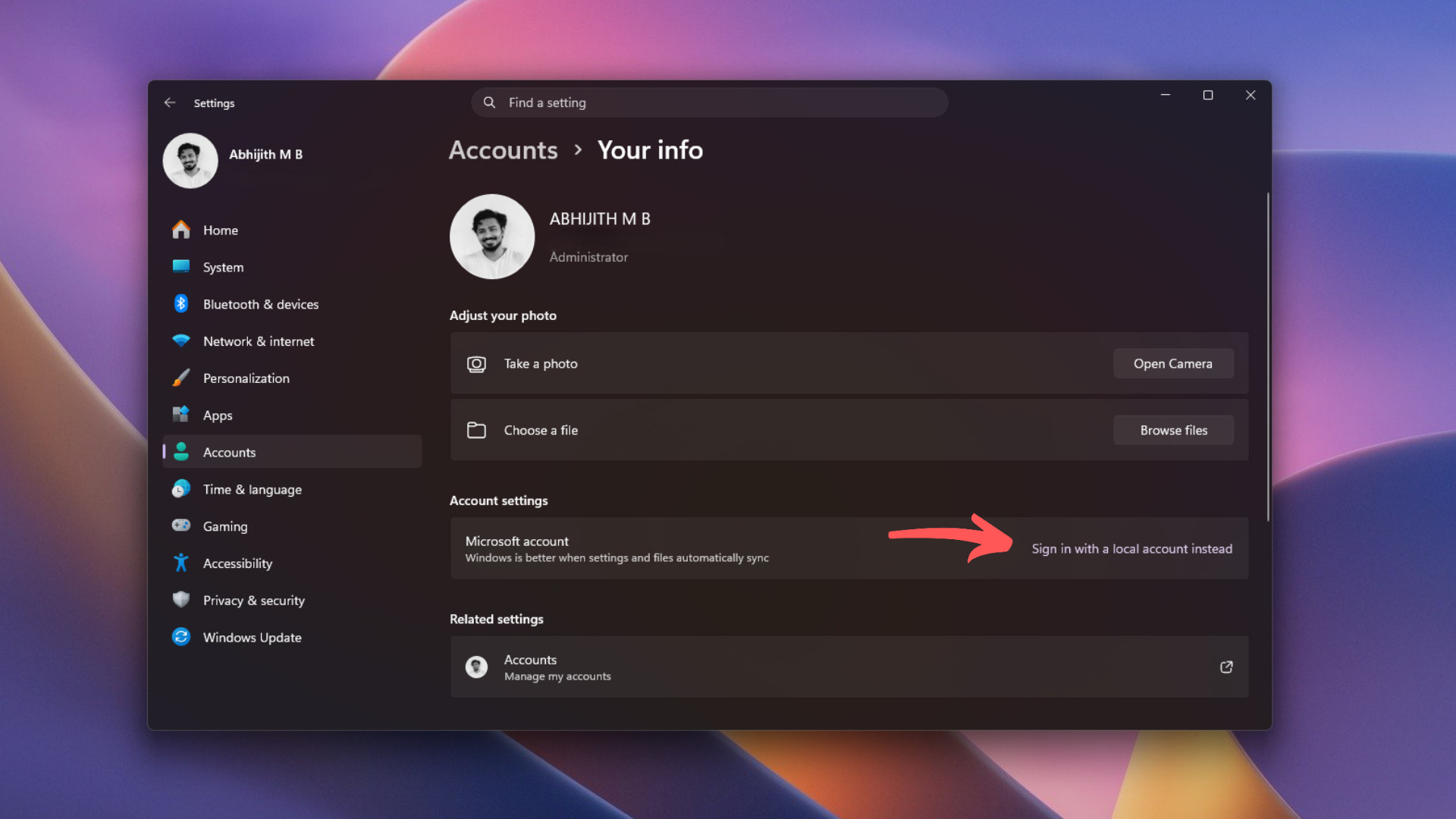
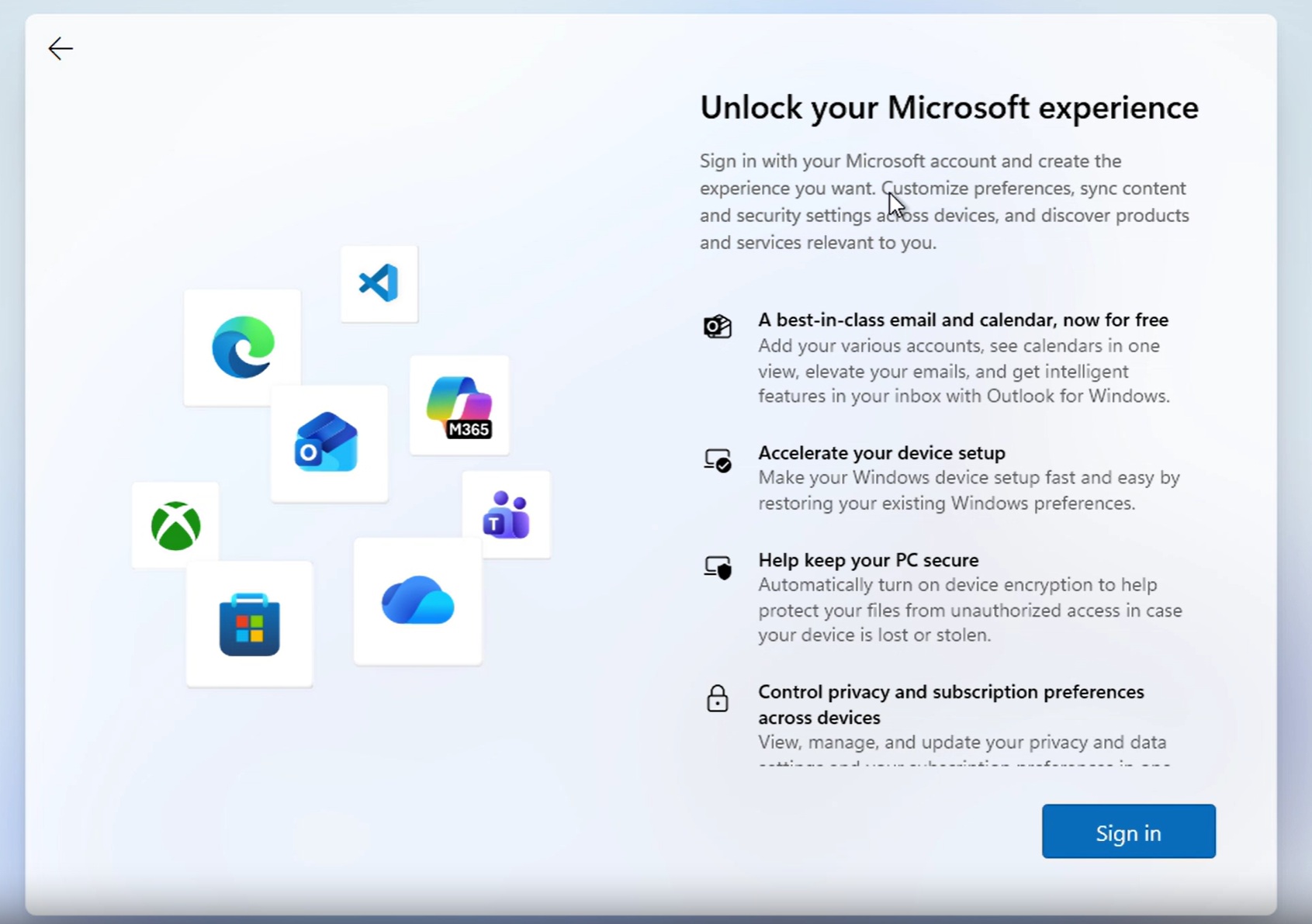
Unless you know how to bypass the MS account requirement during the initial Windows 11 setup, you must sign in with a MS account. After signing in, you can switch to a local account by navigating to Settings > Accounts > Your info > Sign in with a local account instead.
Windows 11 Will Remind You to Back Up Your BitLocker Recovery Key Before Switching Accounts
We found this change in Windows 11 Insider Preview Build 26340.10013, which MS released to the Experimental channel on November 16. Under “Secure switch from MSA to Local account,” the release notes state that users switching through Settings will be “always prompted to back up their BitLocker recovery key,” with updated instructions designed to prevent data loss.
Interestingly, this build has a strong security focus. It also introduces Remote Lock for IT administrators and TPM+PIN support for standard users on managed PCs.
The prompt does not prevent users from switching to a local account, nor does it disable encryption. MS has not provided a screenshot of the dialog, so it remains unclear whether the prompt can be skipped or whether it also appears on PCs without encryption. The Secure switch feature is still Experimental and may change or may never be released.
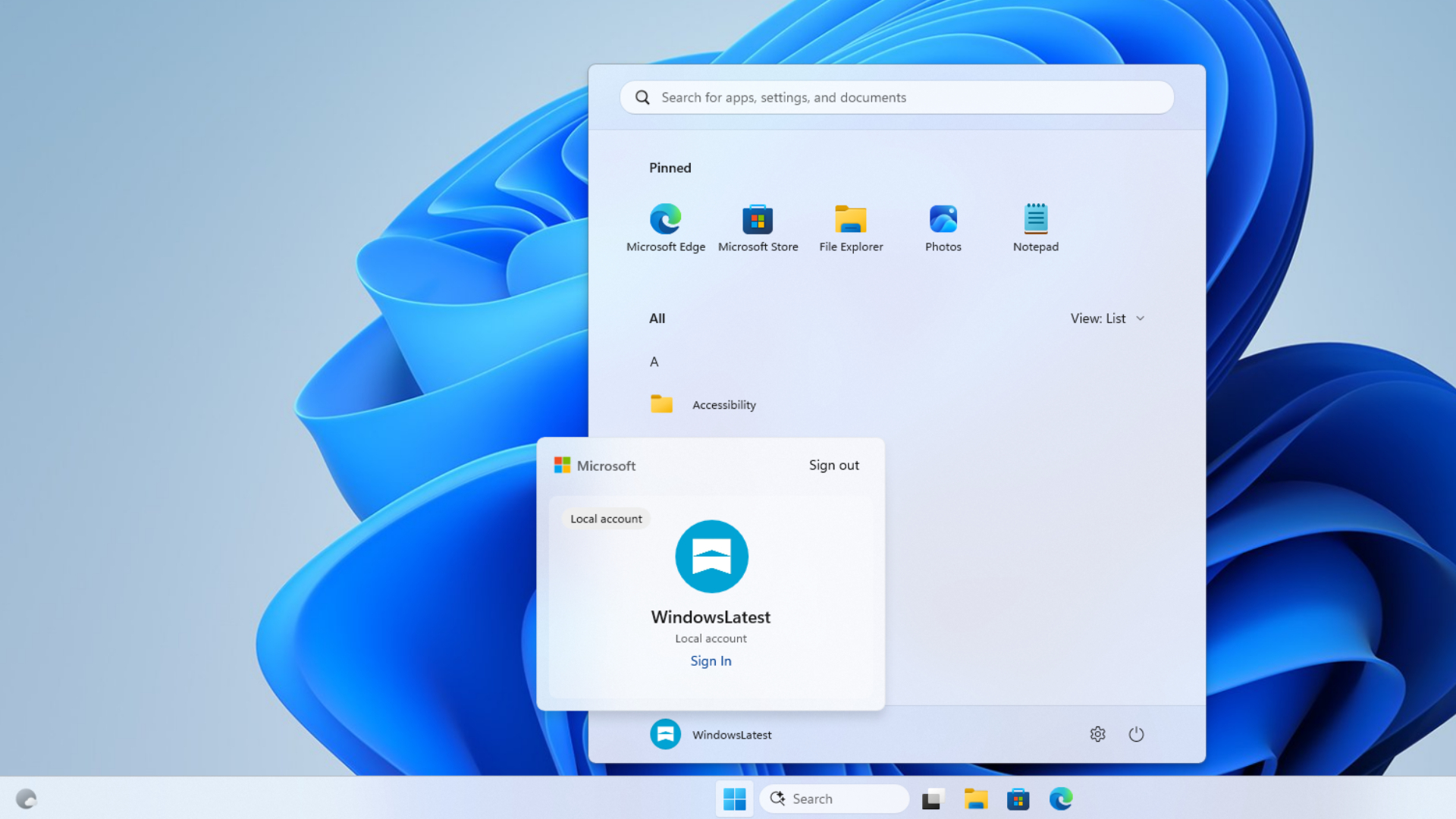
MS’s support page for switching to a local account states that the company “recommends using a MS account, not a local account.” This new prompt provides another reason to reconsider leaving a MS account.
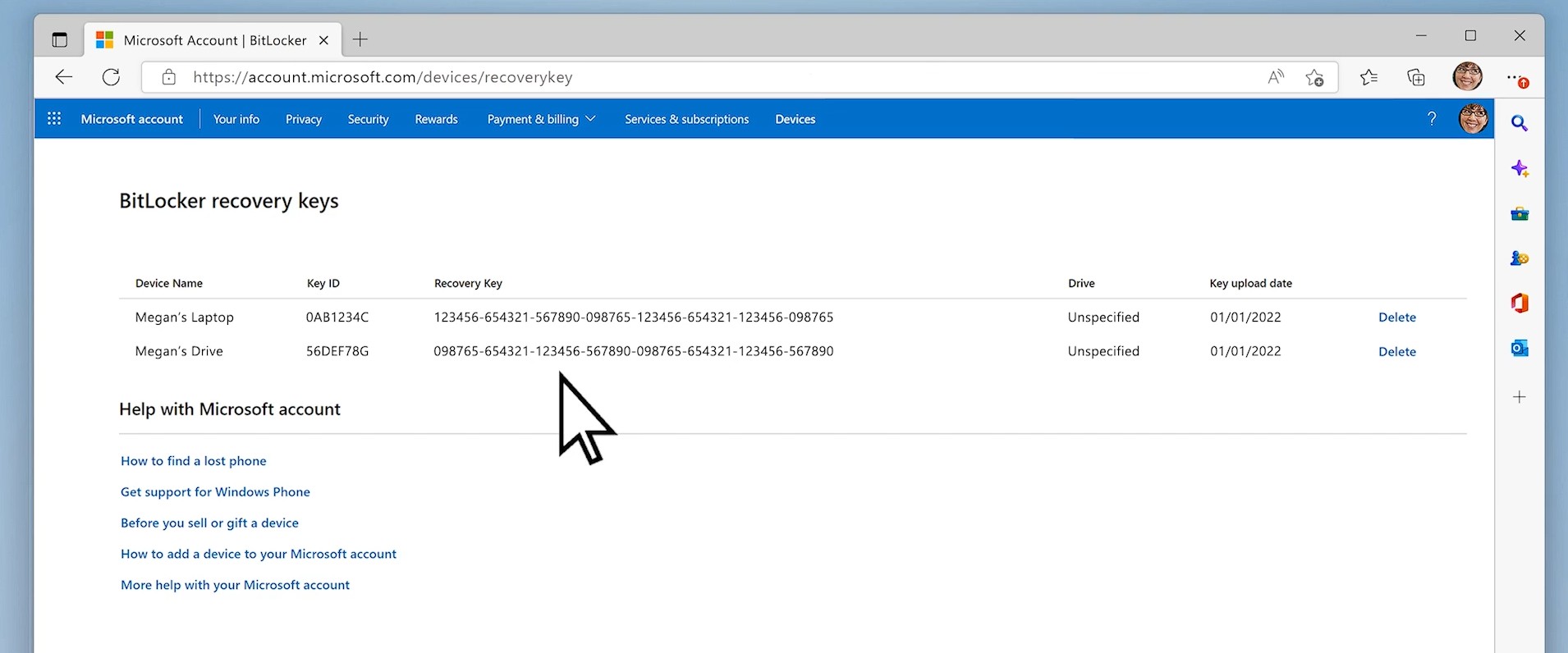
Why Losing Your BitLocker Recovery Key Can Leave You Locked Out of Windows
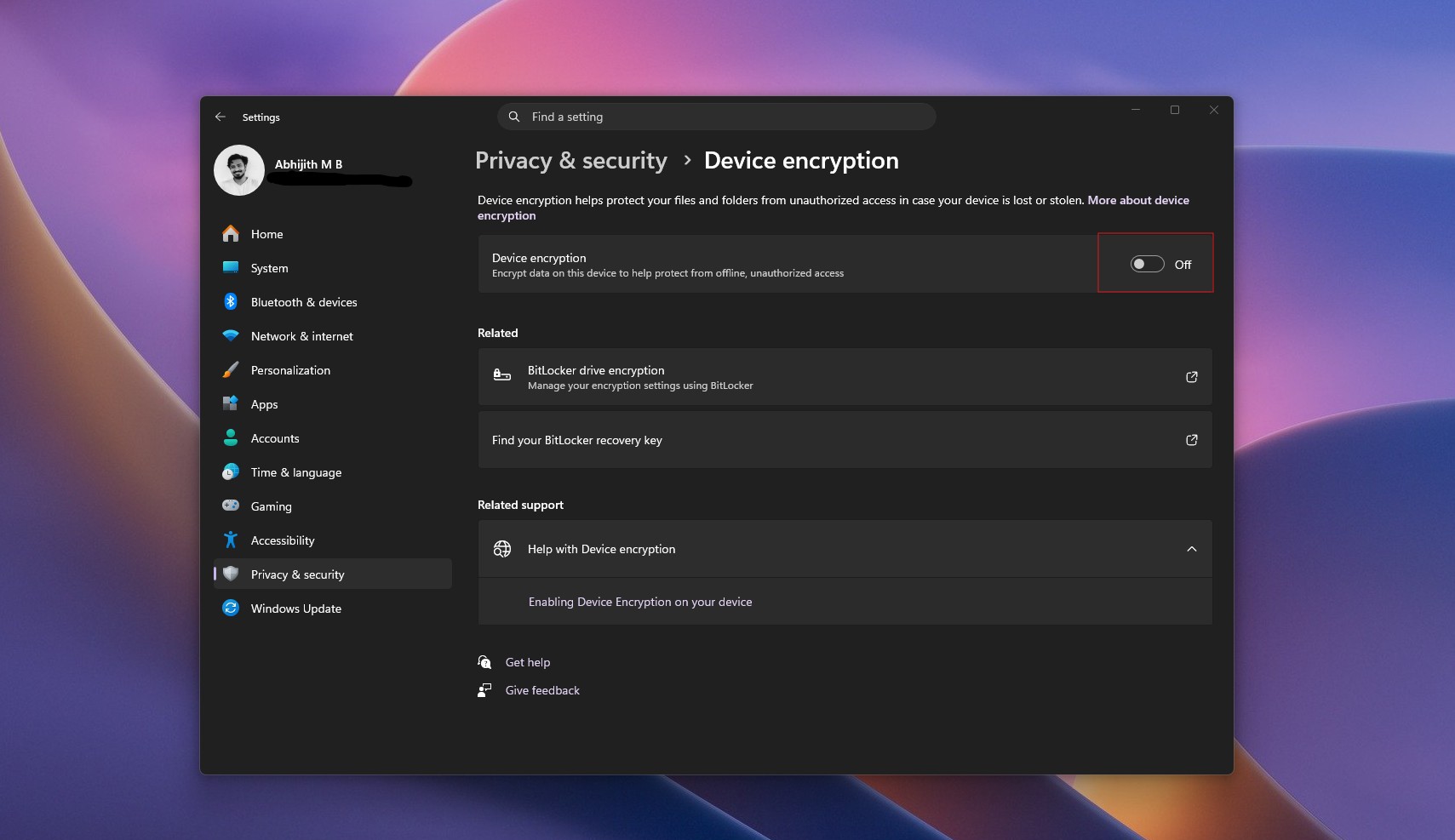
BitLocker encrypts your drive so that no one can access your files if your laptop is lost or stolen. Device Encryption, the simpler version that also works on Windows 11 Home, is enabled when you first set up a PC with a MS account. According to MS, “a recovery key is attached to that account.”
Since Windows 11 24H2, MS has removed some hardware checks for automatic encryption, allowing many more PCs to encrypt themselves after a clean installation. Windows 11 also no longer allows users to skip the MS account requirement during setup without a workaround, and MS continues to close those workarounds. The “Learn more” method is the latest workaround to stop working.
Normally, the TPM chip quietly unlocks the drive during startup. However, if it detects a change, such as a BIOS update, a cleared TPM, or a new motherboard, Windows displays the BitLocker recovery screen and requests the recovery key. Earlier this year, a Secure Boot certificate update caused some PCs to enter BitLocker recovery loops.
Consider a user who purchases a laptop, signs in with a MS account, and later switches to a local account because they do not trust MS. Two years later, a firmware update triggers the recovery screen, but the user has lost access to the old MS account and did not save the recovery key elsewhere.
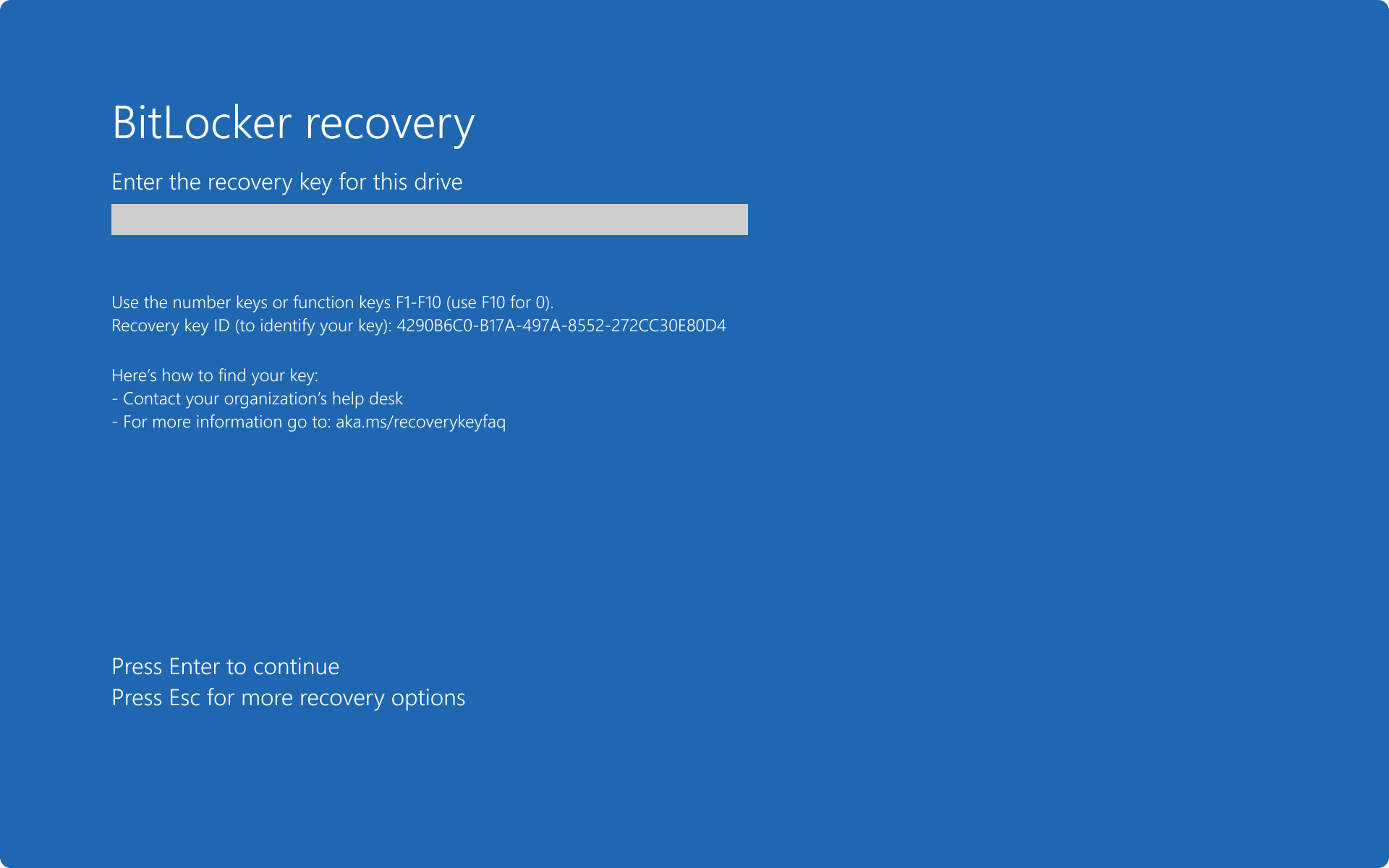
MS states that “MS Support doesn’t have the ability to retrieve, provide, or recreate a lost BitLocker recovery key.” Resetting the PC will remove all files.
Switching to a local account does not delete your MS account or the recovery key stored in it. As long as you can still sign in, you can retrieve the key from another device. Since Windows 11 24H2, the recovery screen also displays a hint indicating which account holds the key.
How to Back Up Your BitLocker Recovery Key Before Switching to a Local Account
Check whether your drive is encrypted by navigating to Settings > Privacy & security > Device encryption.
Sign in at aka.ms/myrecoverykey and confirm that your PC’s recovery key is listed. As MS states, “It’s important to verify that this backup exists and is accessible.”
On Windows 11 Pro, Enterprise, and Education, search for Manage BitLocker and select Back up your recovery key. You can save the key to a USB drive or file, or print a physical copy. On Windows 11 Home, copy the key from the recovery-key page into a file stored on another drive or print it. In either case, do not store the backup with the PC.
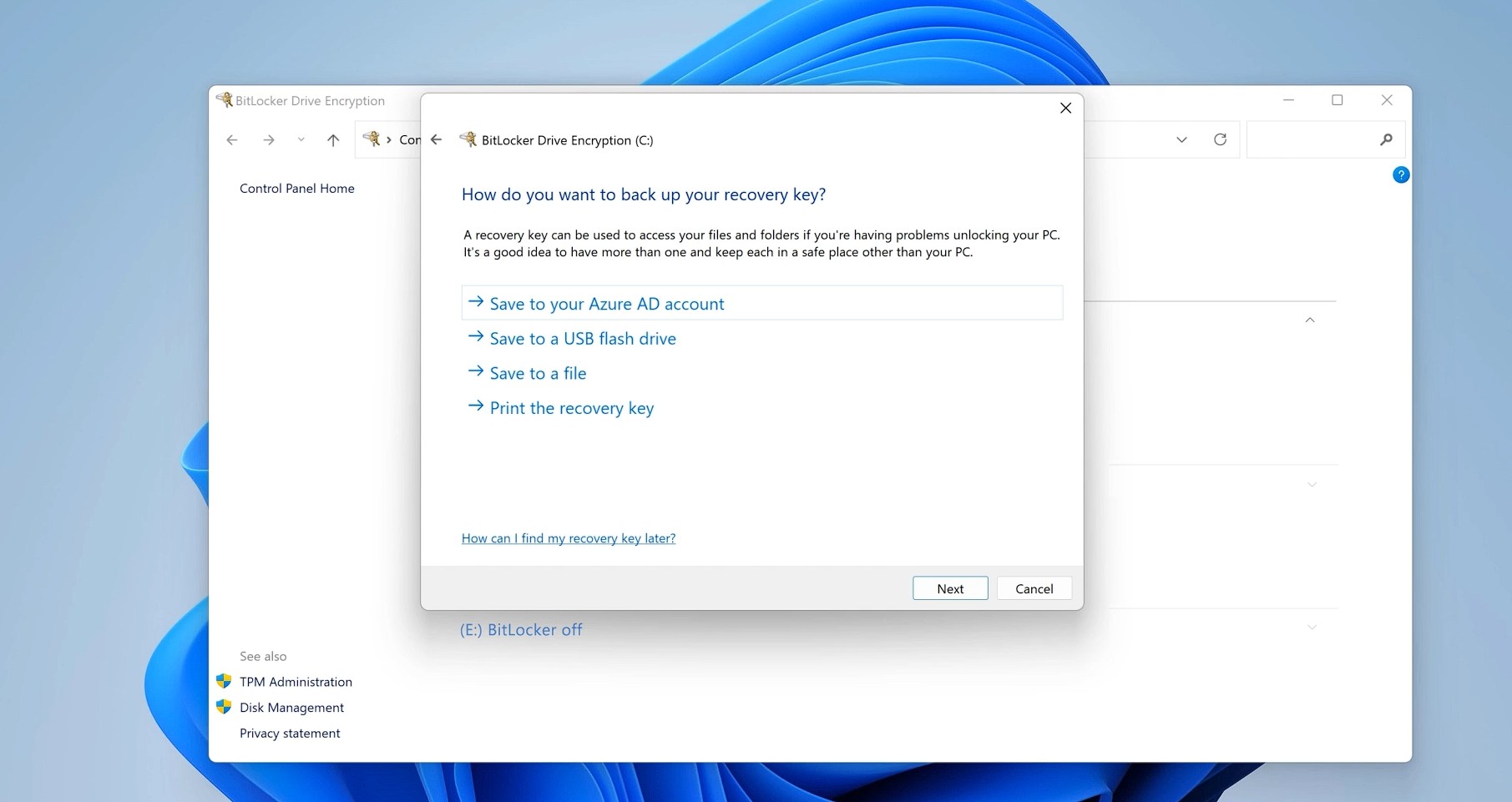
If you are switching accounts for privacy reasons, remember that the key will remain on MS’s servers until you delete it. Save another copy before removing it.
MS is not blocking local accounts. The company is ensuring that users do not lose access to the only copy of a recovery key they may not have known existed. This prompt should arguably have been available since Windows began encrypting drives by default.
Windows Latest depends on readers like you. Make us your Preferred Source on Google Discover and Google Search, and help our independent reporting reach more people.