MS’s Unasked-For Windows 11 PC Optimizer Is Entirely Web App Slop Running on WebView2
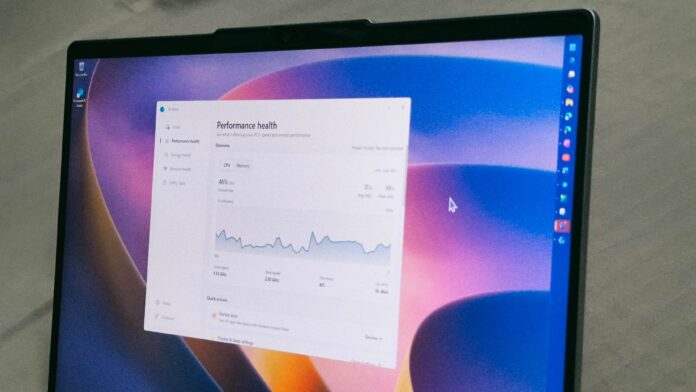
MS has released PC Assist, an optional Windows app that promises to troubleshoot common problems, track your PC’s performance, storage, and network usage, and bundle several everyday tools. Windows Latest tested PC Assist version 0.4.4.0. Although its Performance, Storage, and Network dashboards are quite good, its troubleshooters simply open the Get Help app, while its tools unashamedly open Bing in your browser.
On its landing page, MS says PC Assist lets you “Get guided assistance for your Windows PC.” The fine print beneath the Download button also says that you will “receive in-app notifications with promotional offers from MS” after installing it.
MS already offers Settings, Task Manager, Get Help, and my personal favorite, the PC Manager app, so why does PC Assist exist? I installed the app and reviewed its features to understand why MS created it.
MS’s PC Assist Installer Asks to Make Bing Your Default Search Engine
PC Assist is a separate, optional download from MS’s website. The installer I downloaded, PCAssistInstaller_en_v0.4.4.0.exe, was approximately 68.8MB.
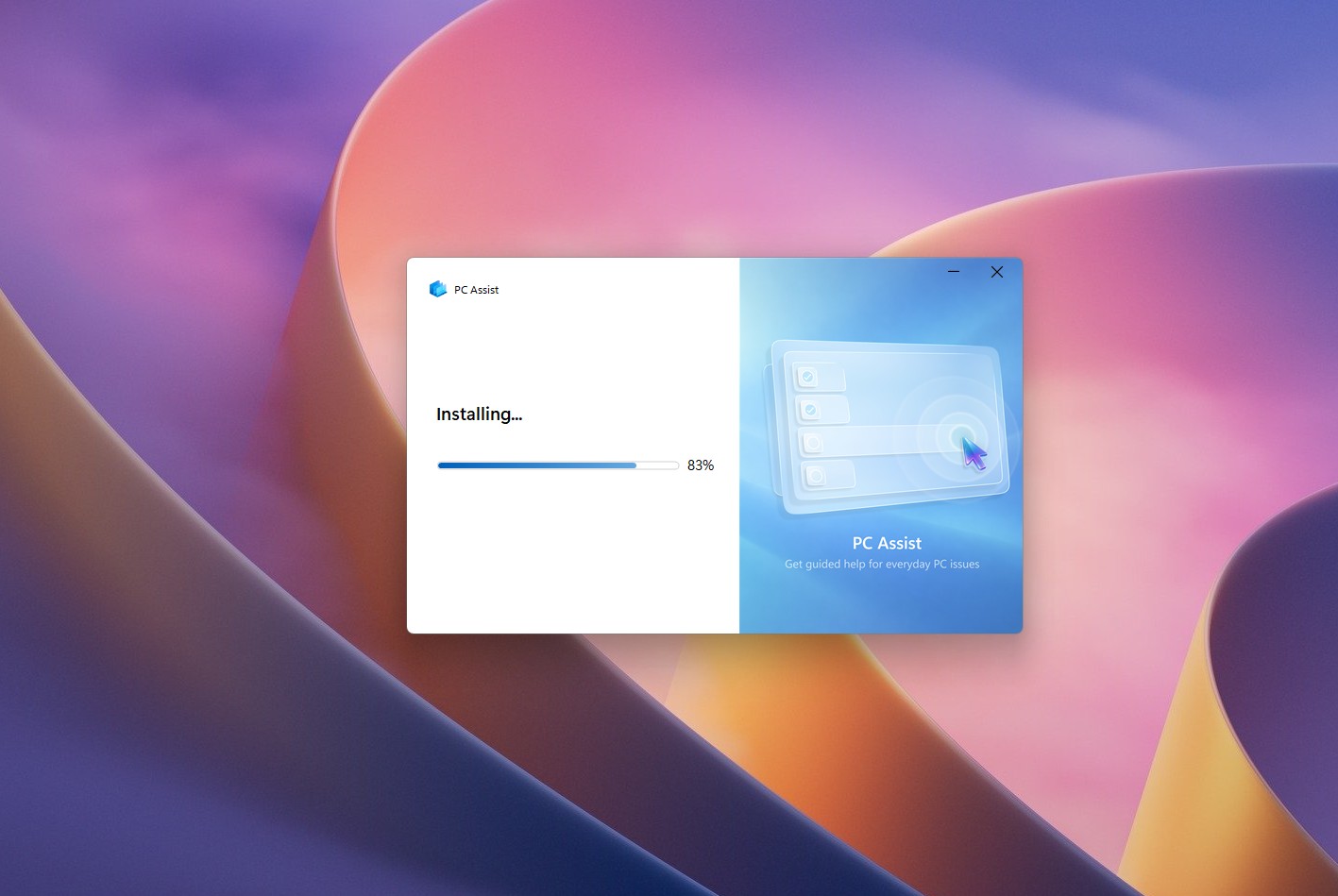
During setup, I noticed a toggle that would make Bing the default homepage and search engine in multiple browsers on my PC, which is questionable, to say the least. MS does not hide this behavior: its download page warns that you may be asked to “set Bing as your default homepage and search engine in your browser.” The toggle is enabled by default.
If this sounds familiar, it is because MS built a dedicated app earlier this year that pushes Bing into Chrome, Firefox, and Brave. We tested that app as well and were understandably disappointed. PC Assist is a different app, but the habit has not changed.
Next, PCAssist.UI.exe refused to launch and displayed the message, “You must install or update .NET to run this application,” because it requires MS.NETCore.App version 10.0.0 (x64). I therefore installed the .NET 10 Desktop Runtime and launched PC Assist again.
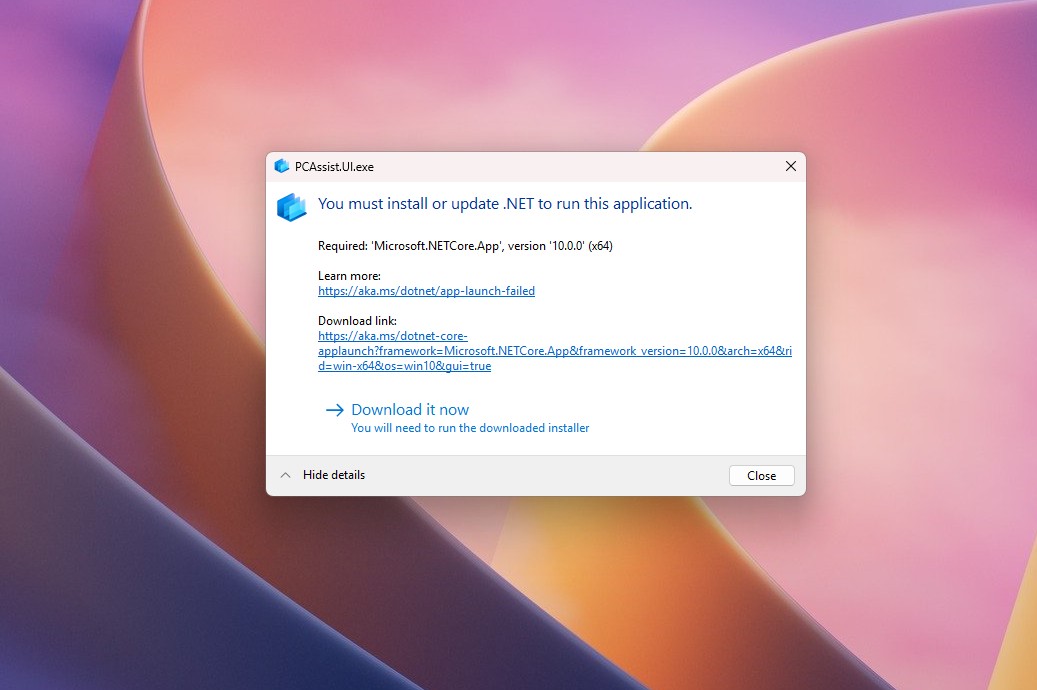
The .NET Desktop Runtime allows apps built with .NET to run on Windows, so this is a normal requirement. However, most people downloading a “PC help” app are unlikely to know what .NET is.
PC Assist’s Troubleshooters Simply Open the Get Help App
PC Assist opened in light mode even though my Windows 11 PC uses dark mode, and I could not find a dark mode option anywhere. This is both amusing and unusual. The app also lacks a maximize button, and dragging its edges does not resize the window. These are basic expectations for a Windows utility in 2026, although the fixed window size may be intentional, as it is with the PC Manager app.
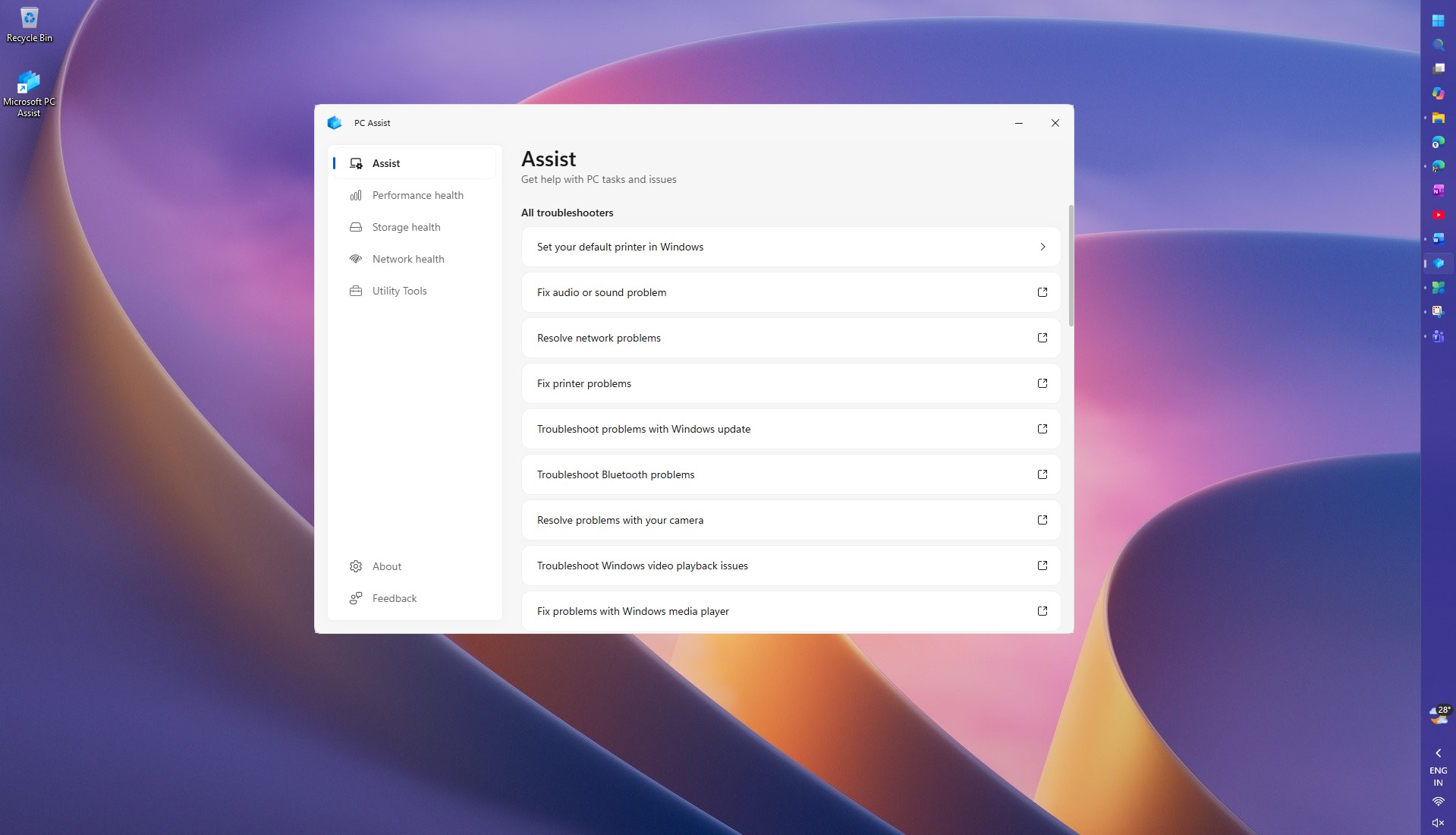
The app has five sections: Assist, Performance health, Storage health, Network health, and Utility Tools. Assist is the first section and lists troubleshooters such as Fix audio or sound problems, Resolve network problems, Fix printer problems, and Troubleshoot Bluetooth problems. Apart from the default printer option at the top, every item has an external-link icon beside it.
When I clicked the audio troubleshooter, PC Assist displayed a prompt stating, “This site is trying to open Get Help,” from https://pcassist.local. Clicking Open launched the Get Help app, which then ran its audio troubleshooter.
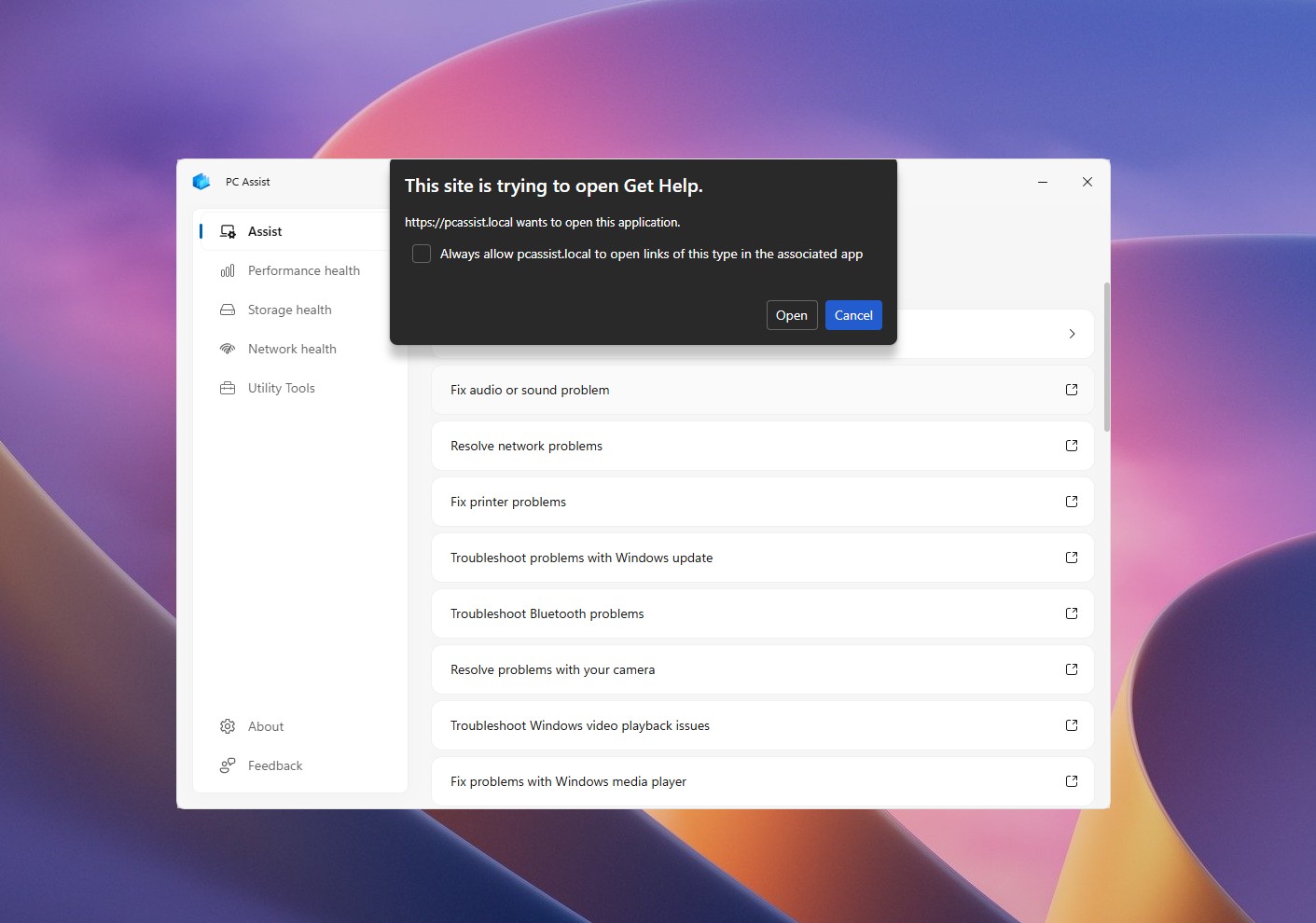
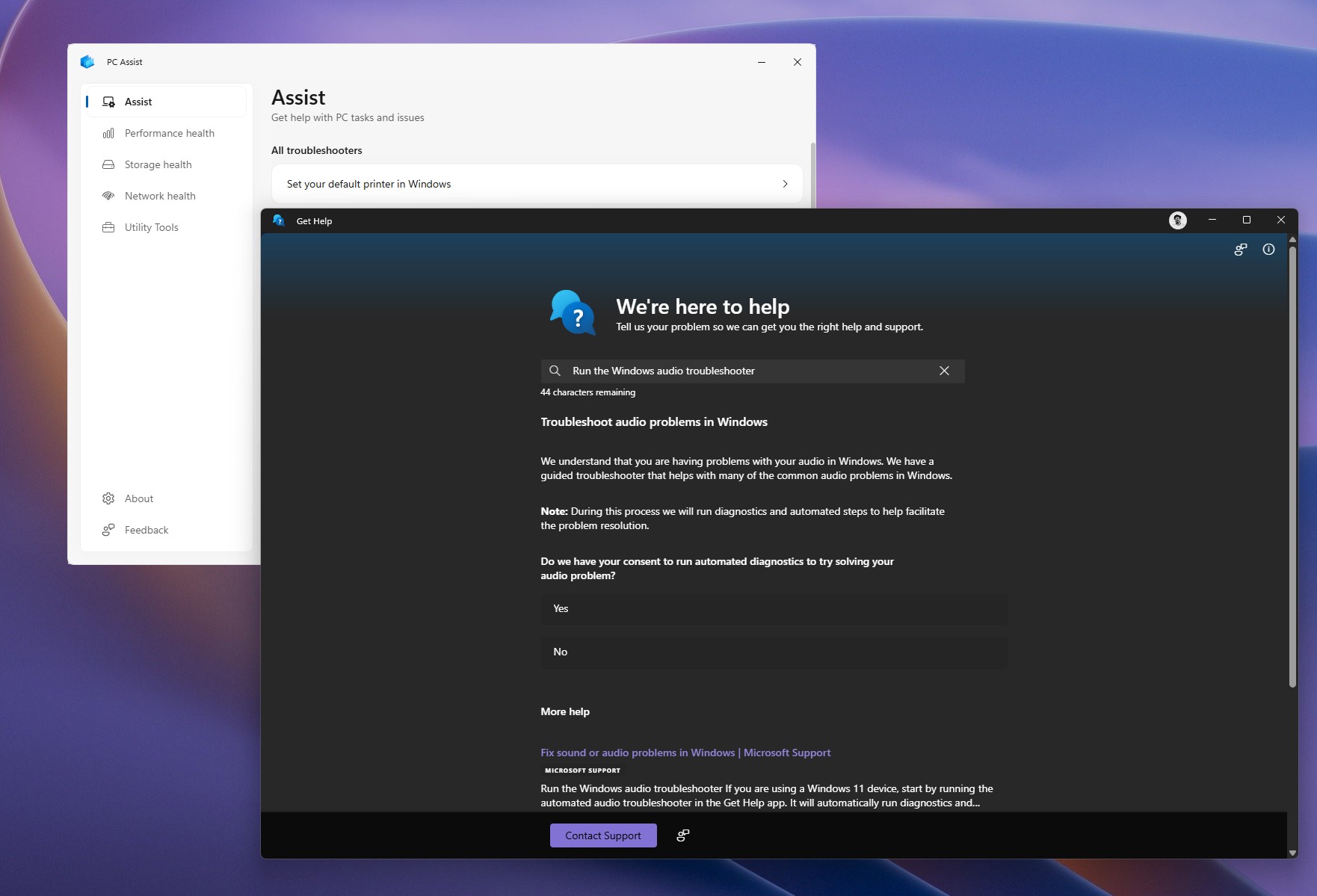
Every other troubleshooter on the list behaves the same way, making Assist little more than a launcher for Get Help, which is already built into Windows 11. If Get Help performs the troubleshooting anyway, why create PC Assist at all?
Interestingly, MS’s support page for setting a default printer in Windows now recommends allowing PC Assist to handle the task, so MS is clearly promoting the app.
Performance Health and Storage Health Are the Best Parts of PC Assist
Performance health is where PC Assist excels. It is essentially a more approachable version of Task Manager. A CPU and Memory toggle at the top switches between two live graphs covering the previous 60 seconds.
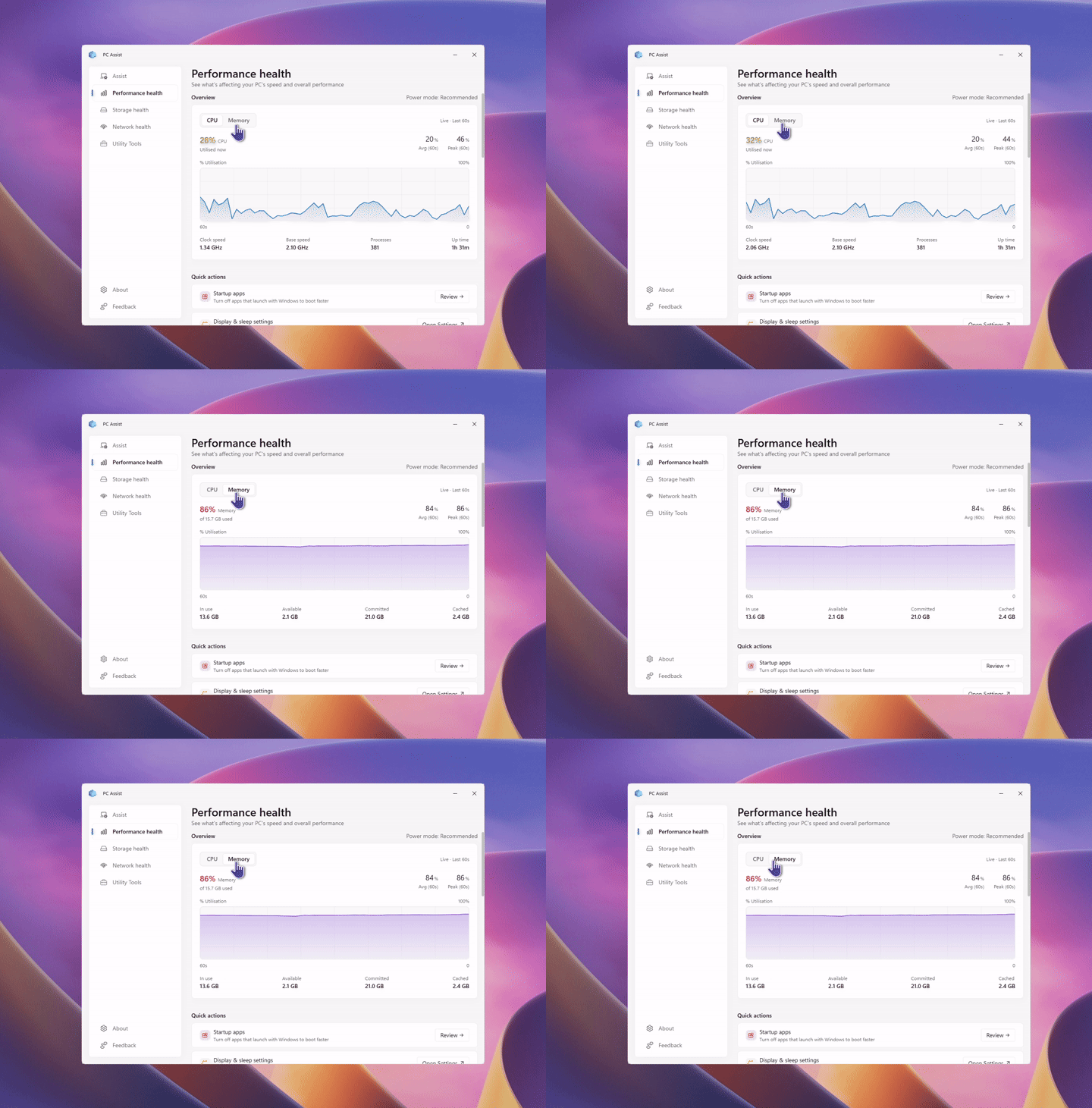
In CPU mode, I could view my laptop’s current, average, and peak CPU usage, along with its clock speed, base speed, number of running processes, and uptime. Switching to Memory showed that 89% of my 15.7GB of RAM was in use, divided into In use, Available, Committed, and Cached categories. Edge and my usual collection of open tabs were responsible.
There is also a Power mode indicator and three quick actions. Startup apps lets you review apps that launch with Windows, Display & sleep settings opens the corresponding Settings page, and All processes opens Task Manager.
The Top resource consumers list is my favorite feature. It shows the apps that consumed the most CPU and RAM during the previous 60 seconds, including their peak CPU usage and memory consumption, and provides a button to close them.
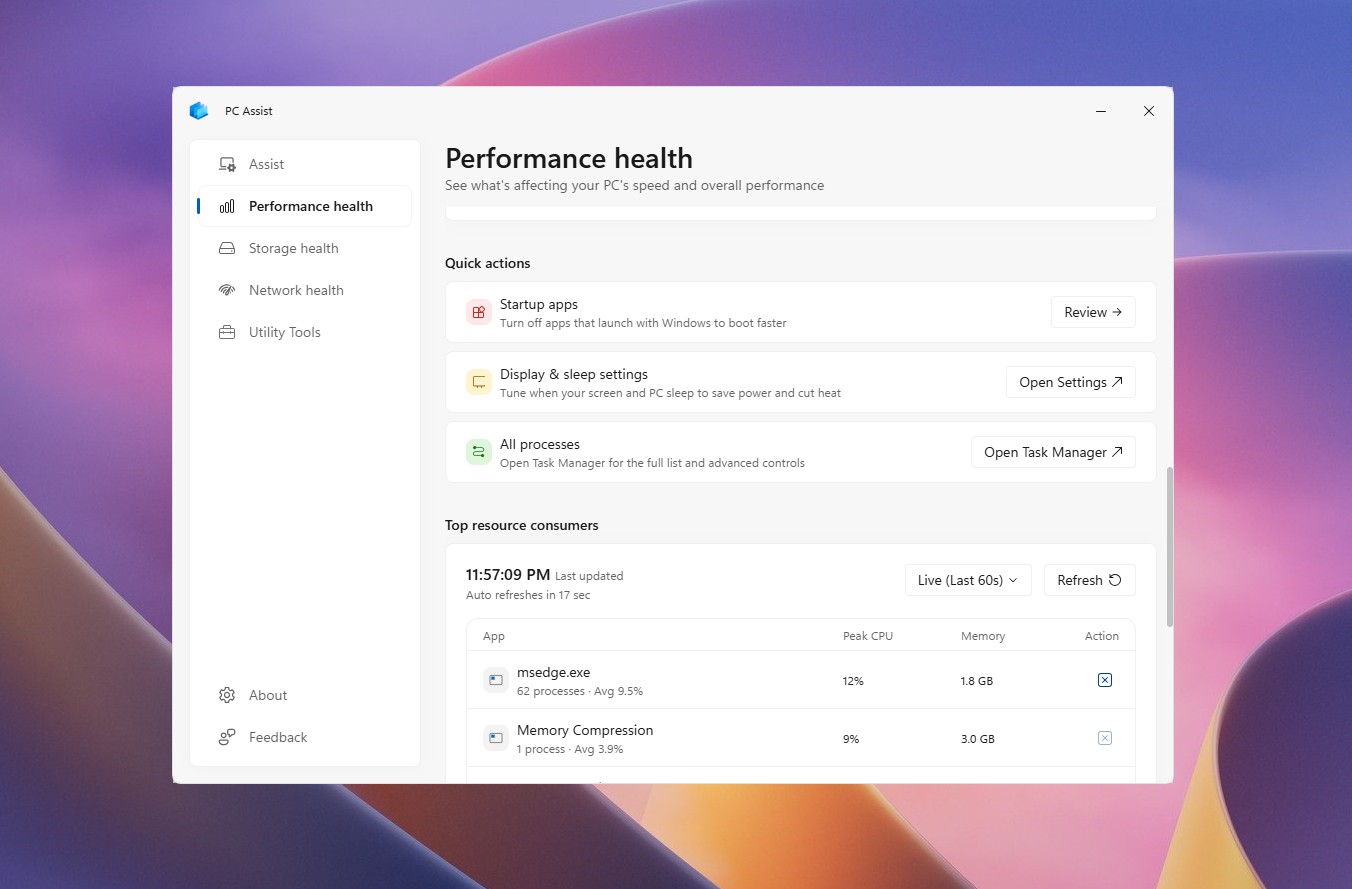
Accessing all this information usually requires several clicks across Settings and Task Manager, so consolidating it on one clean page is convenient. It would also make an excellent desktop widget, but PC Assist does not offer one.
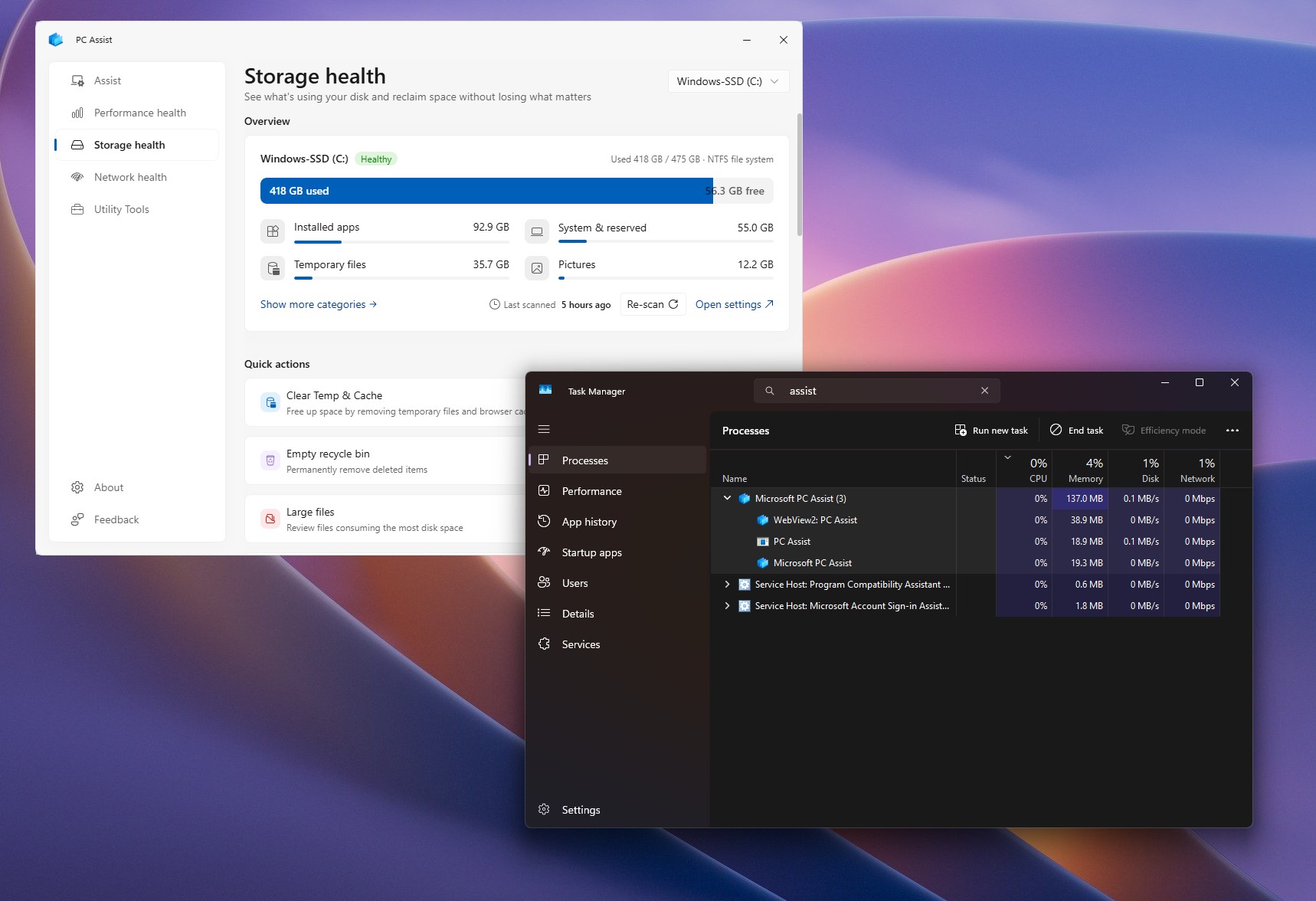
Storage health loaded faster than expected and is equally useful. It identified my 475GB drive as Healthy, with 418GB used and 56.3GB free. Installed apps occupied 92.9GB, System & reserved used 55GB, Temporary files accounted for 35.7GB, and Pictures used 12.2GB, with additional categories available in one click.

The quick actions are where Storage health proves its value. PC Assist found 100 large files occupying 219GB, 478 duplicate files using 718MB, and 42 rarely used apps consuming 11.4GB. Each category includes an Open button for reviewing the results. The page also provides Clear Temp & Cache, Empty recycle bin, Old downloads, and a Storage Sense toggle.
Windows 11’s Storage settings distribute most of these features across several pages and do not include a duplicate-file finder.
Network Health Is Impressive, but Utility Tools Is a Bing Launcher
Network health is another highlight. It displays a real-time throughput graph with send and receive speeds, alongside network details such as the adapter, SSID, DNS, connection type, and IP addresses.
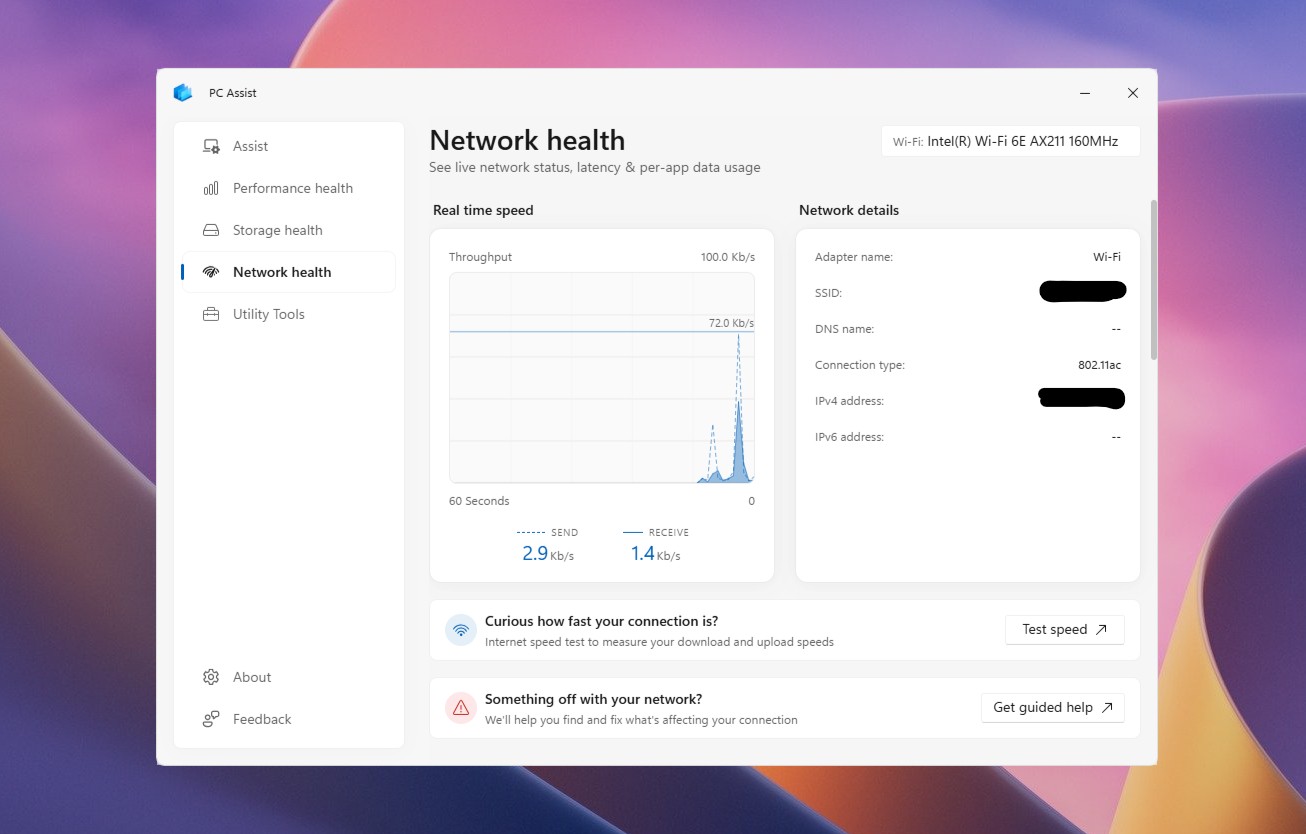
Below that, Past usage shows how much data each app consumed over the previous 30 days and includes a Set data limit button. Chrome used 113.65GB of my total 325.87GB, followed by Edge at 67.80GB. Live usage identifies the apps currently using bandwidth. Lenovo’s Smart Connect, which streams my Motorola phone to my laptop, accounted for 80%.
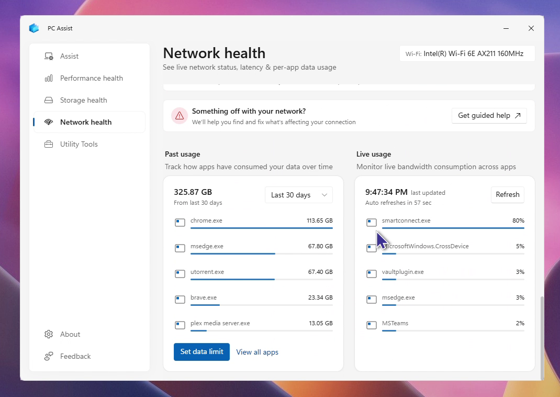
In Windows 11, past usage is buried under Settings > Network & internet > Advanced network settings, while live usage requires Task Manager. PC Assist usefully brings both views together on one page.
However, there is a catch. The Test speed button does not run a speed test within PC Assist. Instead, it opens Bing’s speed test in your browser, which is where the experience begins to deteriorate.
Utility Tools contains ten options, including Translator, Currency converter, Weather, Image creator, Video creator, and Internet speed test. Clicking any of them opens the corresponding Bing tool in your browser.
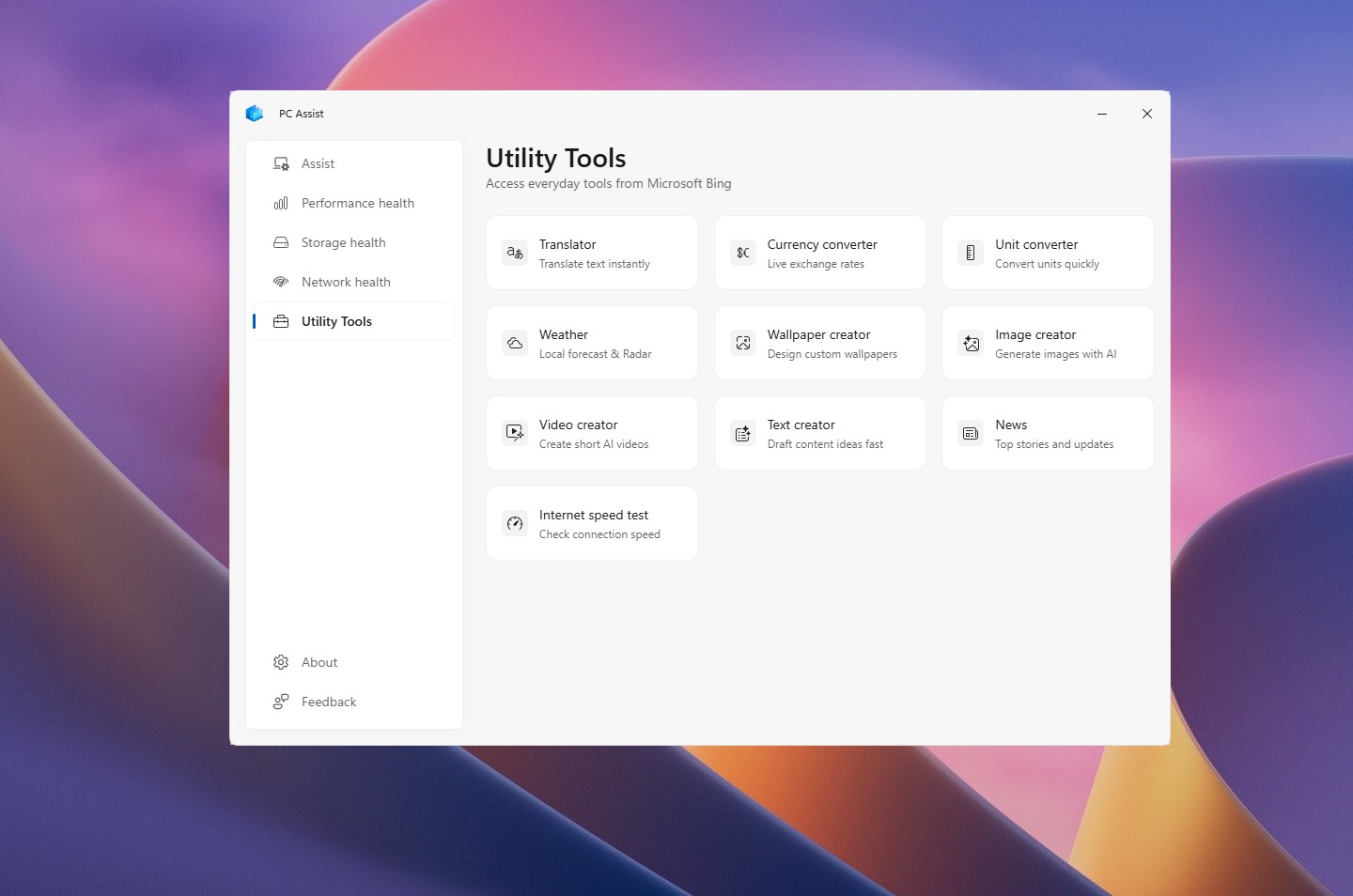
The page does state, “Access everyday tools from MS Bing,” so MS is not hiding its intention. The problem is that users must leave the app to access these tools, reducing Utility Tools to a list of bookmarks. An app is not necessary simply to bookmark Bing.
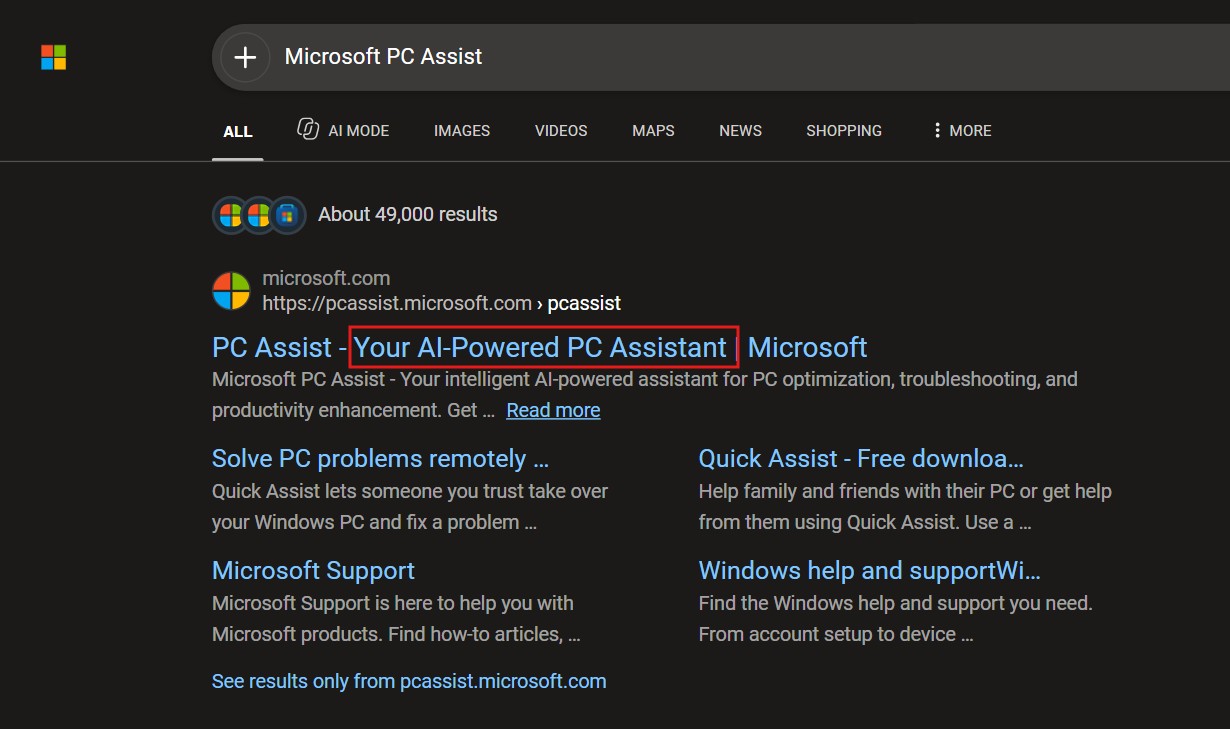
Then there is the AI claim. Searching for PC Assist on Bing produces a result titled “PC Assist – Your AI-Powered PC Assistant.” However, I could not find any AI functionality within the app. The only AI tools available are Bing’s image, video, and text creators, all of which open in a browser tab. Unless the “AI-powered” description refers to how the app itself was made—which is mostly a joke.
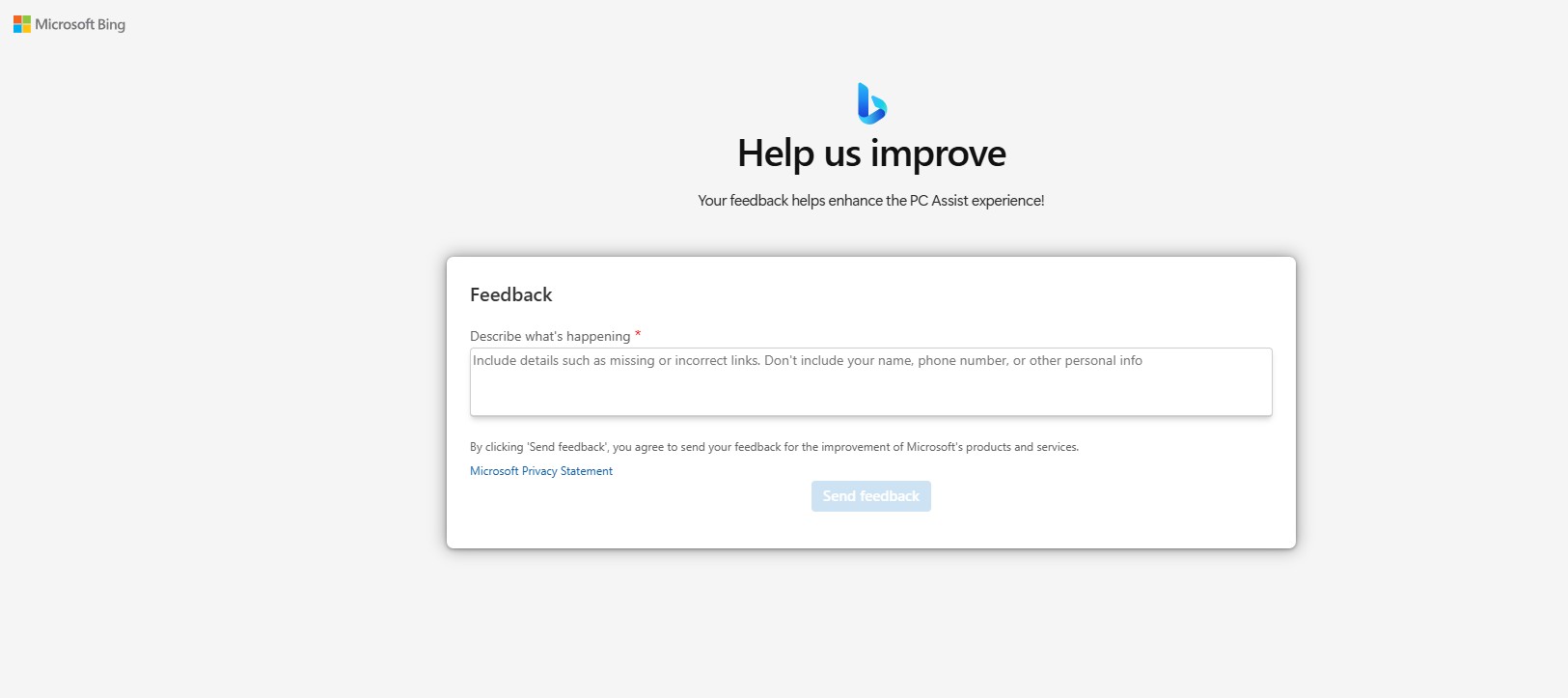
Clicking Feedback in PC Assist opened a MS Bing-branded “Help us improve” page. This reinforces the app’s strong connection to Bing, although it does not reveal which MS team developed it. If I had to guess, the Bing team may be responsible.
PC Assist Is Not a Replacement for MS’s PC Manager
MS already offers a PC maintenance app, and it is far ahead of PC Assist. PC Manager became widely available through the MS Store in 2024. It cleans junk files, frees memory, manages processes and startup apps, finds large files, and follows your Windows theme. It also includes a floating toolbar that displays your internet speed in real time. In my view, PC Manager represents MS at its best: its interface is excellent, and I use it every day.
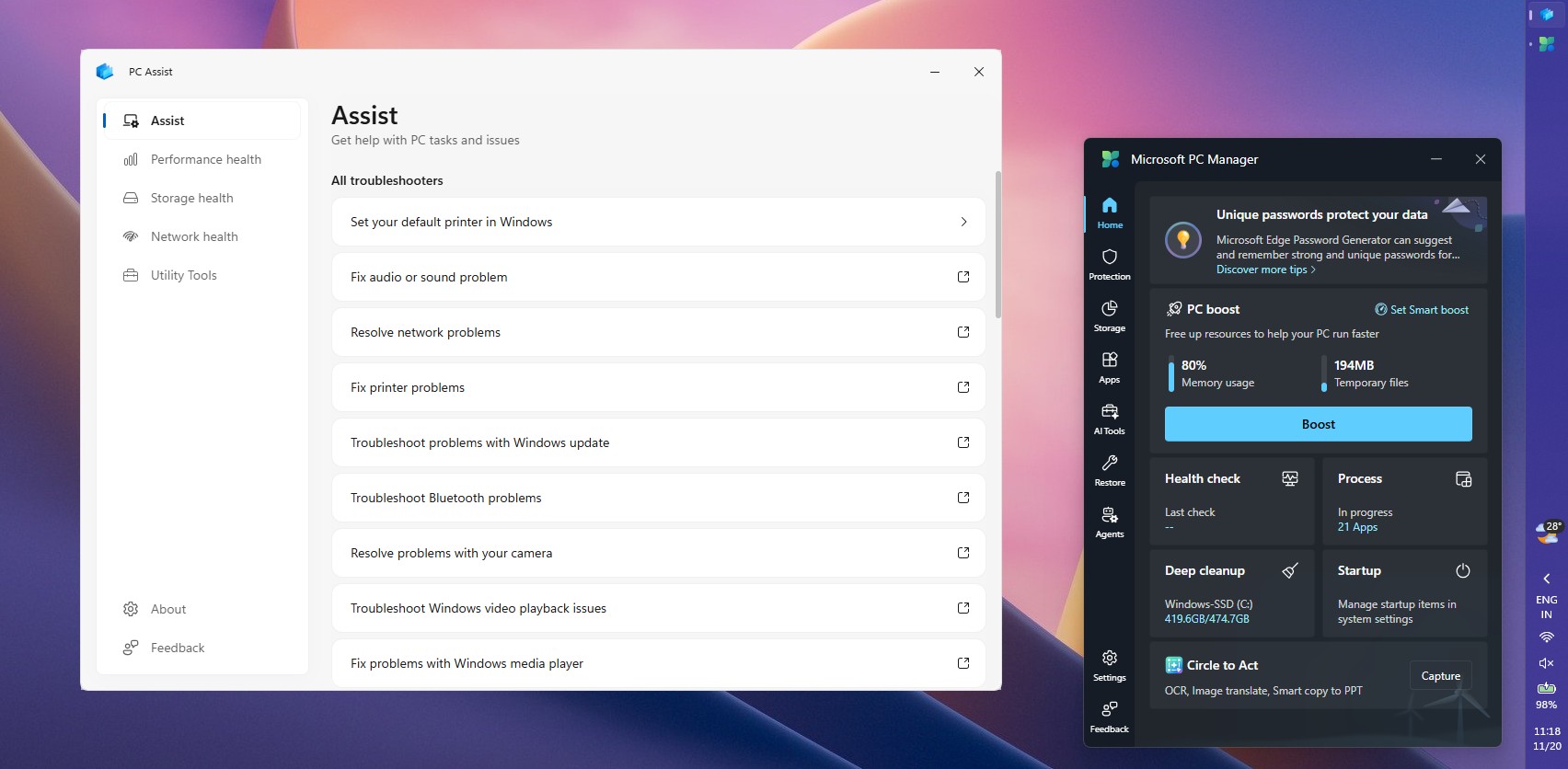
PC Manager is not perfect, either. It has displayed MS 365 advertisements, and its toolbox opens several Bing tools in Edge. However, PC Manager performs its core functions within the app, whereas PC Assist redirects users elsewhere for much of what it advertises.
Out of curiosity, I checked Task Manager. PC Assist runs as a group of three processes: PC Assist, MS PC Assist, and WebView2. Together, they used 137MB of RAM. This indicates that at least some parts of PC Assist are web pages rendered through WebView2. Amusingly, its combination of native and web components closely resembles Windows 11 itself.
MS appears to have more time to build app shells than to complete the tools inside them. PC Manager is what PC Assist should have been, and MS could have added these dashboards to it instead of developing another app that overlaps with Settings, Task Manager, and Get Help.
MS Needs to Make PC Assist Useful Before Turning It into Another Bing Promotion
PC Assist may have a reasonably solid foundation, but whenever users do more than monitor their PCs, it redirects them to Get Help or Bing. If MS is reading this, my feedback is straightforward: integrate the troubleshooters and tools directly into the app, add dark mode and a resizable window, and explain which features are AI-powered. MS should also remove the WebView2 components and make the app entirely native with WinUI, consistent with what the company advocates.
MS does not appear to understand the psychology involved. Pushing Bing at users with every click will not persuade them to choose the search engine; it is more likely to have the opposite effect. If PC Assist worked exceptionally well, people might regain trust in MS’s software and choose Bing and Edge voluntarily. Why is that so difficult to understand?
On one hand, MS is killing To Do, which appears to be universally loved based on X replies from the past two days, after we were the first to spot the change. On the other hand, the company is creating apps like this whose primary purpose seems to be promoting Bing. Does MS hate its customers?
Windows Latest depends on readers like you. Make us your Preferred source on Google Discover and Google Search, and help our independent reporting reach more people.