Windows 11 Search Now Offers Option to Disable Web Results
Windows 11’s Search introduces a long-awaited feature that allows users to completely remove web results. This option is currently hidden within Insider Experimental build 26300.8697, the first build carrying Windows 11 version 26H2. With the toggle enabled, Search becomes noticeably faster, displays a cleaner interface, and prioritizes local results, eliminating Bing's interference.
Key Updates to Windows 11 Search
Initial reports from Windows Latest in May highlighted Microsoft’s plans to deprioritize web results in Windows Search. Further updates in June confirmed the addition of a dedicated toggle to control this feature. On June 18, Microsoft officially acknowledged this update, emphasizing the improvement in Search performance due to the removal of web round-trip delays.
How Windows 11 Search Looks Without Web Results
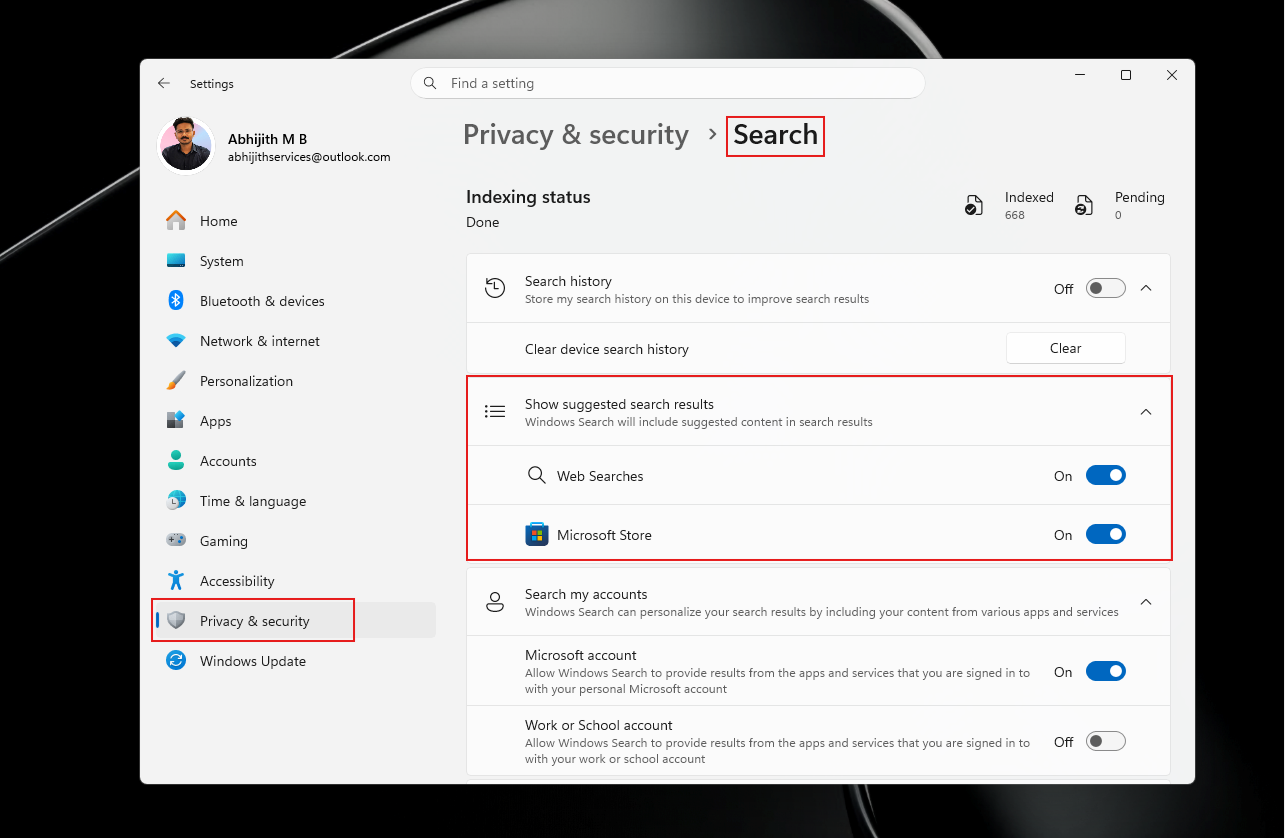
The new Web Searches and Microsoft Store toggles are housed under the “Show suggested search results” section in the Privacy & Security settings page of Windows Search. Users can also access these options via the gear icon in the top-right corner of the Search interface.
Before disabling the toggles, Windows Search no longer displays MSN content, top apps, or trending searches by default. However, if the Search history toggle is enabled, past web searches may still appear. Disabling the toggles significantly streamlines the Search experience, offering a faster and more focused interface.
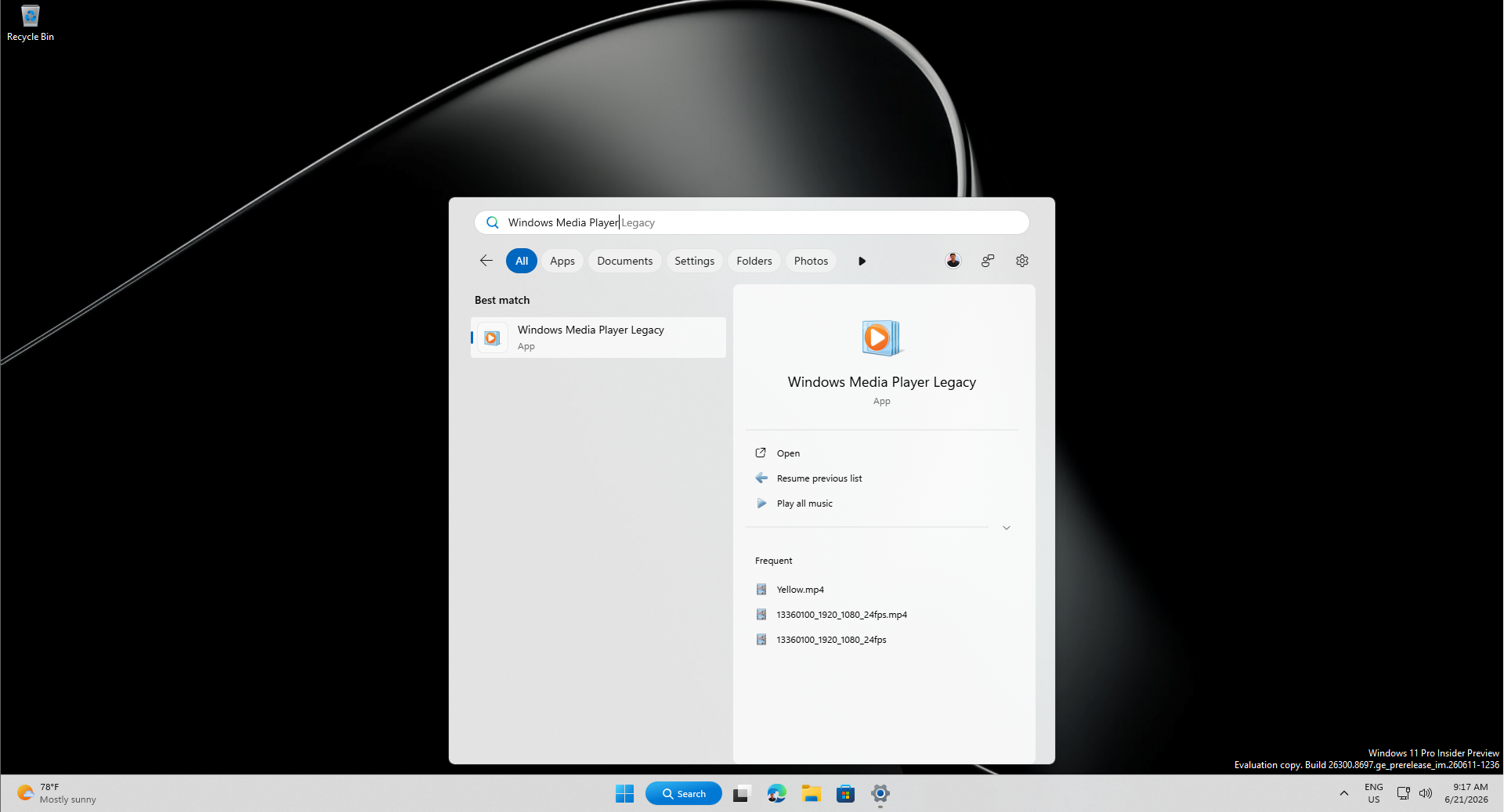
With the Web Searches toggle turned off, Search only displays recent app and settings searches, eliminating web suggestions. This update is particularly beneficial for users with lower-spec machines as it enhances performance noticeably. For example, even a dual-core PC with 4GB of RAM running the Insider Build exhibits faster Search performance.
Improved Local Content Indexing
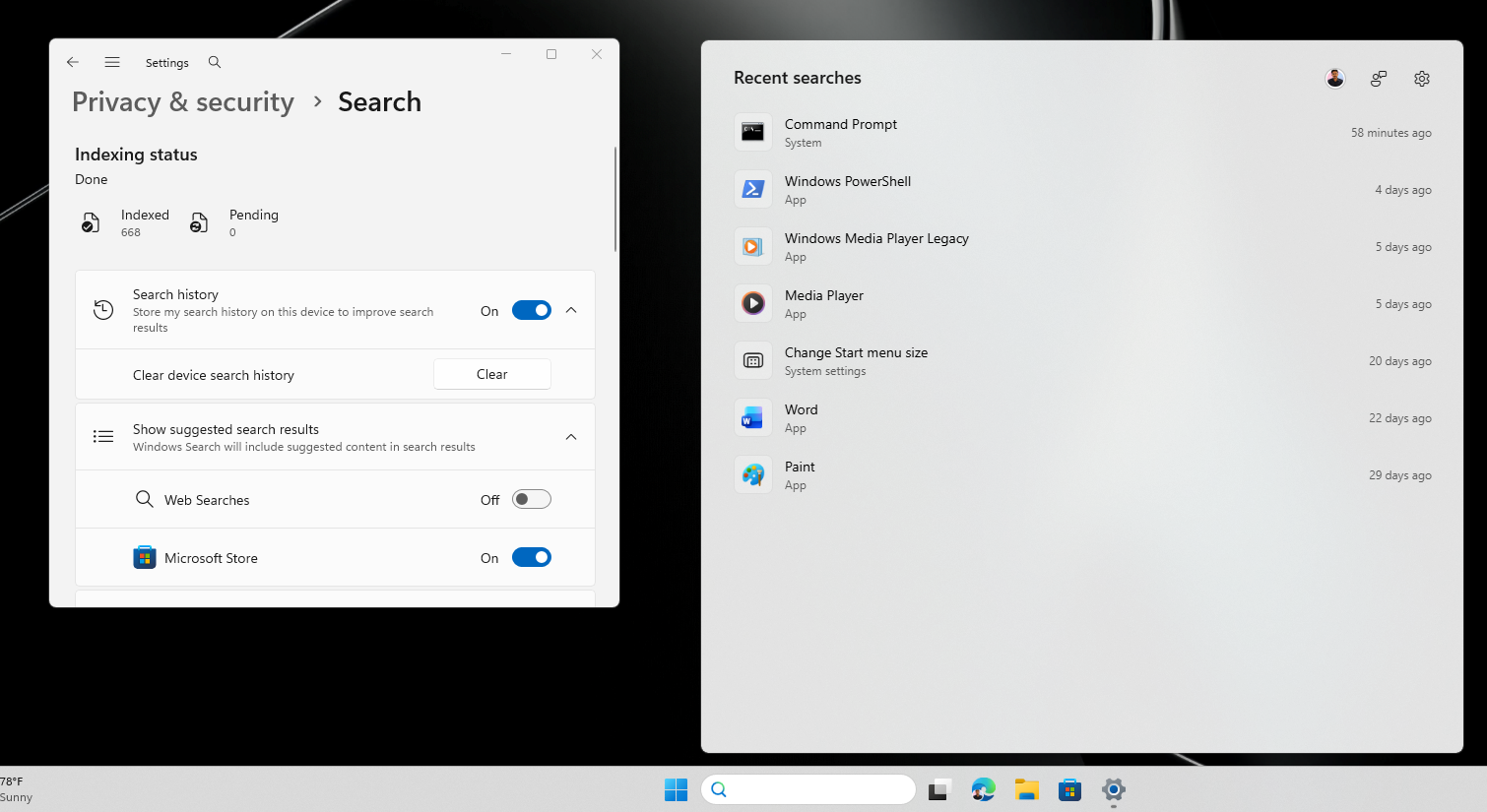
Disabling web results enhances local content indexing. For instance, searching for a term like “pdf” now prioritizes local files over web links or Microsoft Store apps. The results include comprehensive details like file type, last modified date, file location, and quick actions (e.g., Open, Open file location, Copy path). Similarly, searching terms like “motorola” filters results to relevant local files without showing web results.
Independent Control Over Microsoft Store Results
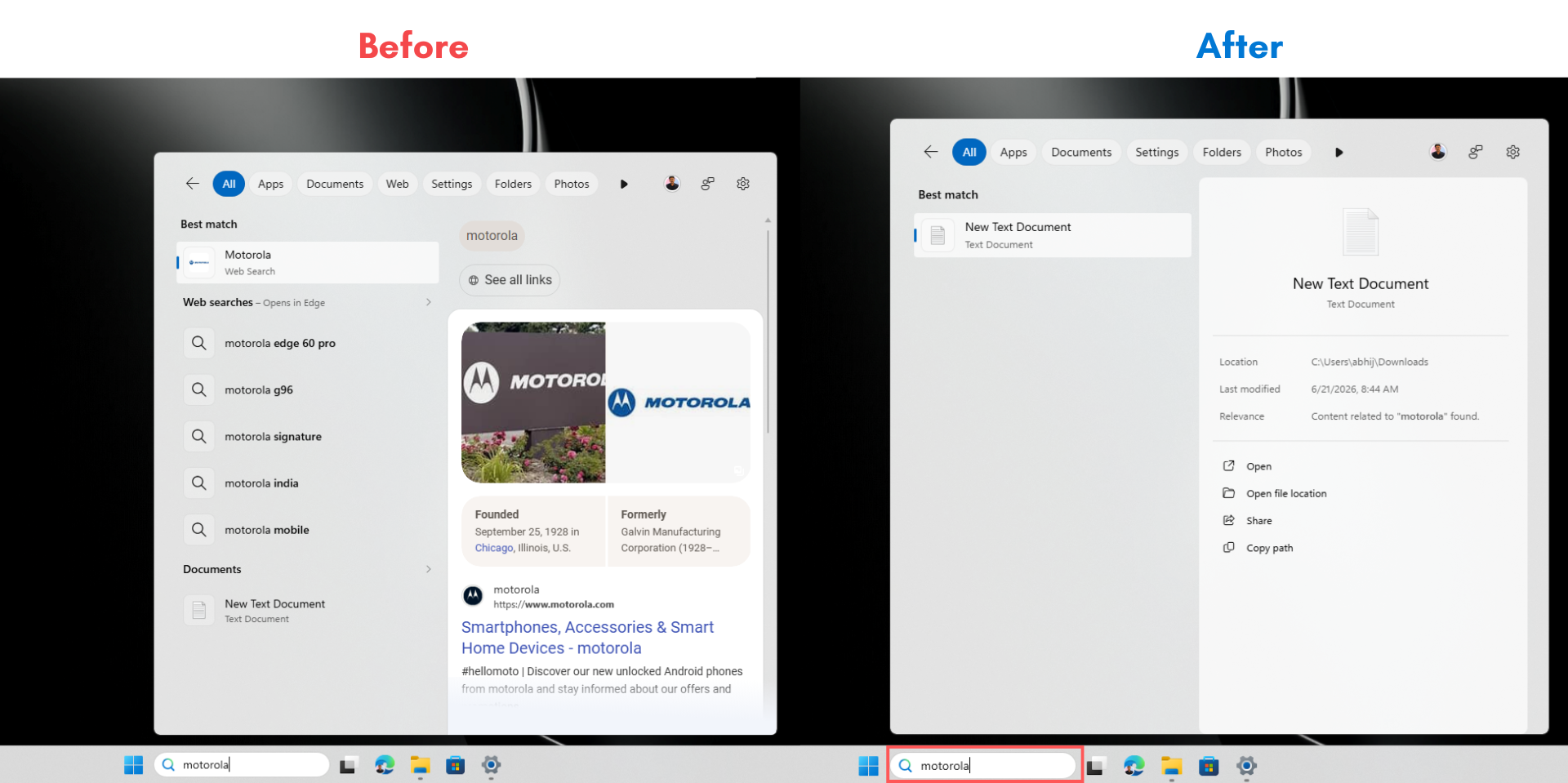
The Microsoft Store toggle can be managed separately from Web Searches. With Web Searches turned off but Microsoft Store enabled, queries like “call of duty” display app results from the Store, complete with ratings, screenshots, and a direct “Get” button. Disabling the Microsoft Store toggle, however, removes Store results entirely, ensuring a strictly local search experience.
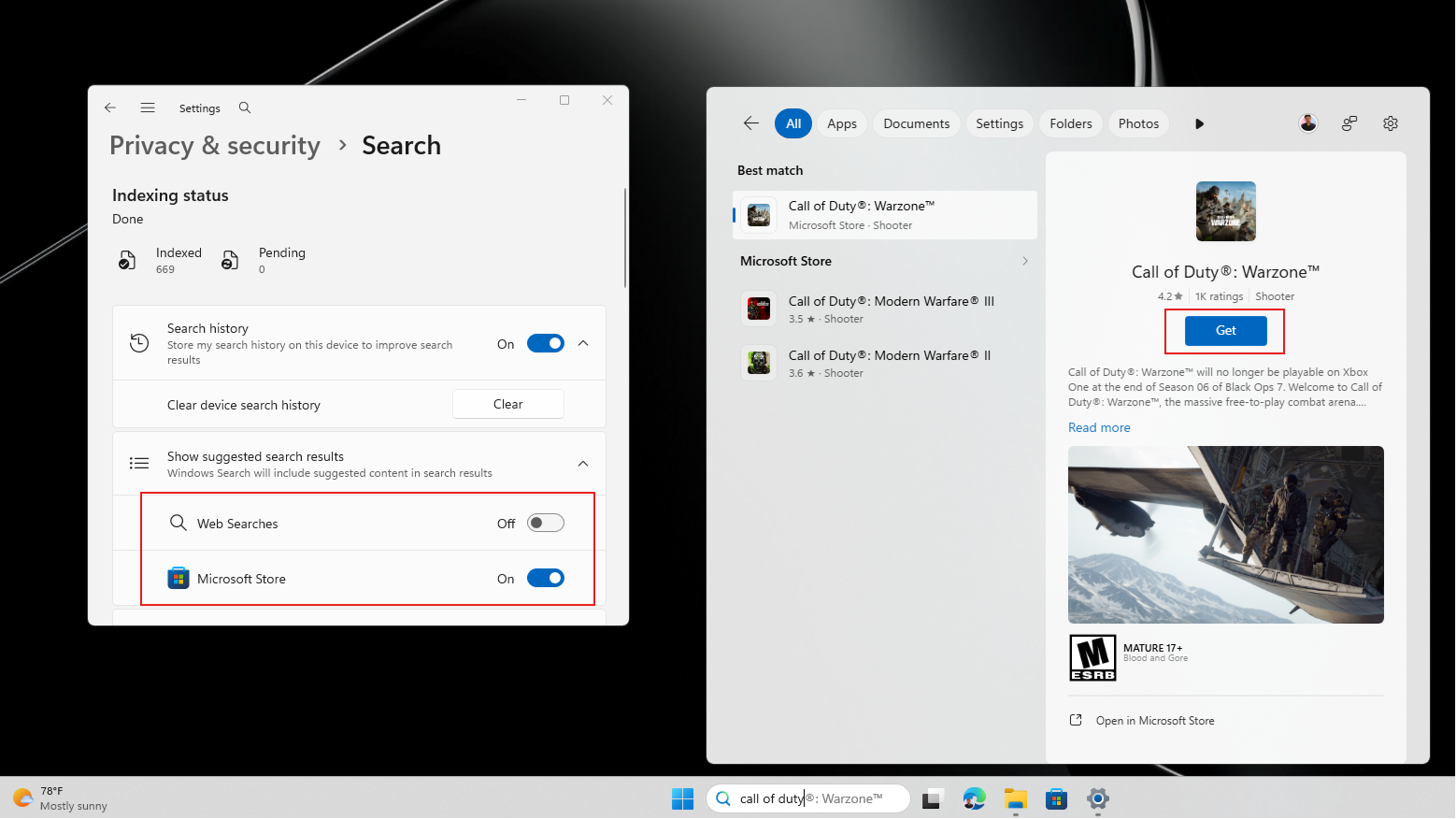
This dual-toggle system addresses complaints from users who found the Microsoft Store integration disruptive. It now allows users to fine-tune Search to their preferences, either enabling app discovery or focusing solely on local content.
Enabling the Hidden Windows Search Toggle
The feature is currently hidden in Insider Experimental build 26300.8697, released on June 19, 2026. To enable it, follow these steps:
- Download ViveTool from GitHub and extract it.
- Run Command Prompt as an administrator.
- Navigate to the folder containing ViveTool and execute the following command:
vivetool /enable /id:61267302,61344081,61482515,61532758,61760679
If the feature does not appear after restarting, enable the additional feature ID 48433719 using the command:
vivetool /enable /id:48433719
Once enabled, navigate to Settings > Privacy & Security > Search, where the “Show suggested search results” section with Web Searches and Microsoft Store toggles will be visible.
Note: ViveTool is a third-party utility and is not officially supported by Microsoft. Proceed with caution and use it only on Insider builds.
Additional Improvements in Windows Search
Microsoft has announced further enhancements to Windows Search slated for 2026. These include:
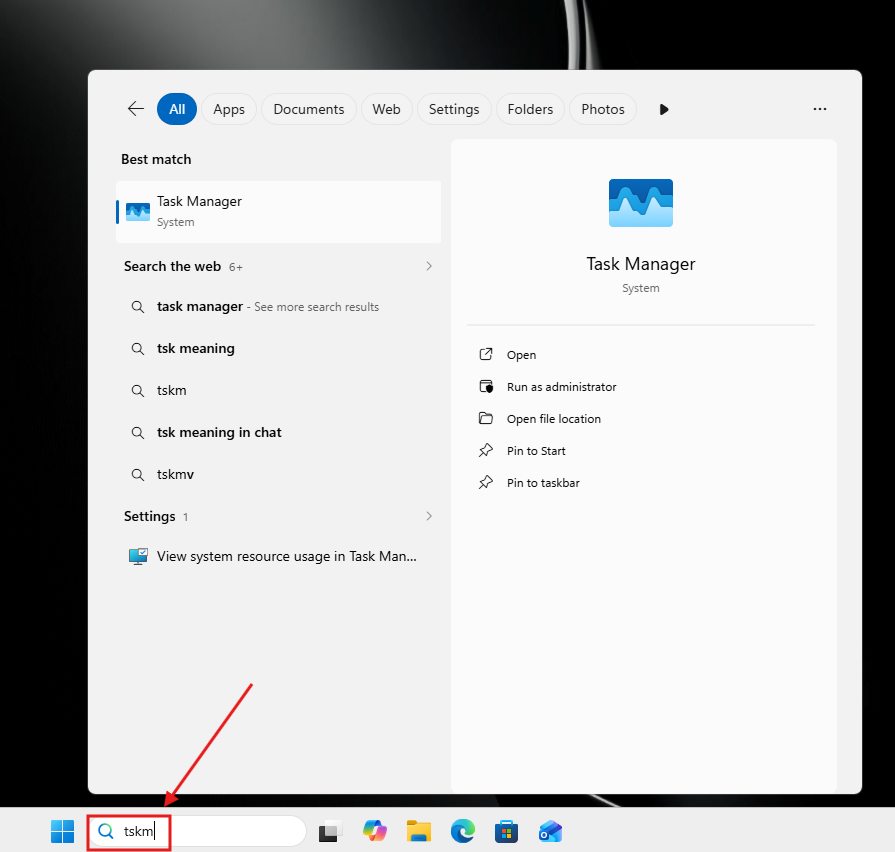
- Typo forgiveness: Search now corrects misspelled app names (e.g., “pwerp” for PowerPoint).
- Faster results: File results are triggered after typing just two characters instead of three.
- Improved substring matching: This feature allows better search results for compound file names.
These updates reflect Microsoft’s shift towards enhancing user control and reducing dependency on its ecosystem services. By softening the integration of Microsoft accounts and services, the company is making strides to create a more personalized and streamlined Windows experience.
Conclusion
The latest updates to Windows Search mark a significant step forward in usability and performance. By allowing users to disable web results and Microsoft Store suggestions, Microsoft is addressing longstanding user feedback. While this feature is still in its experimental phase, the improvements are promising, and broader availability is expected soon.
Stay tuned for more updates as Microsoft continues to refine the Windows Search experience.