MS Says AI Built a Windows 11 Feature Without AI Slop, With Spare-Time Human Help
Windows 11’s new internet speed test in Quick Settings went from an idea to a working prototype in a single day, according to Windows Design and Research lead Marcus Ash. Surprisingly, the design and development work was completed through an agentic AI workflow guided by one person in their spare time. I tested it last week, and it is one of the most polished small additions to Windows 11 in quite some time.
If one person can accomplish that during break hours, imagine what this approach could do for the rest of Windows. Three things need to happen, and all of them appear to be already in motion.
Windows 11’s Speed Test Went From an Idea to a Working Prototype in One Day
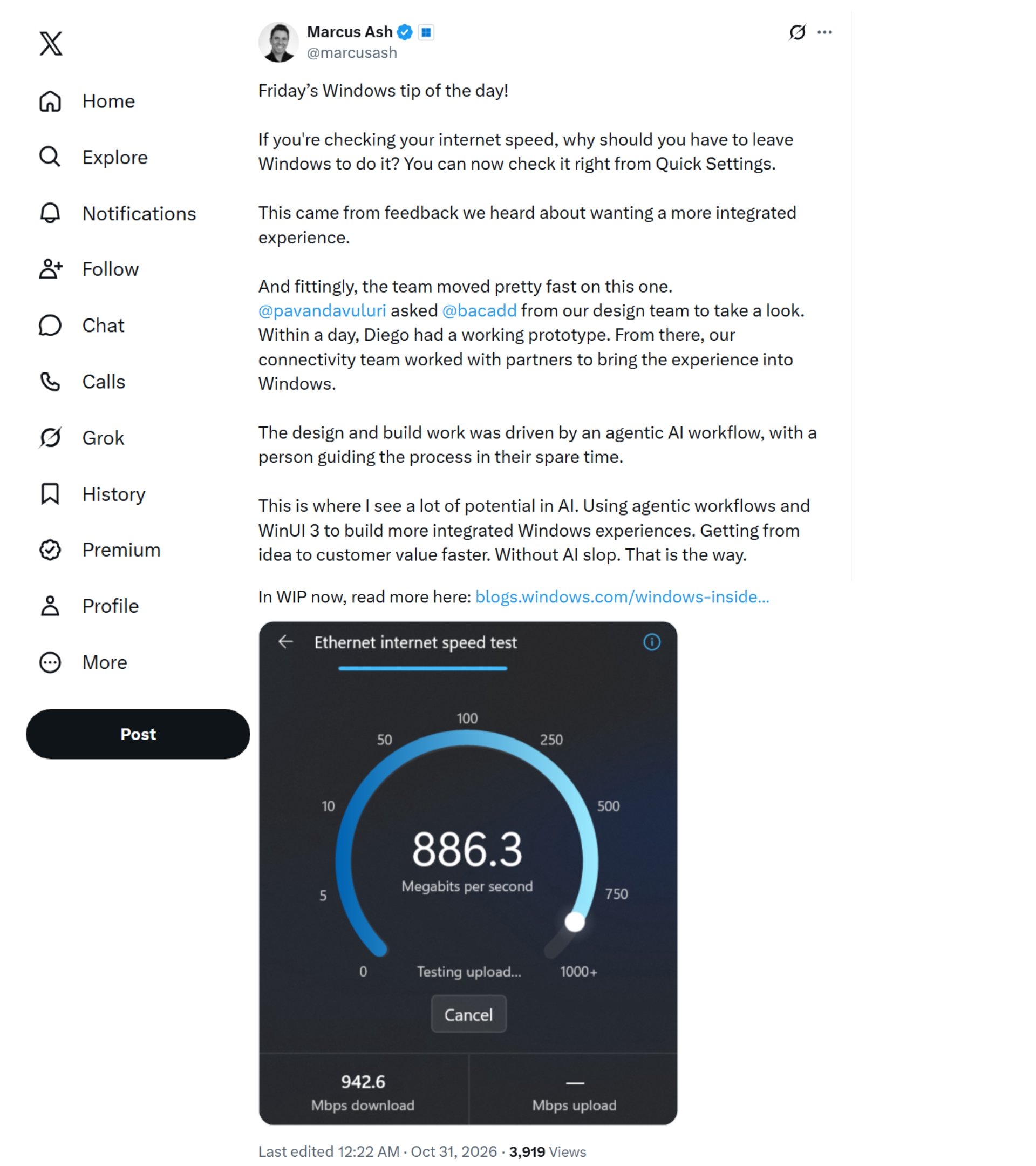
In his “Windows tip of the day” post on X, spotted by Windows Latest, Ash explained that the feature originated from user feedback. “This came from feedback we heard about wanting a more integrated experience,” he wrote.
AI Made It Happen
Windows president Pavan Davuluri then asked Diego Baca, MS’s Vice President of Product Design, to explore the idea. “Within a day, Diego had a working prototype,” Ash said. MS’s connectivity team subsequently worked with partners to integrate the experience into Windows.
Regarding how it was built, Ash wrote, “The design and build work was driven by an agentic AI workflow, with a person guiding the process in their spare time.” He added, “Getting from idea to customer value faster. Without AI slop.”
It is not AI slop because a human guided the agents, while MS engineers and partners handled the integration. The test itself is powered by Speedtest by Ookla. Ash did not disclose which AI models or tools were used or how much of the code was written by AI.
Either way, AI-assisted or not, producing a prototype in one day during someone’s spare time is a dramatic departure from the usual pace of Windows development.
I Tested Windows 11’s New Speed Test, and It Works Surprisingly Well
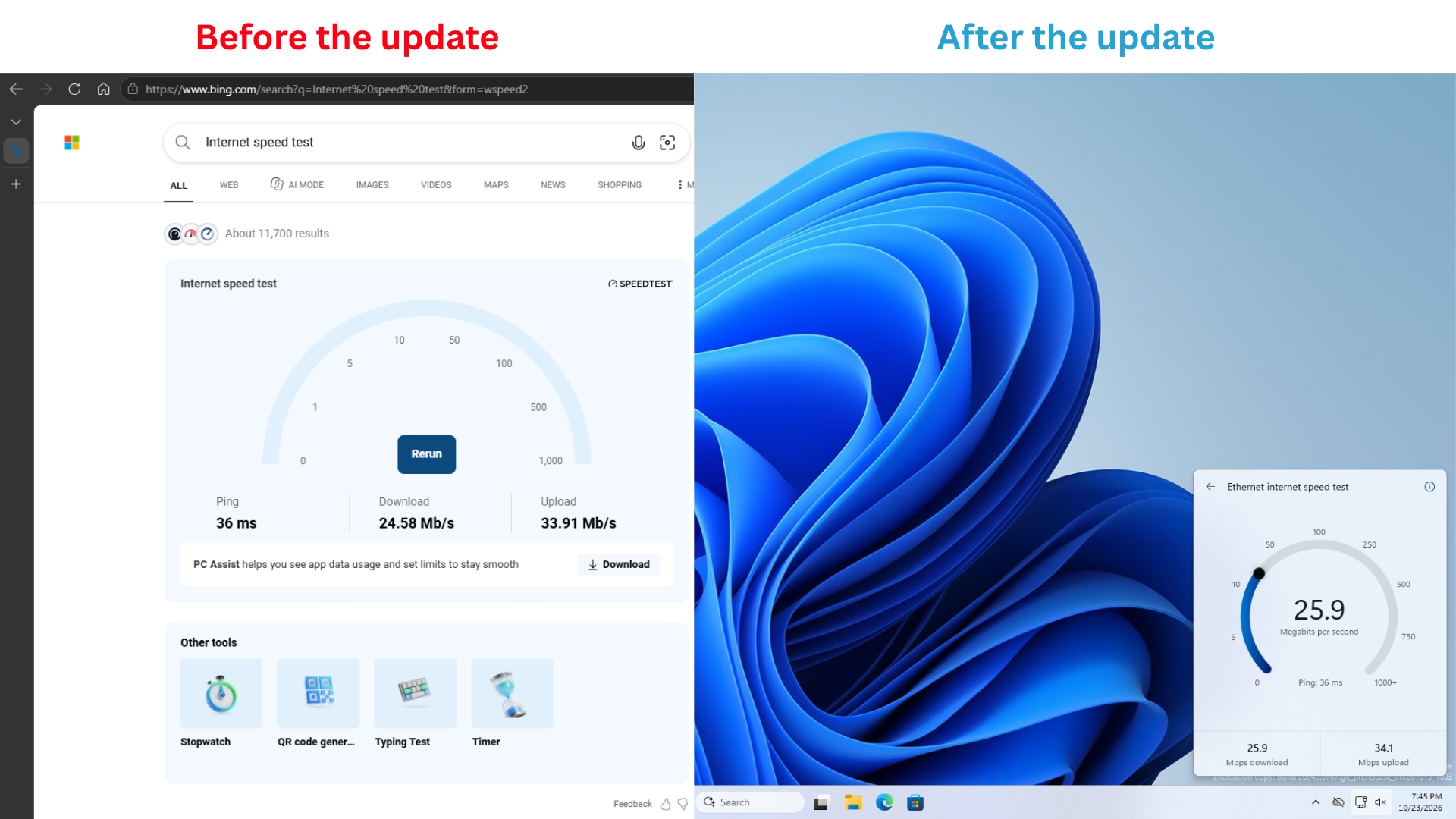
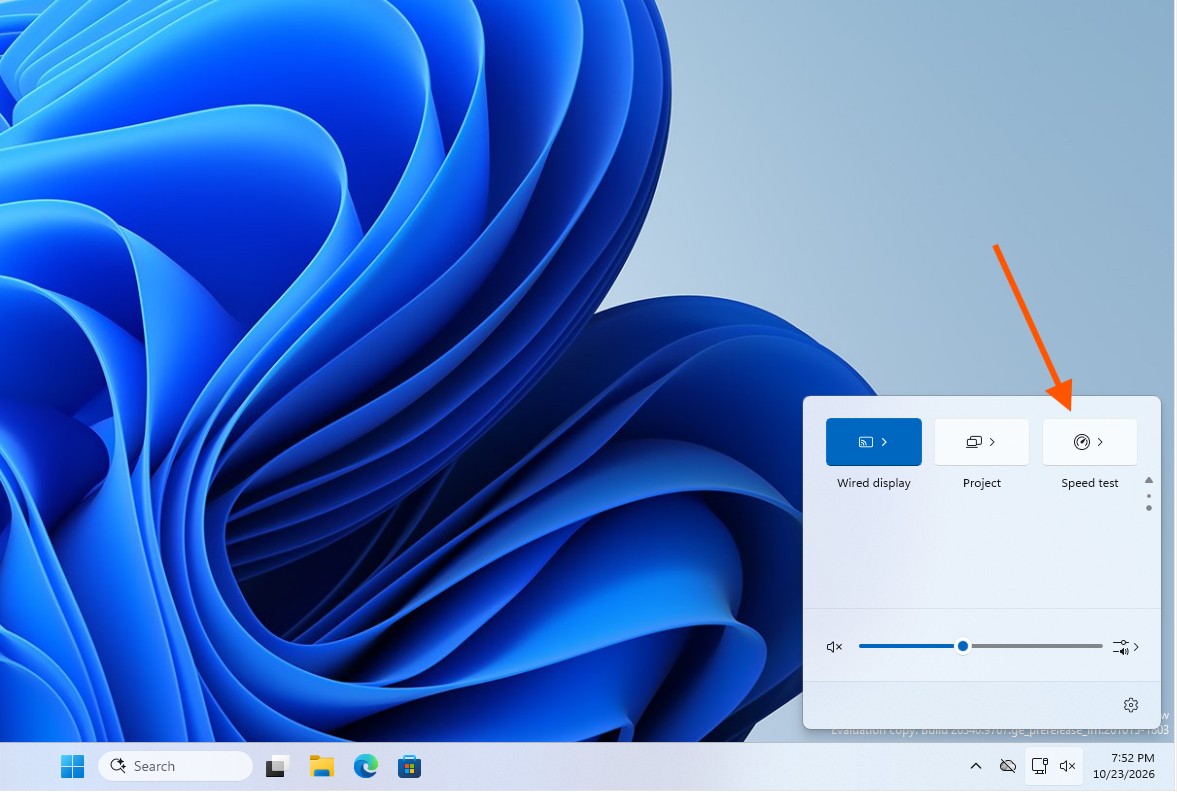
MS introduced the feature in the October 23 Experimental build, allowing Insiders to run a speed test and view the results in Quick Settings “without being redirected to a browser.” On my build, version 26340.9767, I first had to enable the “Quick Settings Speed Test” feature flag.
You can start a test from the new Speed test tile, the Wi-Fi flyout, or by right-clicking the network icon on the taskbar and selecting “Test internet speed.”
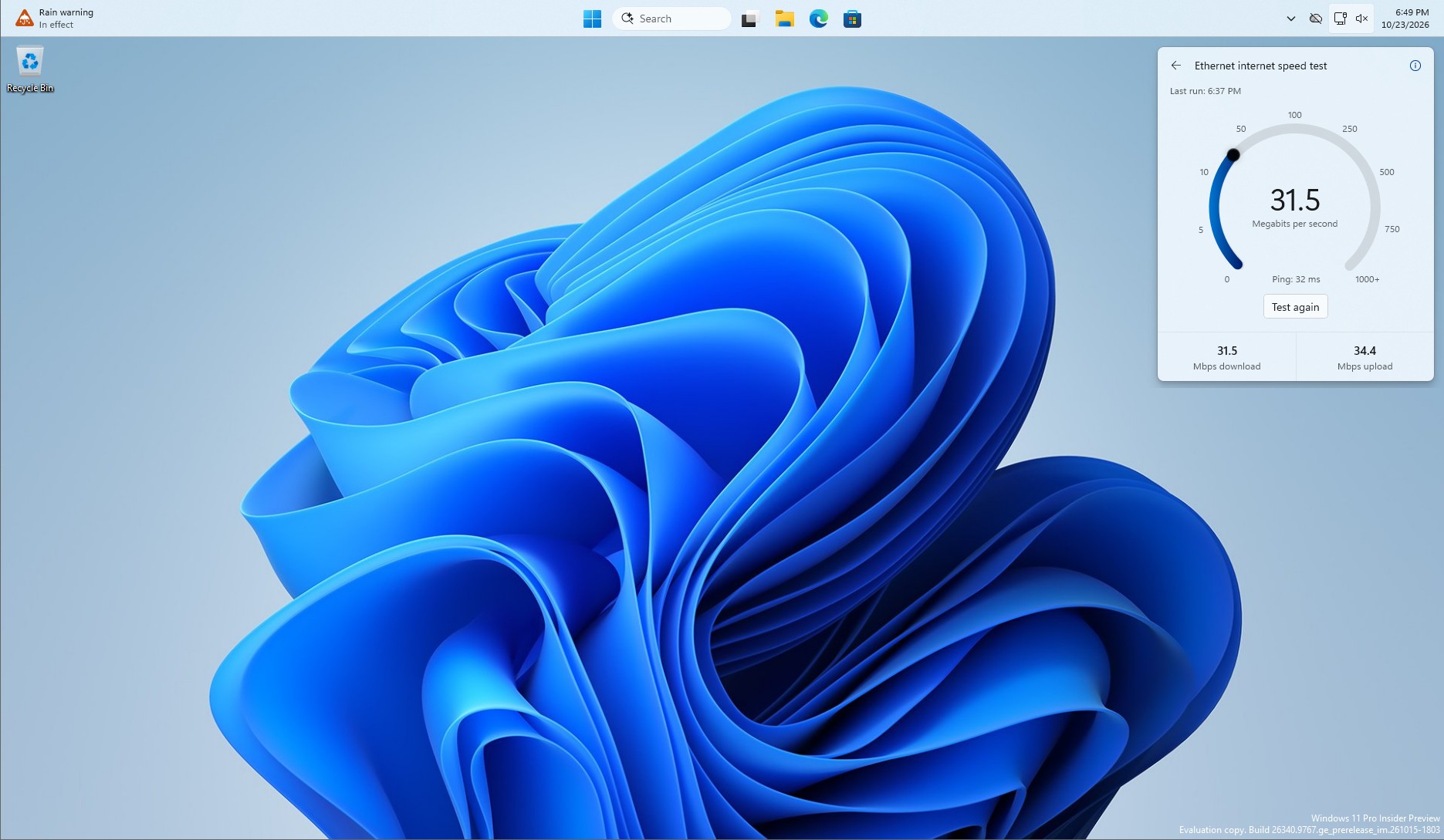
On my virtual machine connected via Ethernet, the flyout reported download speeds of 31.5 Mbps, upload speeds of 34.4 Mbps, and a ping of 32 ms, all in under 30 seconds. The results were accurate, as I also confirmed the speeds on two Android devices.
I half expected the feature to break because it was part of an Experimental build. Surprisingly, it worked without any issues, even when I moved the taskbar to other edges of the screen, and it looked good in both light and dark themes.
If you use a Windows 11 PC, you may know that the existing Perform speed test shortcut simply opens Bing in your browser, saving no time compared with a regular search for an internet speed test. Ironically, both experiences use Speedtest by Ookla, even though Bing previously had its own version.
Three Things Need to Happen Across Windows 11—and They Finally Are
1. WinUI Has to Be Good
MS’s native framework went years without basic features such as data tables, charts, and pen inking, which is one reason Windows 11 includes so many web apps. At Build 2026, MS’s Chris Anderson acknowledged that WinUI has “a ton of feature gaps in the platform.”
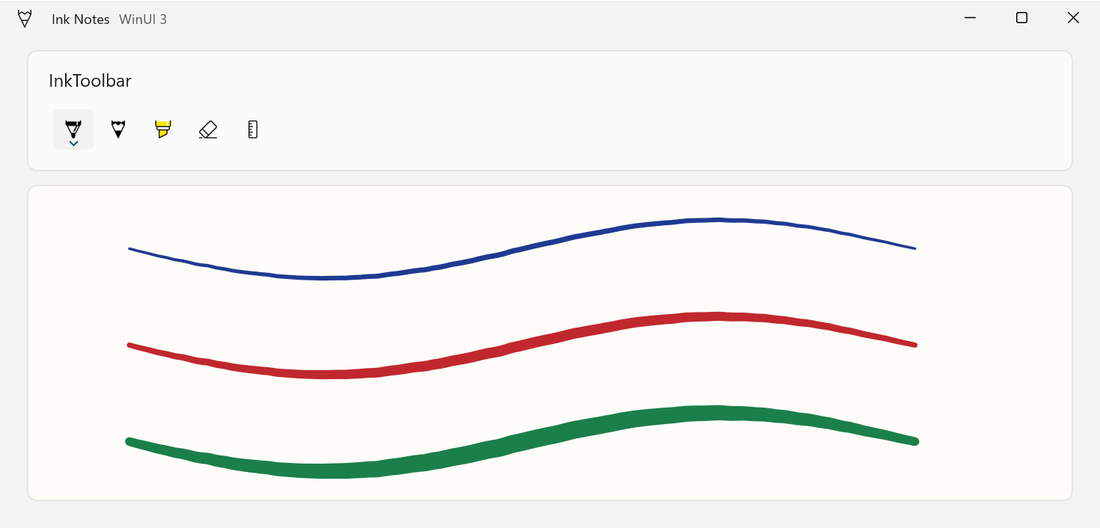
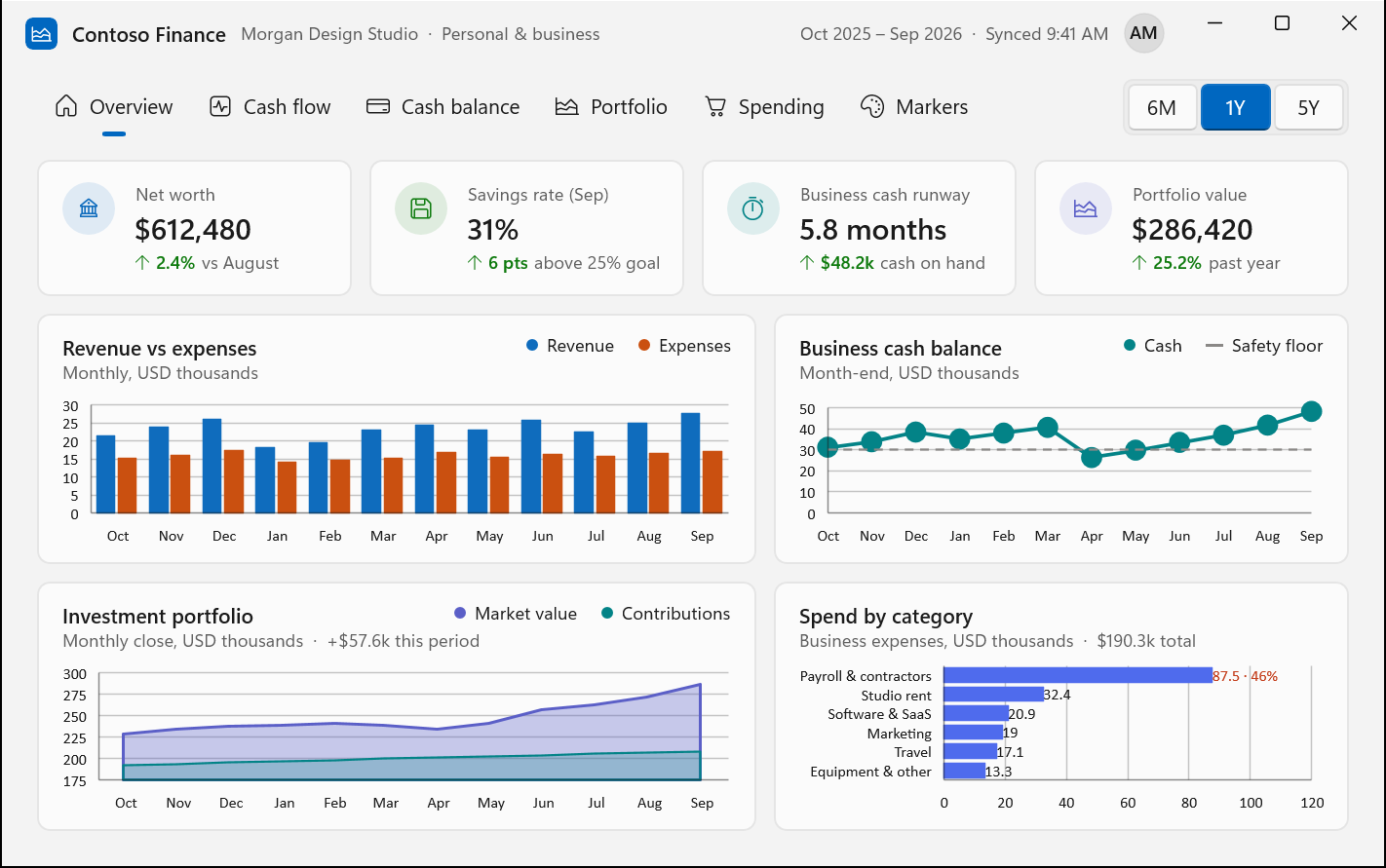
TableView and Chart finally arrived in the experimental Windows App SDK 2.5.4 on September 29, although MS says they are not yet ready for production apps.
WinUI’s mainline development also moved to GitHub in August. However, external developers still cannot contribute code because MS is first validating the process.
2. Windows Has to Use WinUI
After the Properties dialog was rebuilt in WinUI 3, March Rogers, MS’s Partner Director of Design, said, “Our plan is to bring more of the Windows UI to WinUI 3.” Since then, AutoPlay has followed, while Print Management has become a standalone WinUI 3 app and reached Release Preview faster than I expected.
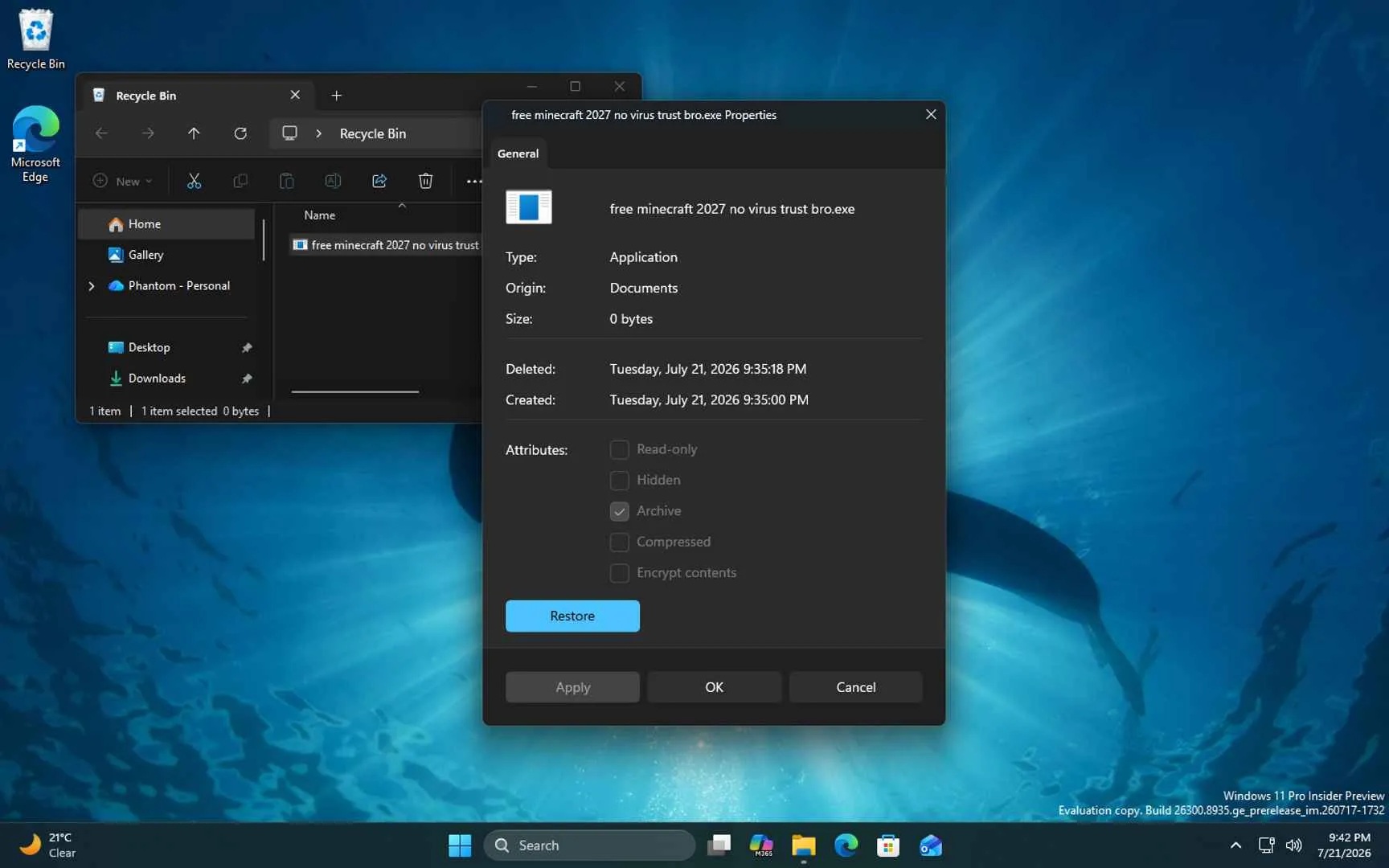
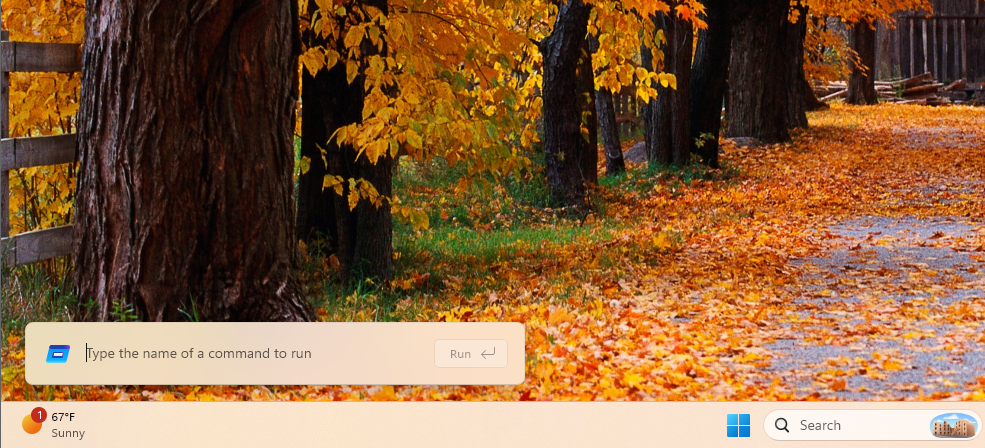
MS’s telemetry also shows the new WinUI Run dialog opening in 94 ms, compared with 103 ms for the Windows 95-era version, demonstrating how fast WinUI can be. Most of these updates remain limited to Insider builds, however.
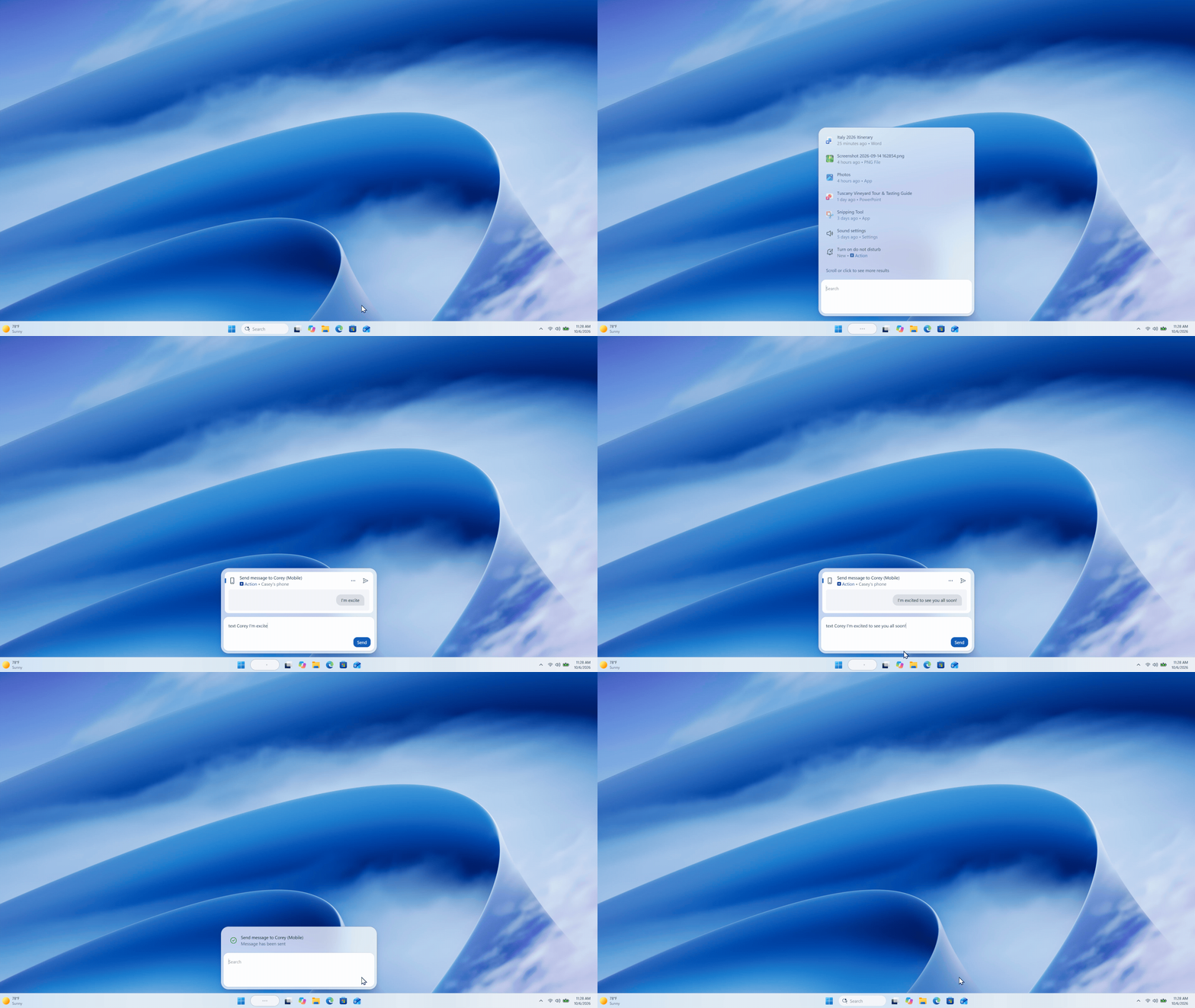
My favorite update so far is the new Windows Search, which MS says is “built on WinUI 3” and is “faster and more efficient with resources.” MS has rolled it out to Insiders, with a broader release planned for later this year. To put it simply, I love everything about the new Search experience.
3. Development Has to Move Quickly
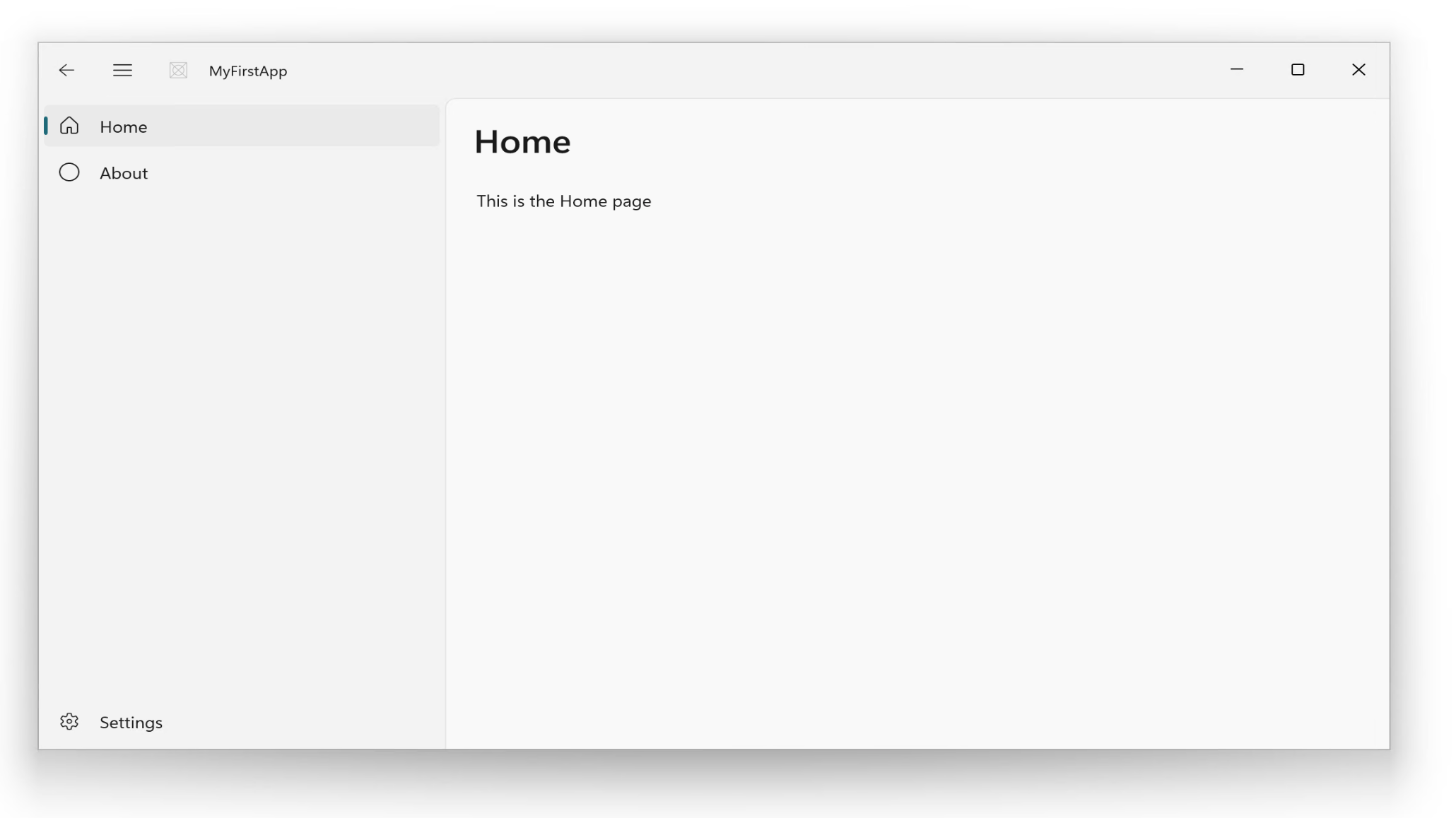
All of this needs to happen quickly, and AI can make that possible. Diego Baca said, “AI has already helped our design team accelerate significantly,” with designers now contributing code fixes to Windows. MS has also published guides demonstrating how AI can build a native WinUI app in approximately 30 minutes.
MS’s Own Apps Need the Same Speed Test Treatment
Clipchamp
The app I open almost every day is Clipchamp. It is surprisingly feature-rich for small edits, even on the free plan, but it is still a web app, and the interface lag makes that obvious. I would gladly pay for Premium if Clipchamp were rebuilt as a native WinUI app.
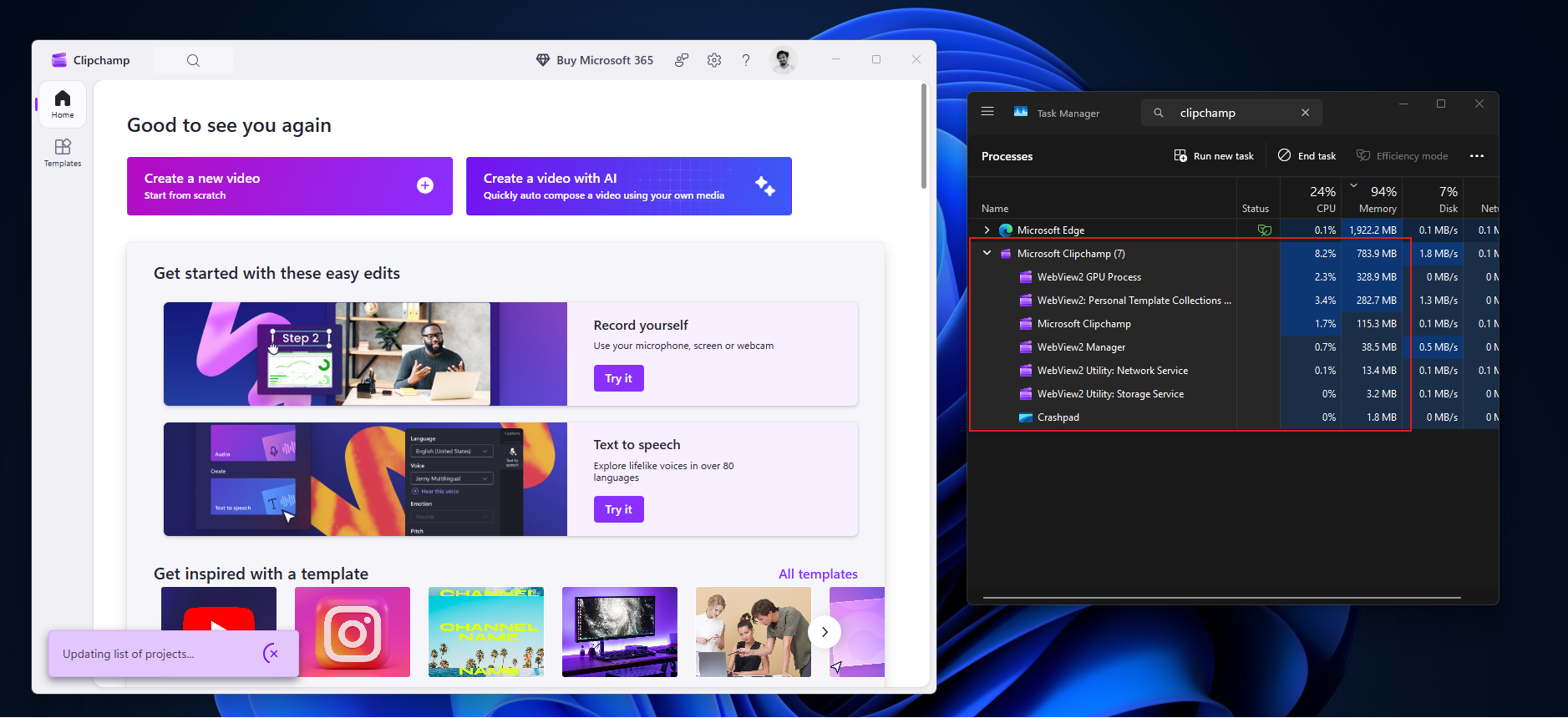
A fast, native editor could become the Windows Movie Maker of this generation—the app that many successful creators used to make their first YouTube videos, including Marques Brownlee, also known as MKBHD.
Weather
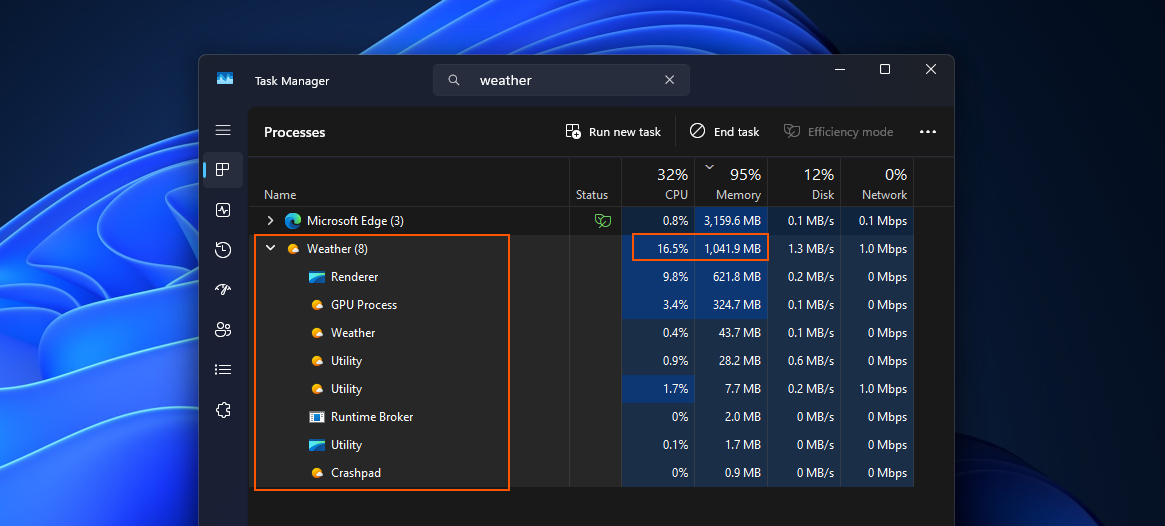
Then there is the Weather app, a basic application that every operating system needs. In our testing, Windows 11’s Weather app used more than 1.2 GB of RAM while idle and ran nine Chromium subprocesses. By comparison, Apple’s native Weather app on macOS used 246.7 MB. A weather app consuming more than a gigabyte of memory is, to say the least, shameful.
MSN News
MSN News is another candidate. In an era of endless social media feeds, a fast, native MSN News app could provide a welcome antidote to brain rot.
MS Teams
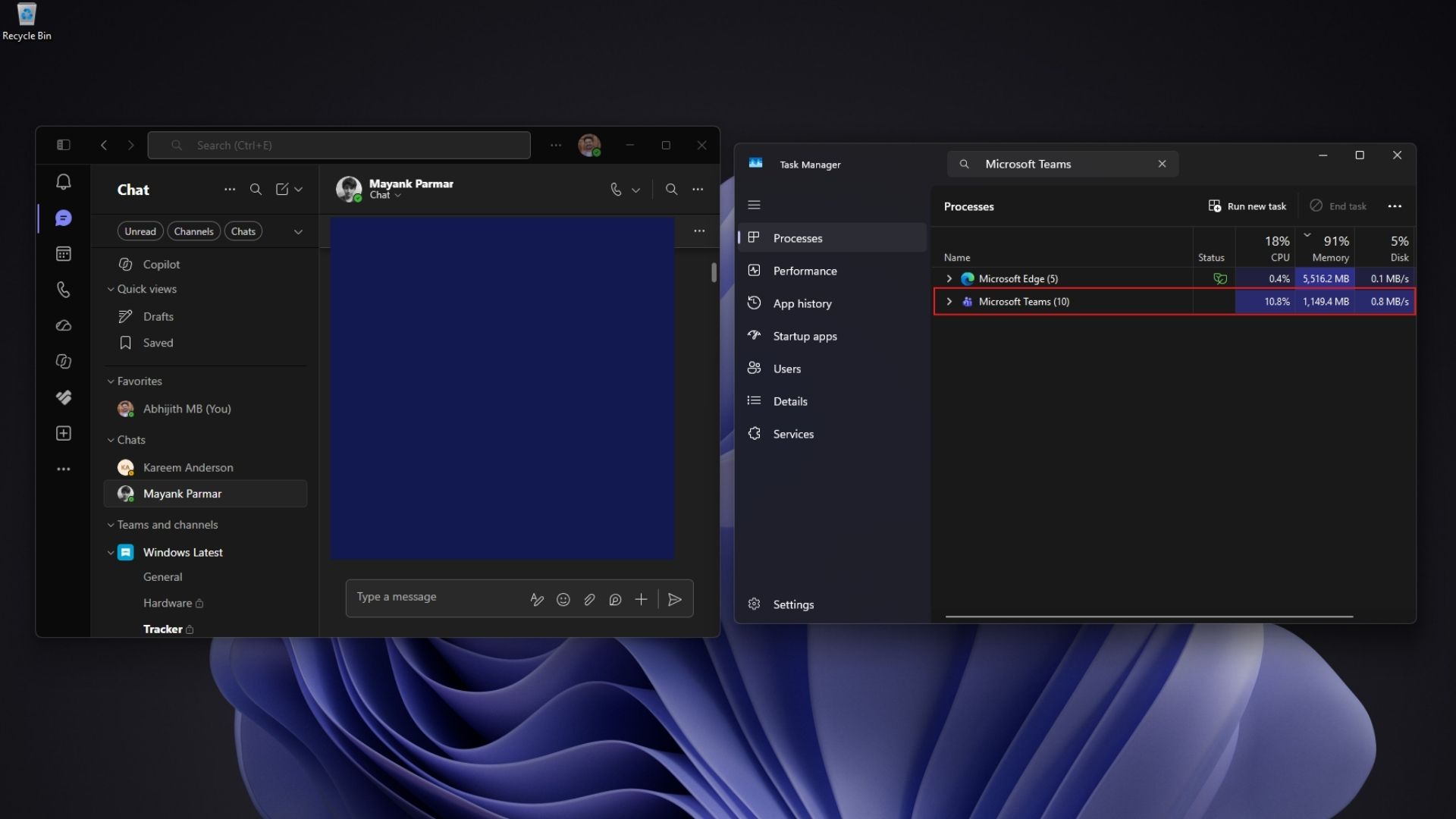
Then, of course, there is Teams. On our PC with 32 GB of RAM, a fresh installation with no chats used 963 MB of memory while doing nothing. MS currently has no plans to move it away from WebView2. Everyone I know dislikes using it, and compared with MSN Messenger from decades ago, Teams has no charm.
Still, after five years of slow progress, Windows is finally moving faster than ever, and I cannot believe I am saying this: AI deserves the credit. If one person could build the speed test in their spare time, what is stopping MS from giving Clipchamp, Weather, and Teams the same attention?
Windows Latest depends on readers like you. Make us your Preferred source on Google Discover and Google Search, and help our independent reporting reach more people.