Windows 11 Introduces Shared Audio: A Game-Changing Bluetooth LE Audio Feature
Microsoft has announced the rollout of Shared Audio, a new Bluetooth LE Audio feature in Windows 11. This functionality allows two pairs of headphones, earbuds, or other compatible audio devices to simultaneously connect and listen to audio from the same PC. It mirrors a similar feature in the Apple ecosystem, where two sets of wireless earbuds can share the same audio stream.
How Shared Audio Compares to Apple's "Share Audio" Feature
Apple's "Share Audio" feature enables users to connect two sets of AirPods to an iPhone simultaneously. On macOS, users can utilize the Audio MIDI Setup app to achieve a similar experience. However, such a feature has been notably absent from Windows 11—until now.
A Long-Awaited Change in Windows 11
Previously, Windows did not support connecting two Bluetooth headsets at the same time. This changes with the release of Windows 11 KB5089573 (build 26200.8524), which introduces the highly anticipated Shared Audio feature. According to Microsoft, this feature is being rolled out gradually, so it will not be immediately available to all users. Once fully deployed, the toggle for Shared Audio will appear in the Quick Settings menu, accessible via the speaker icon on the taskbar.
How to Use Shared Audio in Windows 11
Step 1: Locate the Shared Audio Toggle
If your PC supports Shared Audio, you’ll find the toggle in Quick Settings. This feature is available on PCs running Build 26200.8524 or newer. To verify your OS build, navigate to Settings > System > About.
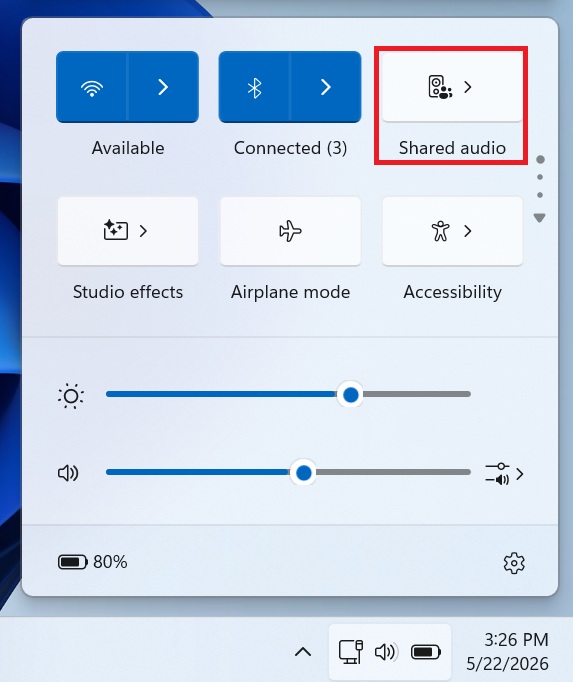
Step 2: Select Supported Devices
Clicking on the Shared Audio toggle will open a panel listing all supported Bluetooth devices. If your headset does not appear, it indicates that the device is not compatible with the Shared Audio feature, which relies on Bluetooth LE Audio. Select two Bluetooth outputs and click Share to initiate shared audio playback.
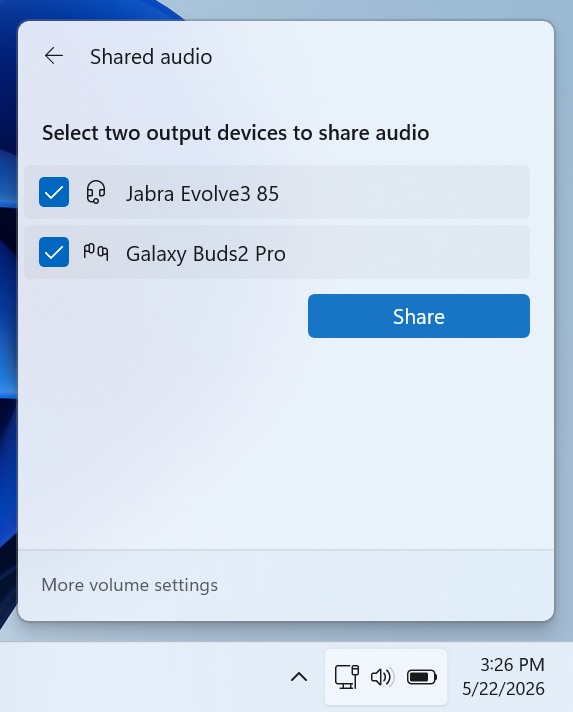
Step 3: Ensure Hardware Compatibility
Bluetooth LE Audio was first announced in January 2020, so most PCs and Bluetooth headsets manufactured in 2020 or later should support this technology. To check if your PC supports Bluetooth LE Audio, go to Settings > Bluetooth & devices > Devices. Look for the toggle labeled "Use LE Audio when available" under Device Settings.
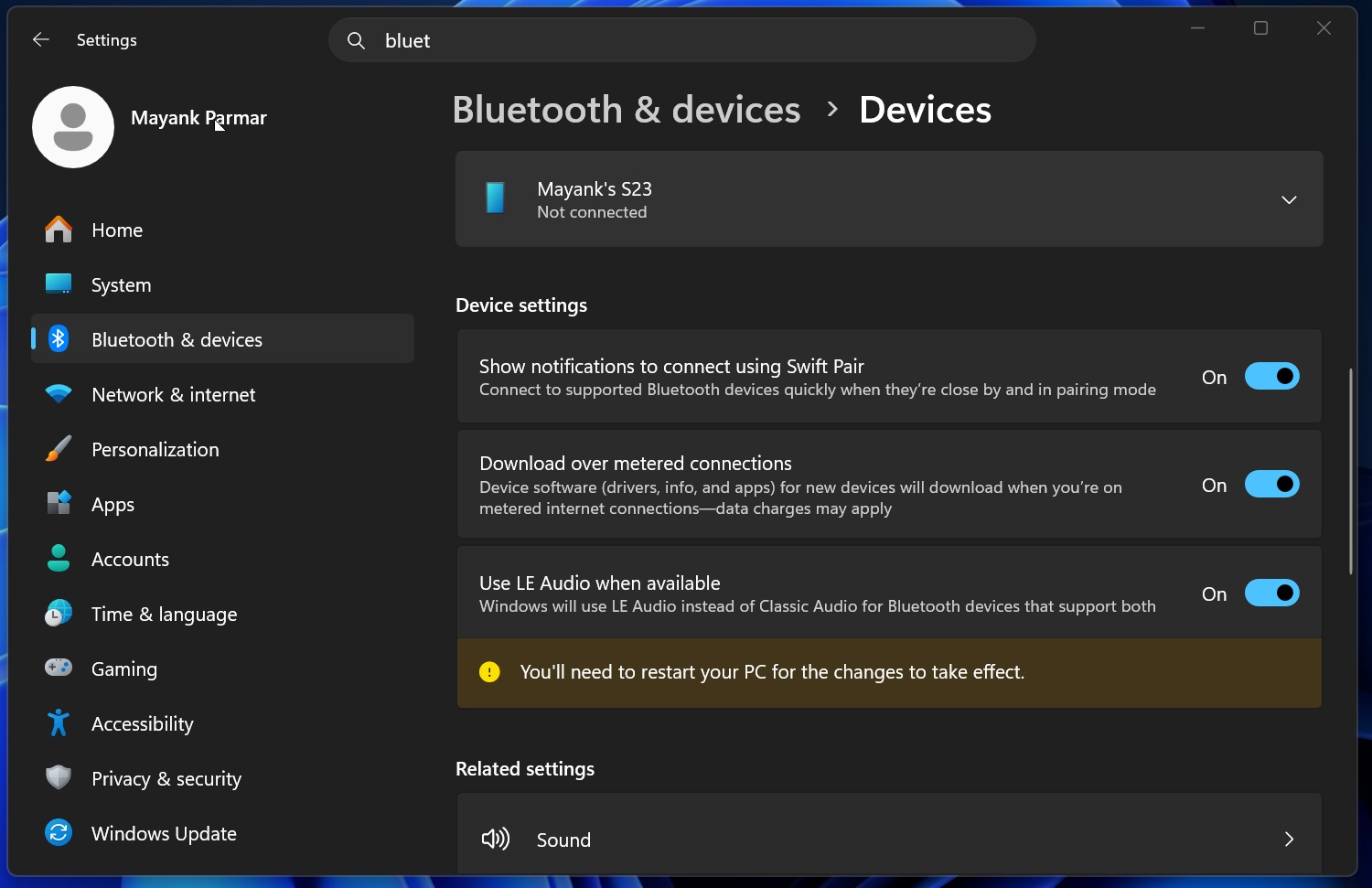
If the toggle is absent, your PC likely does not support Bluetooth LE Audio. In this case, you may need to upgrade your Bluetooth adapter to enable the feature. Additionally, it’s worth noting that your PC must support the audio broadcast feature to use Shared Audio effectively. Currently, there is no manual method to verify audio broadcast support. If the Shared Audio toggle does not appear during the rollout, your PC might lack this capability.
Step 4: Connect Two Compatible Bluetooth Headsets
To utilize Shared Audio, you must own two Bluetooth headsets, earbuds, or assistive hearing devices that support Bluetooth LE Audio. Once a compatible setup is detected, the Shared Audio option will appear, and you will see a new icon on the taskbar when the feature is active.
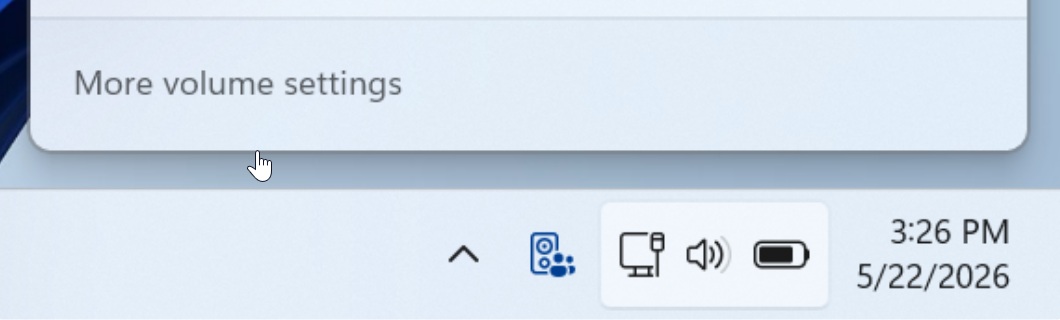
Step 5: Manage Volume and Stop Sharing
Shared Audio allows users to adjust the volume levels for each connected headset independently, offering greater control and personalization. To end a session, simply click Stop sharing. This action will stop sharing the audio but will not disconnect the Bluetooth devices.
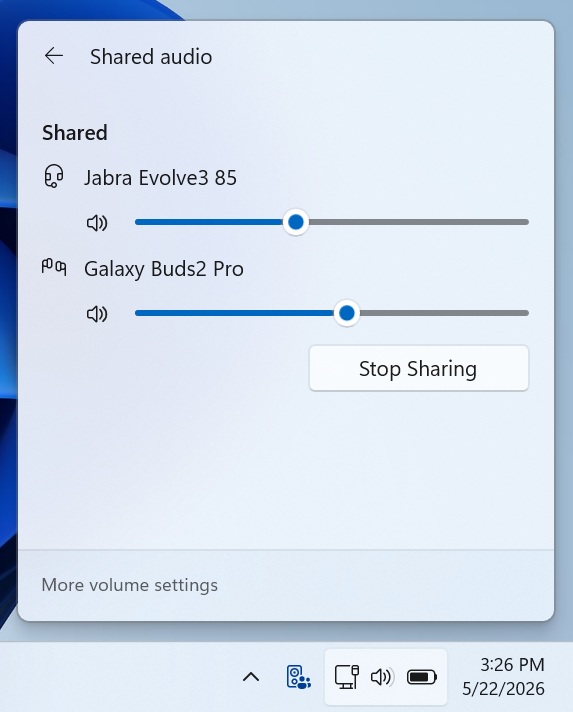
Why Shared Audio Is a Game-Changer
Shared Audio leverages standardized Bluetooth LE Audio broadcast streams to transmit audio to multiple devices simultaneously. This ensures seamless functionality and compatibility between connected devices. In testing, Windows Latest observed that the feature works reliably and offers customizable volume control for each device.
Additional Improvements in Windows 11 Build 26200.8524
In addition to Shared Audio, Windows 11 Build 26200.8524 introduces a Low Latency Profile for enhanced performance, as well as improvements such as the ability to use your camera in multiple applications simultaneously. Microsoft has confirmed that the rollout of Shared Audio is expected to be completed within the coming weeks.