MS's Innovative Testing of Windows 11's Shared Audio Feature
MS has taken an unconventional approach to testing its Windows 11 Shared Audio feature by building a full mock airplane cabin. This feature allows two users to listen to audio from the same Windows device on two separate Bluetooth devices. The company later transformed the mock setup into a short film, showcasing the behind-the-scenes efforts.
How Shared Audio Works
Shared Audio in Windows 11 leverages Bluetooth LE Audio broadcast streams to transmit audio to two Bluetooth devices simultaneously. These devices can include speakers, headsets, or even hearing aids. To use this feature, you simply need to pair two compatible Bluetooth devices.
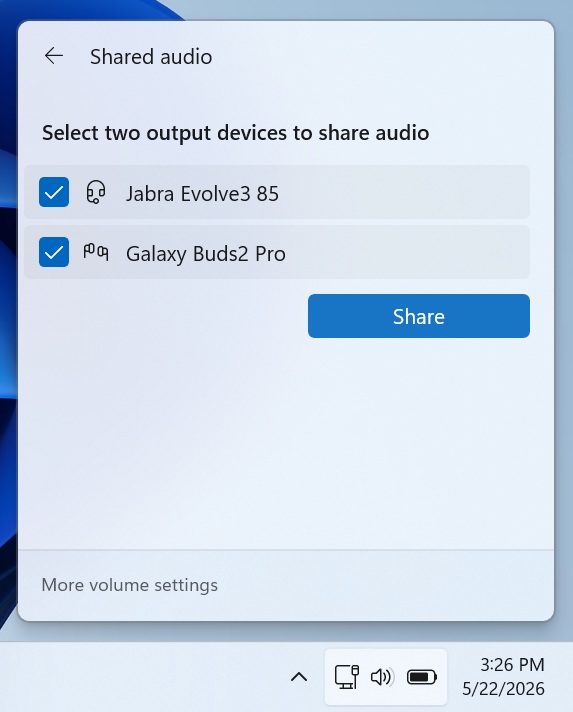
As long as both devices support Bluetooth LE Audio—a capability most modern devices now include—you’re ready to go. Shared Audio is being rolled out to all compatible PCs and has already received positive feedback from users. In our tests, the feature performed impressively, particularly with devices like AirPods and Galaxy Buds.
Testing in Real-Life Scenarios
MS’s Design and Research team, led by Marcus Ash, aimed to ensure the Shared Audio feature felt “human” rather than merely “technical.” To achieve this, they went beyond conventional testing by simulating real-world environments, including an airplane cabin. The goal was to understand practical use cases and refine the user experience.
In a clip showcasing the testing process, twins dressed in Seahawks gear watch a movie on a Surface Pro, sharing the audio through the Shared Audio feature. The scene takes place inside the mock airplane cabin, which is later revealed as part of the test setup.
Why MS Built a Mock Airplane
MS created the airplane simulation to test Shared Audio in a confined, noisy environment where multiple users are present. This setup allowed the team to replicate real-life challenges, such as background noise and limited space, which users might encounter during travel.
Marcus Ash explained in a social media post how this approach reflects the team’s commitment to user-centric design: “A lot of design and research is about getting closer to those real moments—observing, simulating, prototyping, and understanding the context around the experience.” By blending research with creativity, the team not only tested the feature but also created a relatable story for customers through the mock setup.
Consumer Feedback and the “K2” Initiative
Shared Audio is part of MS’s broader strategy to address user feedback through its “K2” initiative, launched in March 2026. This initiative aims to improve Windows by implementing features and updates influenced by consumer input. Early results include faster, ad-free Search and a more personalized Start menu.
Shared Audio is an example of how MS is working to bridge the gap between its products and user expectations. By simulating real-world scenarios, the company demonstrates its commitment to understanding customer needs and delivering meaningful updates.
How to Use Shared Audio in Windows 11
Shared Audio is gradually rolling out, so it may not be available immediately on all devices. To increase your chances of accessing it, install the July 2026 update (KB5101650) for Windows 11. If the feature is available, you’ll see a “Shared audio” toggle in the Quick Settings menu, provided you meet the following criteria:
- Ensure your device is running the latest version of Windows 11.
- Use two Bluetooth devices that support Bluetooth LE Audio.
Once you have access, follow these steps:
- Open Quick Settings and click on “Shared audio.”
- Select two supported Bluetooth devices from the list.
- Click “Share” to begin sharing audio. A “shared” icon will appear in the system tray to indicate the feature is active.
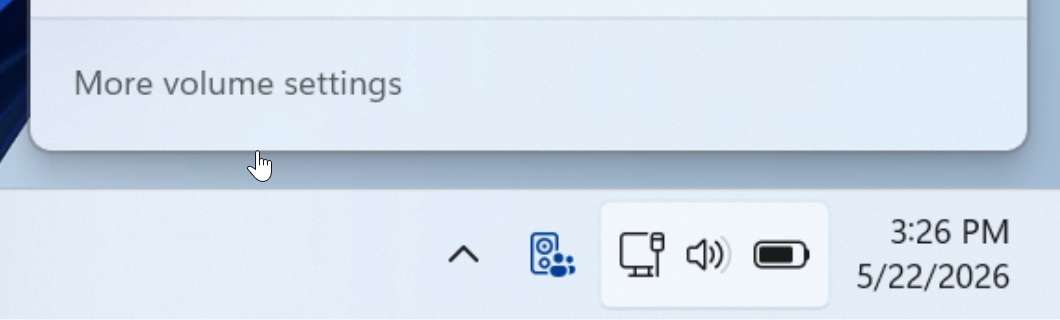
To stop sharing audio, open the same panel and click “Stop.” Note that Shared Audio is a system-wide feature, meaning it works seamlessly with any app or game without requiring additional updates.
Additional Bluetooth Improvements
Alongside Shared Audio, MS is rolling out major Bluetooth enhancements with the July 2026 update. These updates improve AirPods’ performance and ensure that mute states sync correctly with headset controls.
Windows Latest depends on readers like you. Make us your Preferred source on Google Discover and Google Search to help our independent reporting reach more people.
