New Recovery Tools in Windows 11: Point-in-Time Restore
Adverse past incidents can sometimes result in positive advancements. A prime example is the introduction of new recovery tools in Windows 11. Following significant challenges in 2025 and earlier, MS made a commitment to streamlining the process of restoring a malfunctioning PC. As a result, features like Point-in-Time Restore are now automatically enabled in Windows 11 version 26H2.
According to an updated support document, MS confirmed that Point-in-Time Restore will be enabled by default for PCs running Windows 11 version 26H2 or newer. The company stated, “Starting with Windows 11, version 26H2, it will be enabled by default.” However, users are encouraged not to wait for the automatic rollout. The feature can be manually activated and may prove invaluable in critical situations.
What is Point-in-Time Restore, and Why is it Enabled by Default?
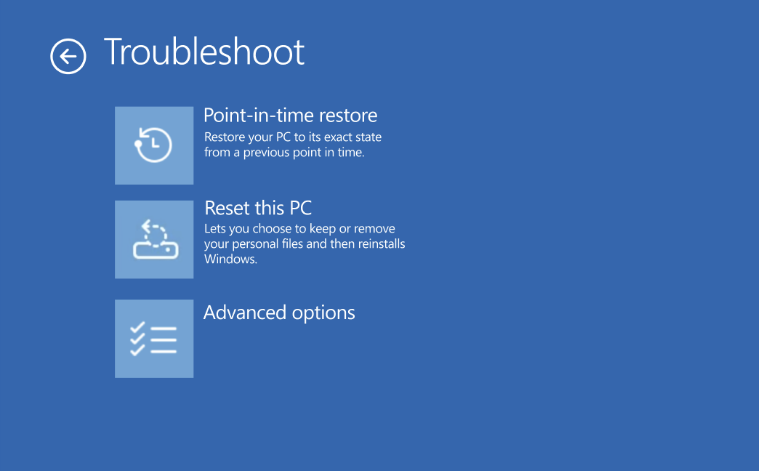
MS began testing Point-in-Time Restore late last year and started deploying it to all users earlier this year. This feature creates system restore points for your PC, enabling you to return to a previous state of Windows, including apps, settings, and files.
While the concept is reminiscent of the System Restore feature from the Windows XP era, Point-in-Time Restore offers significantly improved capabilities. Unlike cloud-based recovery methods, it generates restore points directly on your PC, allowing for offline recovery without needing an internet connection.
It utilizes a technology called Volume Shadow Copy Service (VSS), which captures snapshots of files and volumes even when they are actively in use. By leveraging VSS, Windows 11 periodically backs up the system state, enabling users to restore their system to a previous point in case of issues.
What Does Point-in-Time Restore Cover?
This feature backs up the following data:
- System state
- Applications
- Settings
- Files
These backups are retained for up to 72 hours, with new backups created automatically. While System Restore remains available in Windows 11, Point-in-Time Restore offers broader functionality. For example:
- System Restore focuses on restoring system files, drivers, certain programs, and registry settings. It does not include personal images or documents and is not designed as a comprehensive recovery solution.
- Point-in-Time Restore captures a more complete system state automatically, making it a more robust recovery option.
How to Enable Point-in-Time Restore in Windows 11
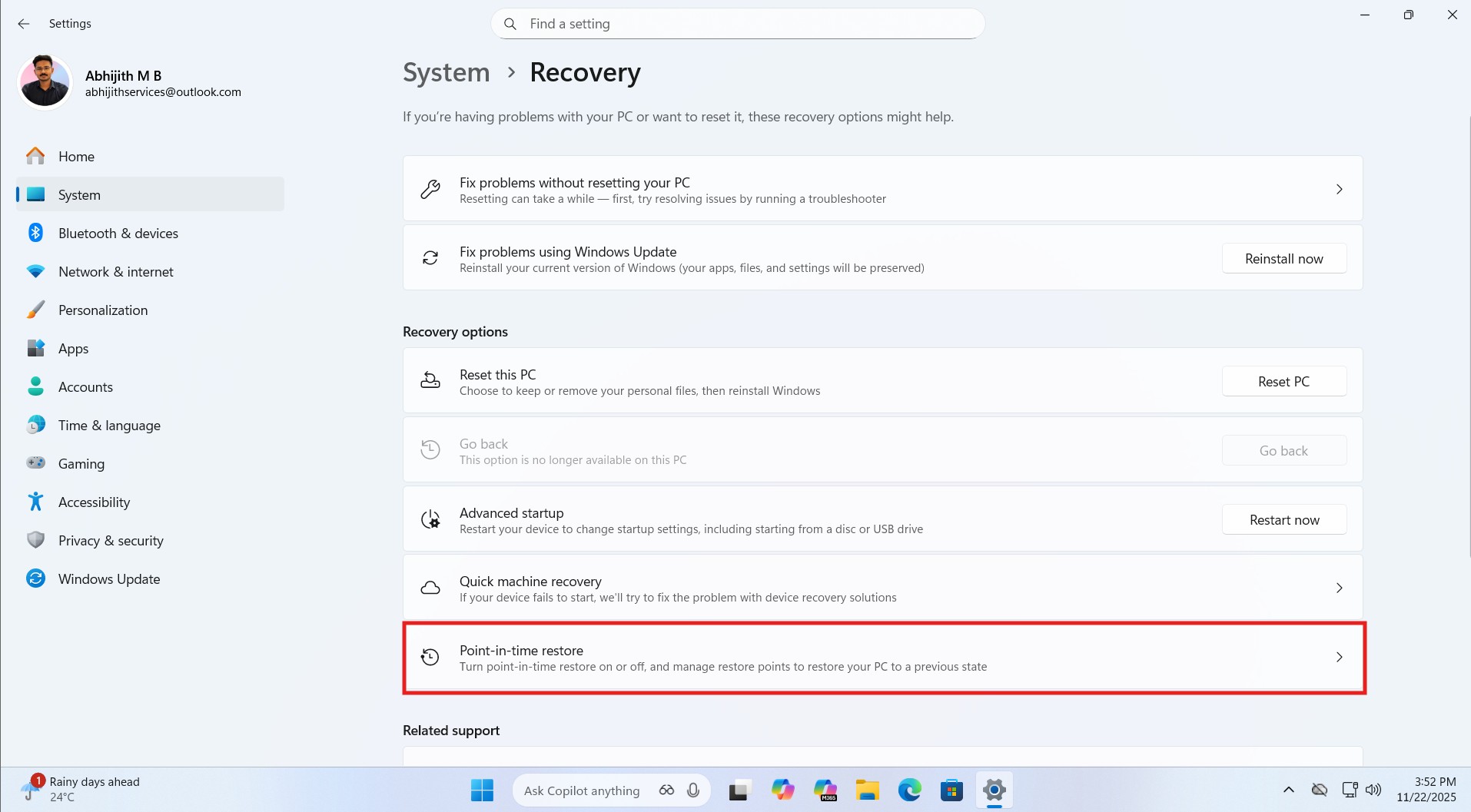
Point-in-Time Restore is gradually being rolled out to Windows 11 PCs, with version 26H2 enabling it by default on eligible devices. However, users can manually activate the feature if it’s available on their system. Here’s how:
- Open Settings in Windows 11.
- Navigate to System > Recovery.
- Locate and select the Point-in-Time Restore option.
- Toggle the feature on if it hasn’t already been enabled automatically.
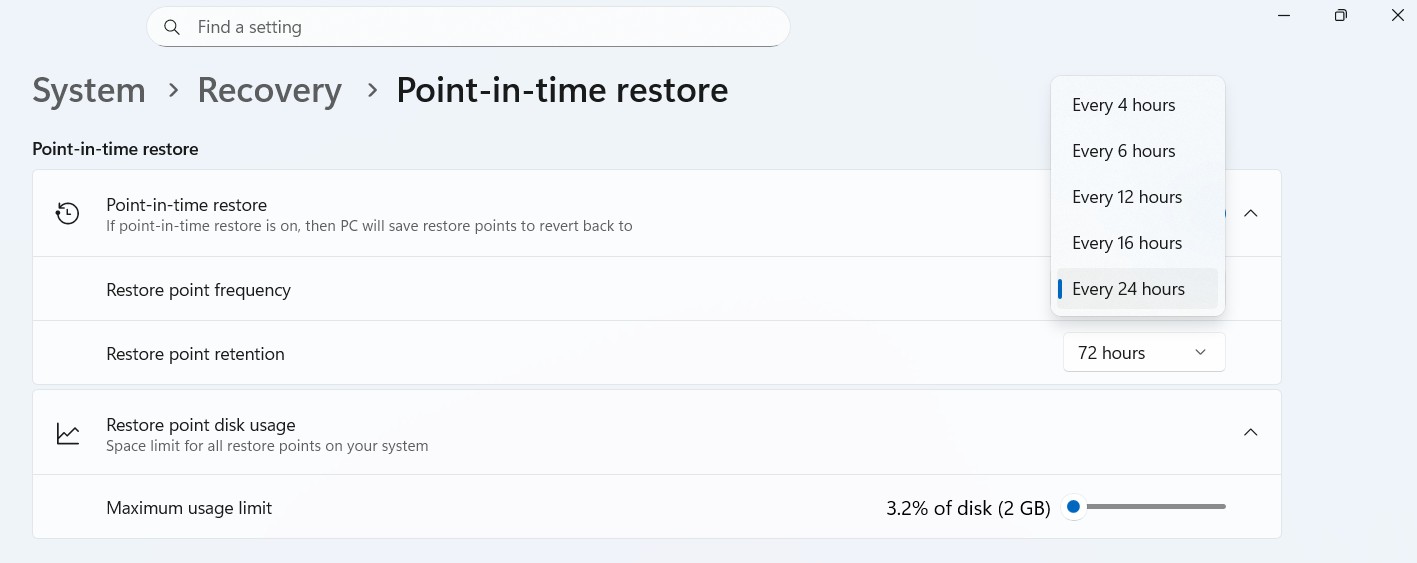
By default, restore points are created every 24 hours. Unfortunately, consumer users cannot adjust this frequency or extend the retention period beyond 72 hours. However, enterprise users have additional customization options:
- Create restore points every four hours.
- Adjust retention cycles to manage storage usage.
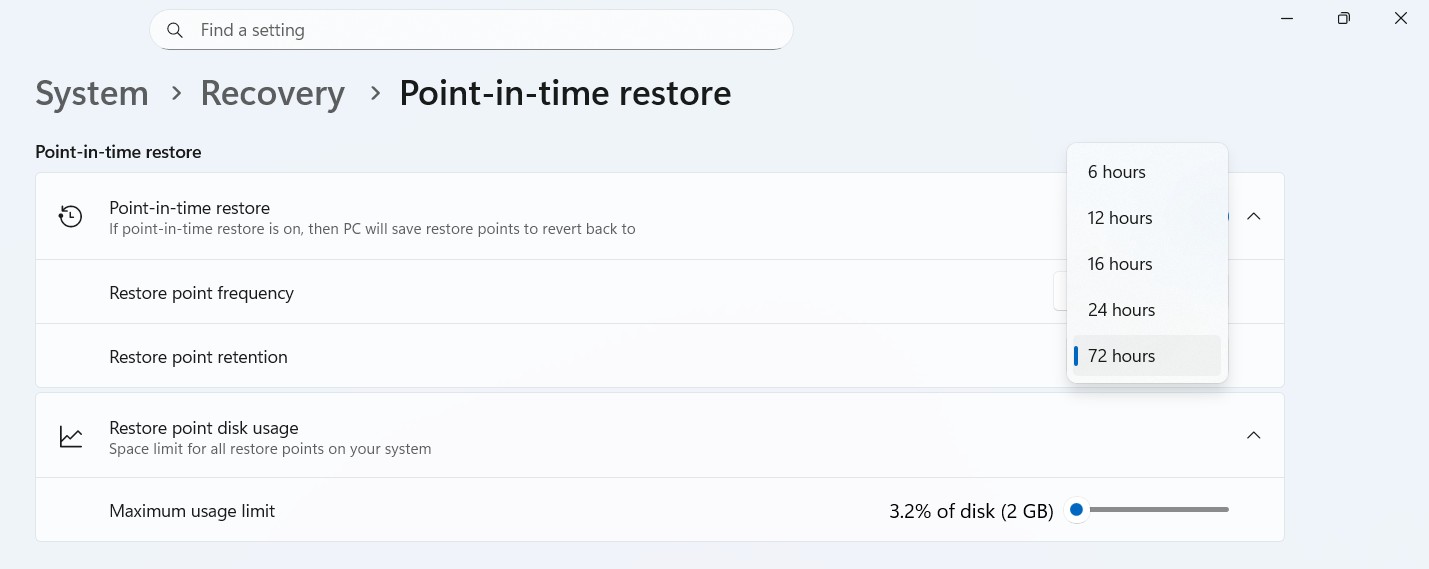
Point-in-Time Restore can use up to 50GB of storage, but Windows provides a “Maximum Usage Limit” slider to cap the space it consumes.
Automatic Enablement Requirements for Point-in-Time Restore
While Point-in-Time Restore will be enabled by default in Windows 11 version 26H2, this depends on your PC meeting specific requirements. For instance:
- The Windows OS volume must be at least 200GB. If it’s smaller, the feature will not be enabled automatically, though users can still activate it manually.
- Enterprise administrators can disable the feature via Group Policy if needed. Otherwise, it will be enabled on eligible systems.
Windows 11 version 26H2 is expected to roll out by late September or early October 2026. It is already in the Release Preview Channel, the final stage before public release.
Stay updated with the latest Windows news by making us your preferred source on Google Discover and Google Search!
