Windows 10 PCs Can’t Pause Updates Unless Enrolled in the ESU Program
Windows 10 PCs that are not part of the Extended Security Updates (ESU) program are reportedly unable to pause updates. The “Pause updates for 7 days” option appears grayed out, even in cases where the Windows 11 upgrade process has accidentally started. While users might find this frustrating, Microsoft is not forcing a Windows 11 upgrade.
The inability to pause updates occurs under specific circumstances, such as when updates have been paused multiple times previously or when organizational policies disable the option through Group Policy. However, some users have reported this issue despite not meeting these conditions, raising questions about whether this behavior is intentional or a bug.
End of Support and ESU Enrollment
Windows 10 officially reached the end of support on October 14, 2025. PCs enrolled in the ESU program will continue receiving monthly security updates until October 2026. For instance, ESU-enrolled devices recently received the KB5068781 Cumulative Update for Windows 10. Non-ESU users, however, will not see this update.
Additionally, non-ESU users have reported that the ability to pause updates is inaccessible. While it remains unclear if this is a deliberate move by Microsoft or simply a bug, the grayed-out “Pause updates for 7 days” option has sparked frustration among users.
Behavior Observed on Non-ESU PCs
On non-ESU systems, the “Pause updates for 7 days” option is replaced by an “Install updates as soon as possible” button. Clicking this option triggers a pop-up asking users to “Expedite this session.” If confirmed, the system downloads and installs the latest updates, followed by an automatic restart with a 15-minute reminder to save work.
- Once updates are installed, the option changes from “Install updates as soon as possible” to “Don’t restart as soon as possible.”
- Additionally, the prompt to enroll in ESU might shift its location on the Windows Update page, sometimes replaced by a “Download and install” option for Windows 11.
Users have also encountered issues with failed security updates, resulting in no new updates being downloaded. This behavior, particularly the removal of the “Pause” option, appears to be linked to misinterpretations by Windows Update’s background evaluation process.
Installing Windows 11 on Non-ESU PCs
Reports indicate that Windows 10 PCs not enrolled in ESU are being prompted to install Windows 11 version 25H2 directly, bypassing older versions like 24H2 or 23H2. Upon clicking “Download and install,” there is no way to pause the update process. Even selecting “Don’t restart as soon as possible” has minimal impact, as the system eventually prompts a restart to complete the upgrade.
Such behavior suggests that Windows Update may be incorrectly placing certain devices into a forced-update state. Typically, the “Pause” option is removed only when updates have been paused excessively or when organizational policies enforce it. However, these conditions do not apply to many affected users.
The issue may stem from new logic in Windows Update, which now differentiates between ESU and non-ESU devices. If this logic malfunctions, it could force devices to install updates and disable the pause functionality. Despite this, Microsoft’s documentation does not indicate that pausing updates should be disabled for non-ESU users.
Is This Behavior Intentional?
It is unlikely that Microsoft intended to disable the pause feature for non-ESU users. Instead, it appears to be a side effect of changes introduced to handle the ESU program. Unfortunately, with Windows 10 officially retired, it is doubtful that Microsoft will address this issue. For users who want to avoid forced updates, enrolling in the ESU program may be the best solution.
How to Enroll in Windows 10 ESU
The good news is that Microsoft has made the Consumer ESU program accessible to all users, not just enterprises. Enrolling is straightforward:
- Go to Settings > Update and Security > Windows Update.
- Click on Enroll now.
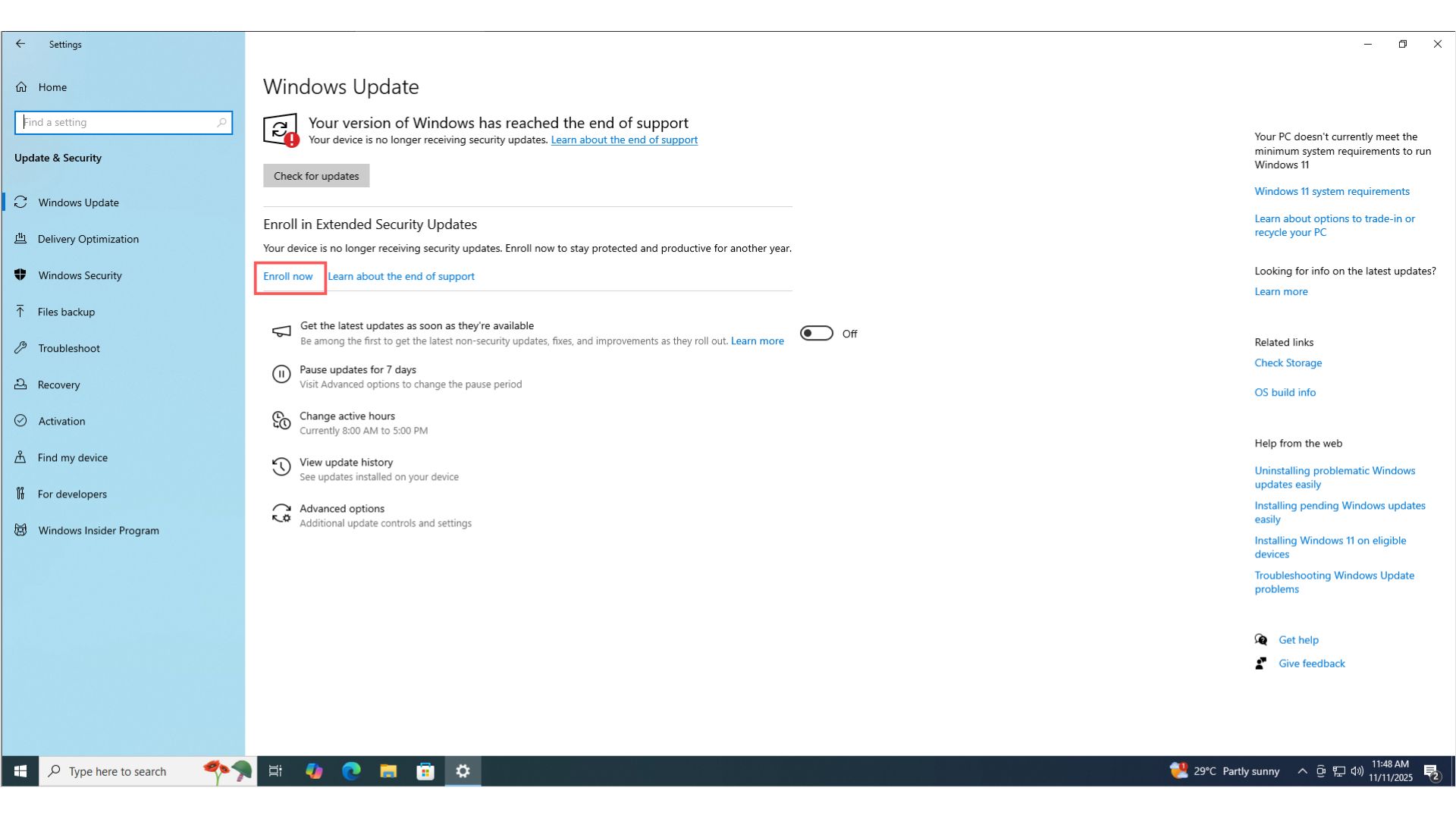
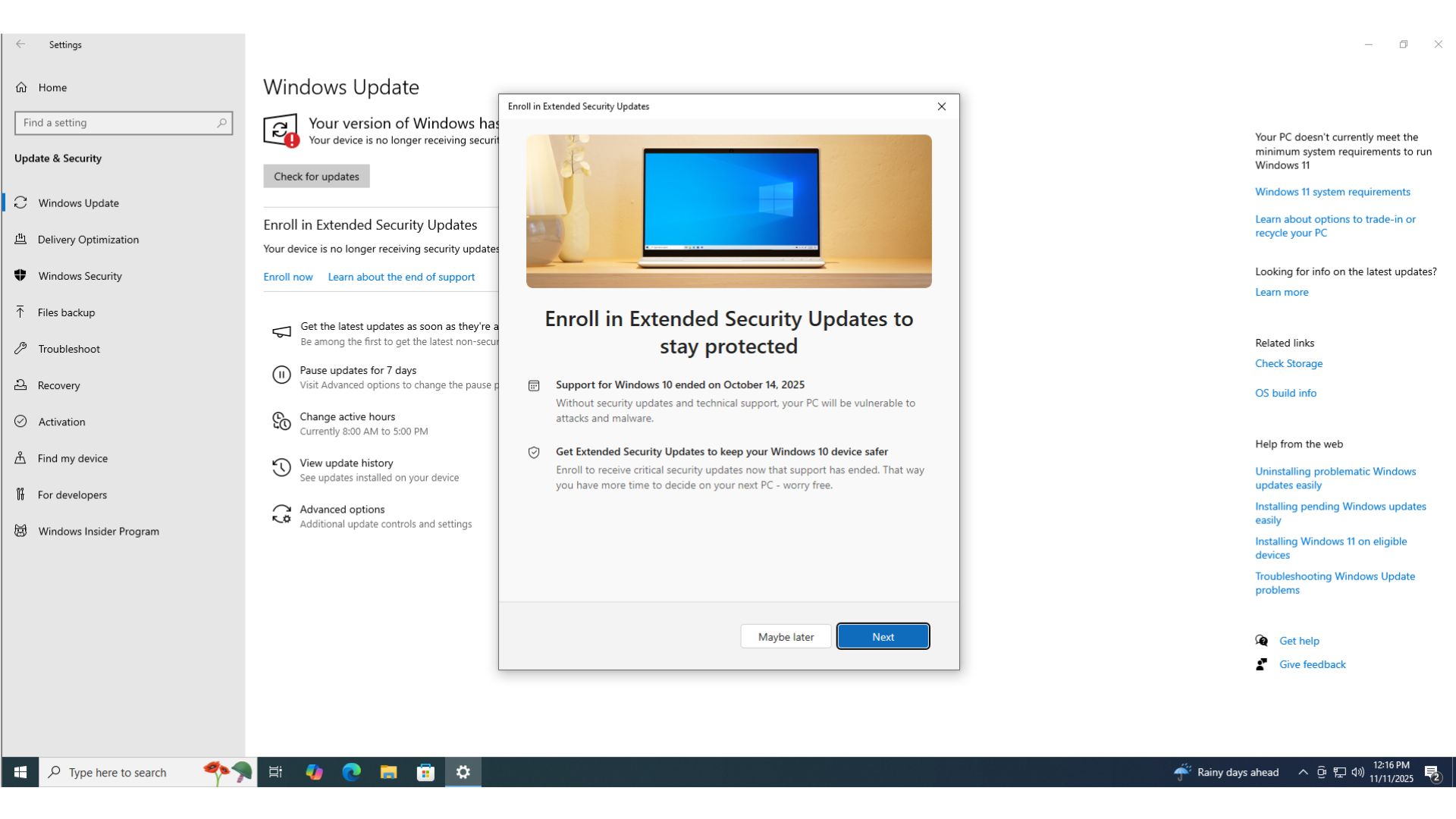
Home users have three options for enrollment:
- Free Method: Sign in with a Microsoft account and back up your PC settings. If the account is already used on another device, you will be eligible for free ESU instantly.
- Microsoft Rewards: Redeem 1,000 Microsoft Rewards points for a one-year ESU license.
- Paid Option: Purchase a one-year ESU license for $29.99. This requires temporarily signing in with a Microsoft account, but you can switch back to a local account after activation.
Windows 11 and Gaming Updates
For those avoiding Windows 11 due to performance concerns, Microsoft has announced plans to optimize Windows 11 for gaming in 2026. This initiative, called the Performance Fundamentals philosophy, aims to enhance gaming performance on newer systems.
However, if you are holding out on Windows 11 for other reasons, such as avoiding AI-related features, enrolling in the ESU program ensures that your Windows 10 PC remains secure until October 2026.