Windows 11 KB5121003 Update Overview
The Windows 11 KB5121003 update has started rolling out. While it may not seem like a significant release, it introduces several enhancements, including:
- Faster app launches on low-end PCs.
- Improved File Explorer unit detection.
- Enhanced Windows Search typo handling.
Additionally, MS has provided direct download links for KB5121003 offline installers (.msu) for those who prefer manual installations.
Key Details About KB5121003
KB5121003 is a mandatory Patch Tuesday update, meaning it will download and install automatically as part of the Windows 11 August 2026 Update. According to our tests, the update appears as “2026-07 Security Update (KB5121003) (26200.9165)” and takes less than ten minutes to complete.
After installation:
- Windows 11 25H2 upgrades to Build 26200.9165.
- Windows 11 24H2 advances to Build 26100.9165.
Both versions share the same underlying release platform, so no visible differences are expected. Note that support for Windows 11 24H2 will end in October 2026, alongside 15 other MS products.
Additional Updates
MS has also released updates for the .NET Framework, which is used by Windows apps, including MS’s own applications. These updates may require a second reboot to complete installation. Furthermore, the Windows Malicious Software Removal Tool x64 – v5.144 (KB890830) has been included as part of the monthly update cycle.
Direct Download Links for Windows 11 KB5121003
The KB5121003 update can be downloaded directly via the MS Update Catalog. This is especially useful for manually updating multiple systems or when Windows Update is unavailable.
However, note that updates downloaded from the Update Catalog are significantly larger than those from Windows Update. For instance:
- Windows 11 updates now exceed 5GB in size due to AI models and new delivery methods.
- Windows 10 updates, by comparison, are around 700MB.
To manually check for and install the update, navigate to Settings > Windows Update and click “Check for updates.”
What’s New in Windows 11 Build 26200.9165 (25H2) / Build 26100.9165 (24H2)
1. Enhanced File Explorer
After installing KB5121003, File Explorer now displays file sizes using appropriate units instead of defaulting to KB. For example:
- A 10KB file remains displayed as 10KB.
- A 10MB file is displayed as 10MB instead of 10,240KB.
- A 1GB file is displayed as 1GB instead of 1,048,576KB.
This change improves usability for casual users who may find it challenging to interpret file sizes in kilobytes. The feature is rolling out gradually, but you can force-enable it using the open-source tool ViVeTool.
Steps to enable with ViVeTool:
- Download and extract ViVeTool from GitHub.
- Run the appropriate command to enable the feature.
- Restart explorer.exe from Task Manager to apply changes.
Other File Explorer improvements include:
- A faster and smoother address bar for improved navigation.
- Middle-clicking a folder now opens it in a new tab, similar to browser functionality.
- Fixes for a gray flash issue during File Explorer loading.
- Improved file thumbnail quality in the “Recommended” section of the Home page.
2. Improved Windows Search
Windows Search, often criticized for its inefficiencies, has received significant updates to address its shortcomings:
- Better handling of typos and partial search terms.
- Enhanced recognition of local file and app queries, even with misspellings. For instance:
- Typing “otloook” now correctly displays Outlook.
- Searching for “pwerp” will surface PowerPoint.
- Typing “tskm” will bring up Task Manager.
- Local Search now features typo correction, similar to Bing’s spell-check functionality.
Future updates are expected to further improve the Search experience, including the ability to disable Bing integration entirely.
3. Low Latency Profile for Faster App Launch
The Low Latency Profile, introduced in June 2026, is now being expanded with KB5121003. This feature enhances the performance of low-end PCs by:
- Boosting CPU performance for a few seconds during high-demand tasks, such as opening the Start menu or an application.
- Making apps launch faster on devices with low-end CPUs or limited RAM (e.g., 8GB).
This feature is being rolled out gradually and will become available to all users in the coming weeks.
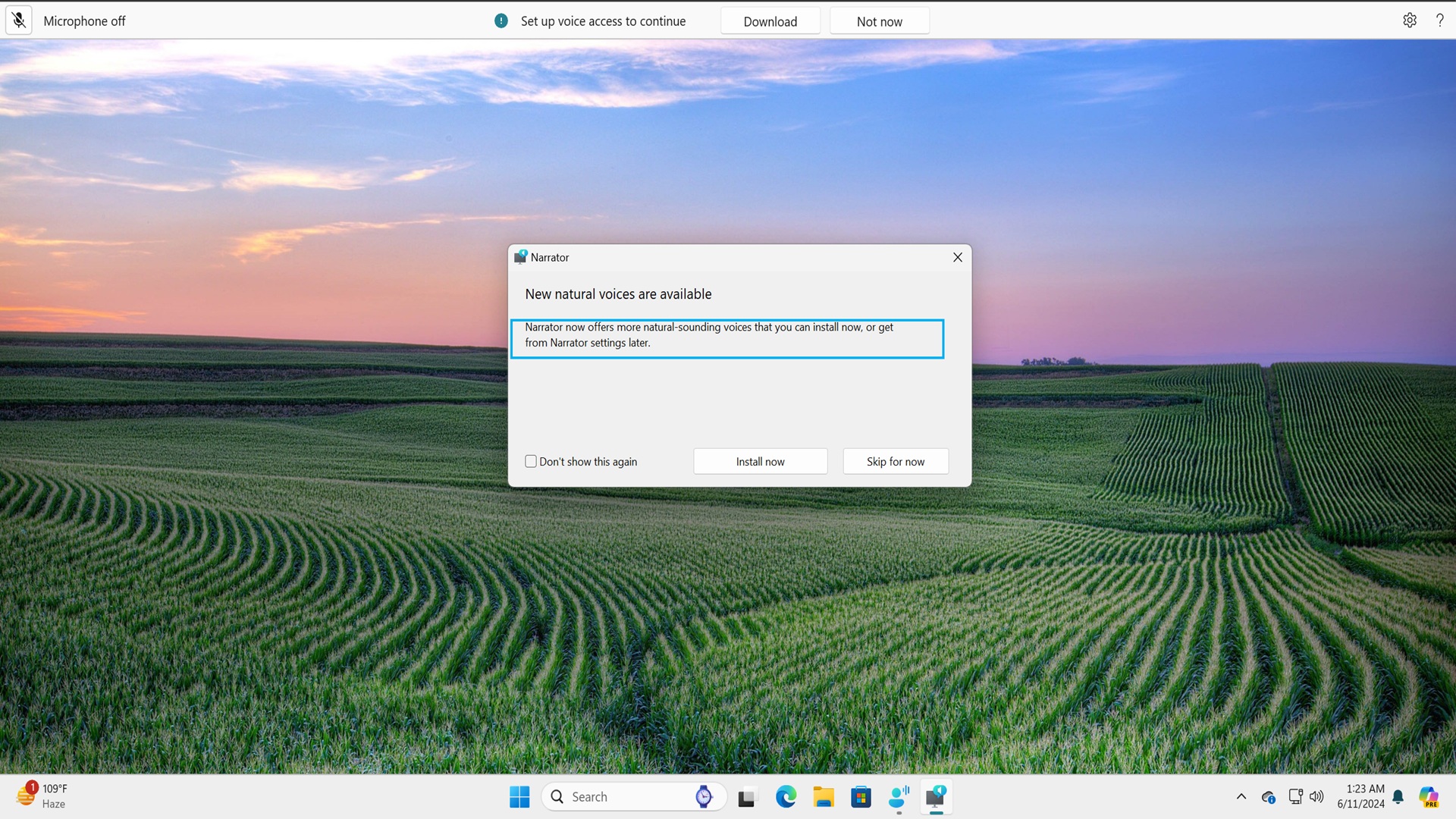
4. New Voice Access Features
Voice Access, which allows users to control Windows using voice commands, has been updated with the following enhancements:
- A new Voice Isolation feature to minimize background noise and improve voice recognition accuracy.
- Three distinct speech recognition modes for better customization.
Conclusion
The Windows 11 KB5121003 update introduces a variety of improvements aimed at enhancing performance, usability, and functionality. From improved File Explorer features to better Windows Search and faster app launches, this update brings meaningful changes, especially for users on low-end hardware. Users are encouraged to install the update promptly to take advantage of these new features and security enhancements.
