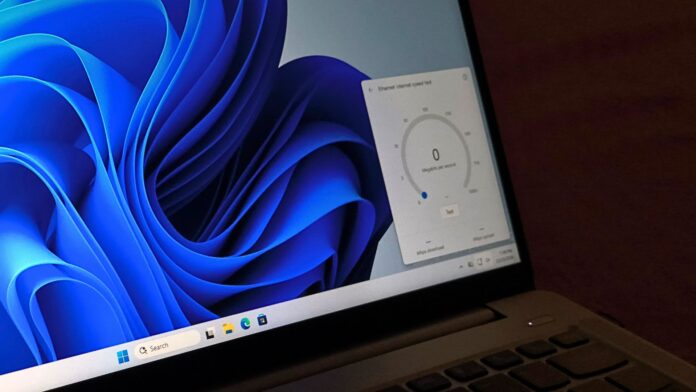
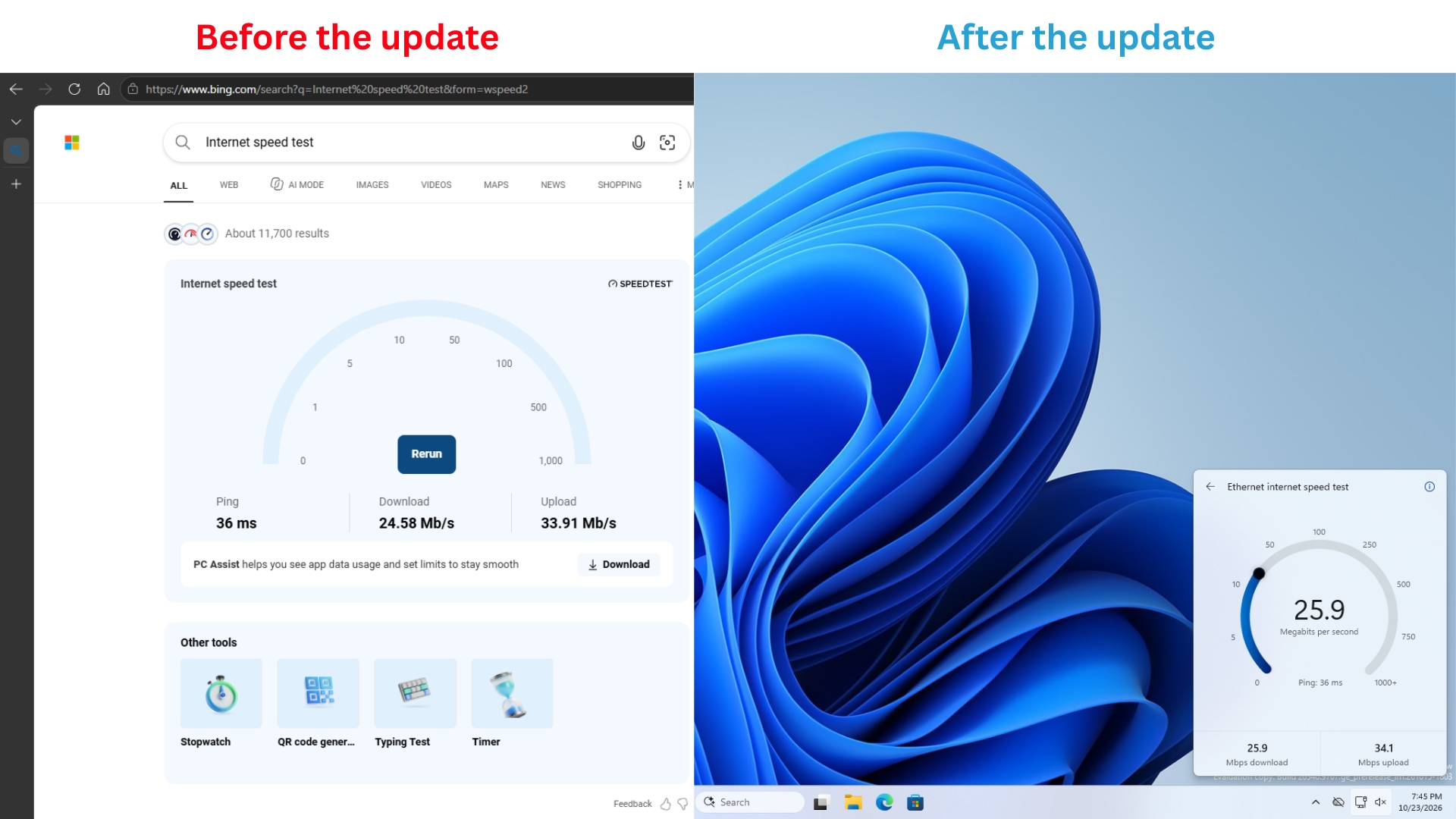
Windows 11 can now run an internet speed test directly within Quick Settings, displaying download speed, upload speed, and ping without leaving the desktop. Previously, the taskbar shortcut opened Bing’s speed test page in the default browser. MS is finally replacing it with a native flyout in Insider Experimental Build 26340.9767.
I have been testing the new speed test flyout since receiving the build on October 23. It works as expected without any issues, including when the taskbar is positioned along different edges of the screen.
Windows 11’s New Speed Test Runs Inside Quick Settings
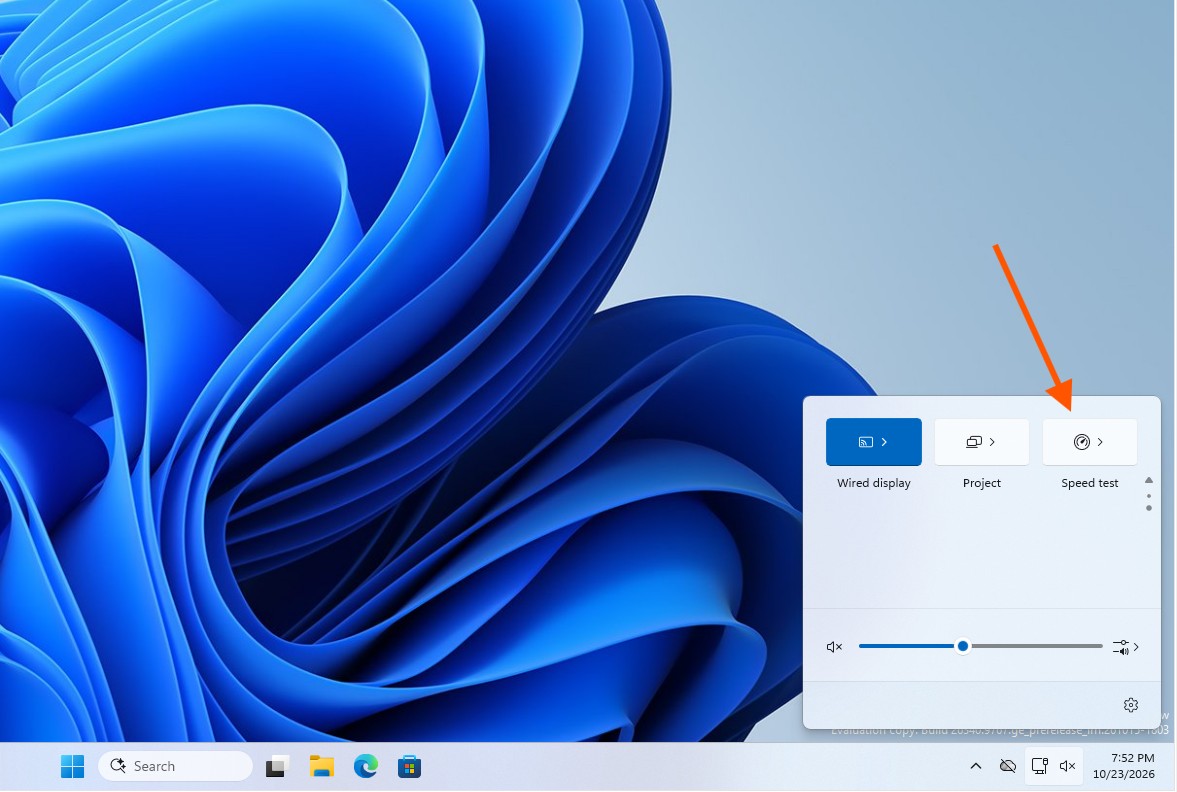
According to the release notes for Build 26340.9767, Insiders “can now run an internet speed test and see the results directly in Quick Settings, without being redirected to a browser.” The test can be launched from the new Speed test tile in Quick Settings, from the Wi-Fi or Cellular flyout, or by right-clicking the network icon on the taskbar and selecting Test internet speed.
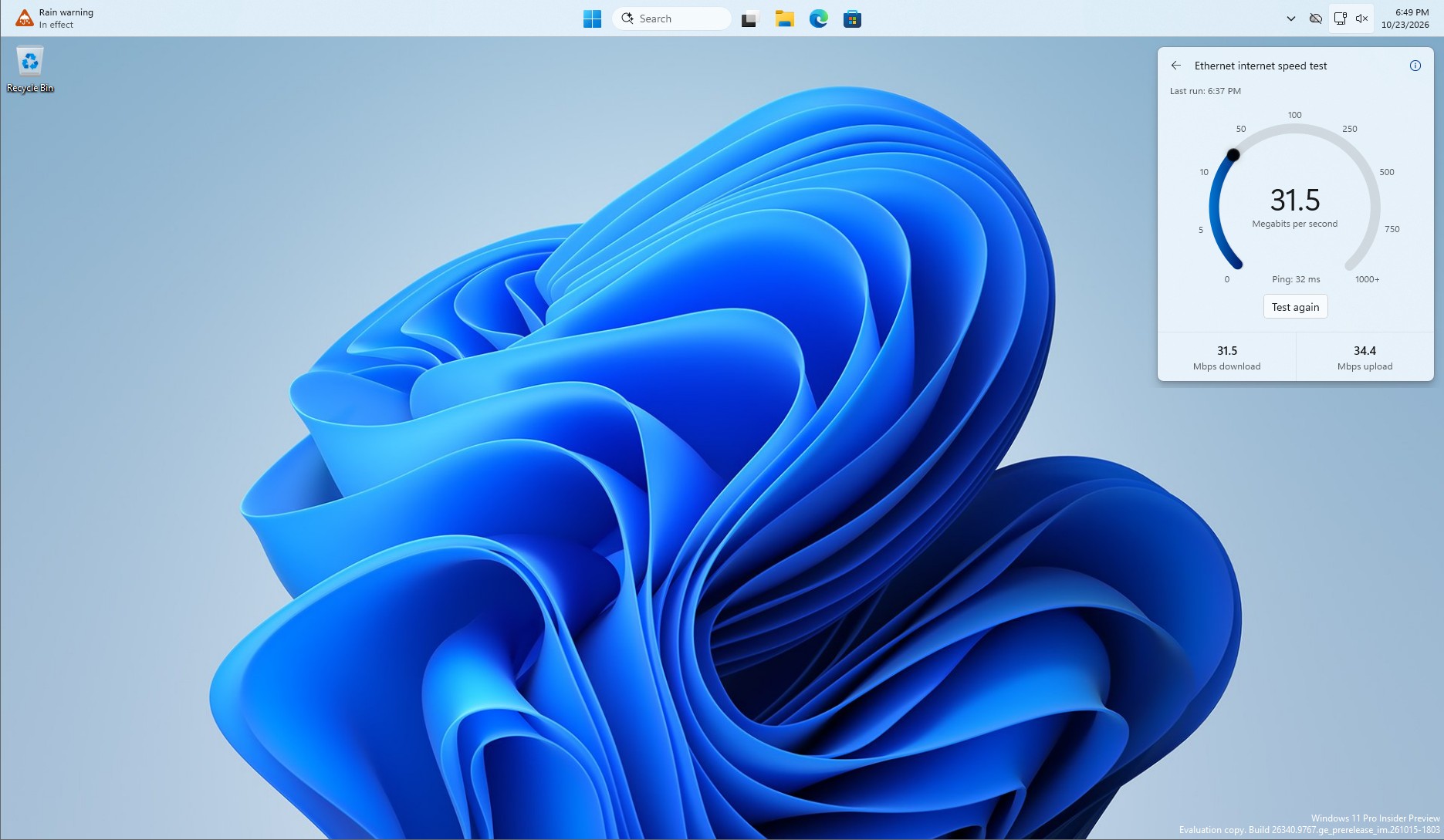
After you click Test, the flyout finds a server, measures ping, and then tests download and upload speeds. Its gauge supports readings of more than 1,000 Mbps.
My virtual machine’s Ethernet connection recorded a download speed of 31.5 Mbps, an upload speed of 34.4 Mbps, and a ping of 32 ms. Although these are not the fastest results, they were sufficient for a hotel room and appeared accurate. I tested the connection on two Android devices and received the same results. The results appeared in less than 30 seconds.
The flyout looks like a natural part of the Windows shell. It works well in both light and dark themes and continued to function perfectly after I moved the taskbar to other edges of the screen.
Windows 11’s Old Speed Test Was Only a Bing Shortcut
MS first tested a “Perform speed test” option in the network menu in September 2025. Clicking it opened Bing.com in the default browser and displayed results for “internet speed test.” The option later rolled out to everyone through the February 2026 optional update and the March security update, but it remained a shortcut to Bing.com.
Anyone can open a browser and search for a speed test, so the shortcut did not save time. It was simply another way to direct users to Bing.
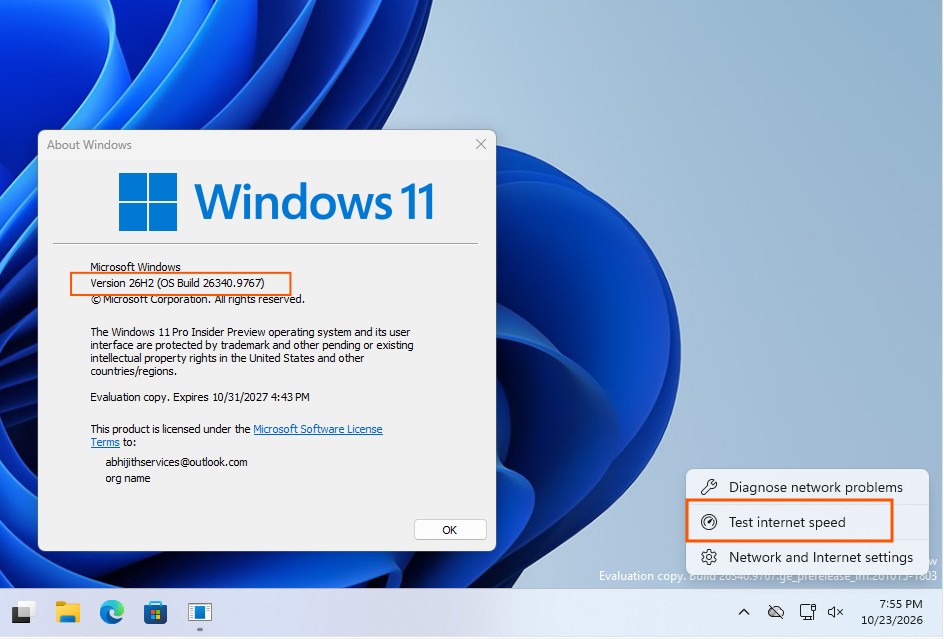
The new build renames the option to “Test internet speed.” Clicking it no longer forces the browser to open; instead, the test remains within Quick Settings.
Speedtest by Ookla Still Powers the Test, but Without Bing
Clicking the small information button at the top-right corner of the flyout reveals that the test is powered by Speedtest. The Bing results page opened by the previous shortcut also used Ookla’s Speedtest, so the underlying engine remains the same, but without the browser or Bing branding.
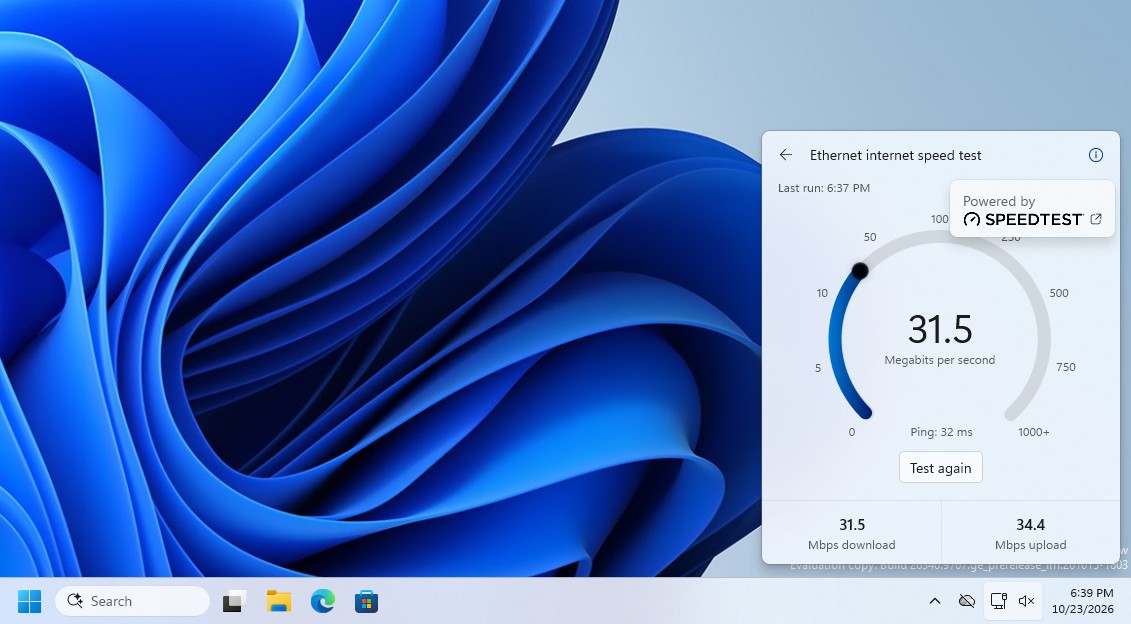
MS says the test uses the active internet connection, so the results reflect the connection performance the PC is receiving at that moment. It will not explain why a Wi-Fi connection is slow, but it provides what most people need for a quick check before a call or a large download.
Windows 11 Is Relying Less on Bing, Even as Bing Reaches 1 Billion Users
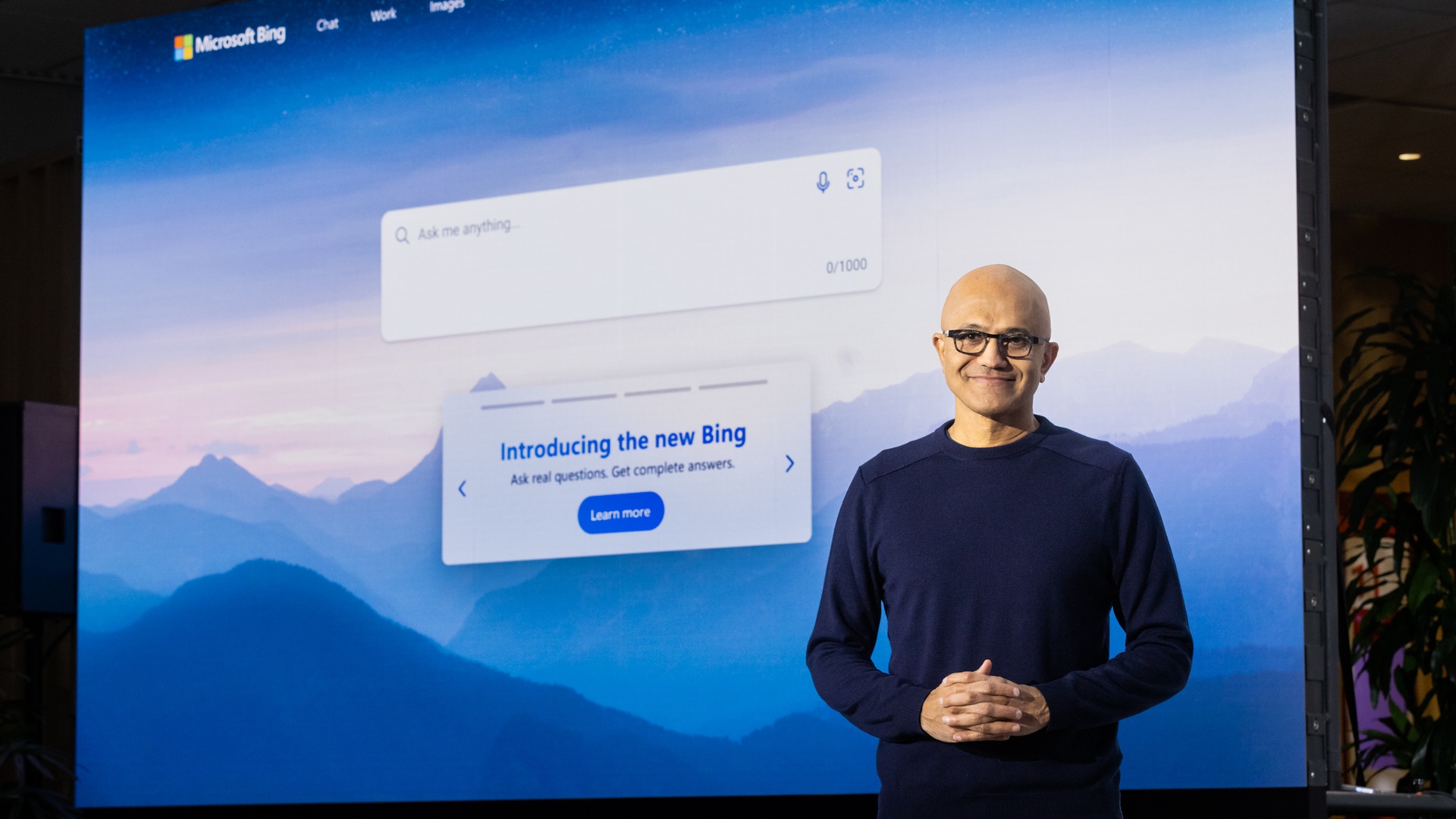
Ironically, the change comes months after Satya Nadella said during MS’s FY2026 Q3 earnings call that Bing had surpassed 1 billion monthly active users. Earlier this year, MS also added a toggle to Windows 11’s new Search experience that allows users to disable Bing web results, which also made local searches noticeably faster.
Bing is not going anywhere, and MS has not explained why it rebuilt the speed test. Nevertheless, two Windows 11 features that previously directed users to Bing now work without it, and both have improved as a result.
How to Access the New Speed Test
To access the new Speed test feature in Quick Settings, you must be running Windows 11 Insider Experimental Preview Build 26340.9767 or newer.
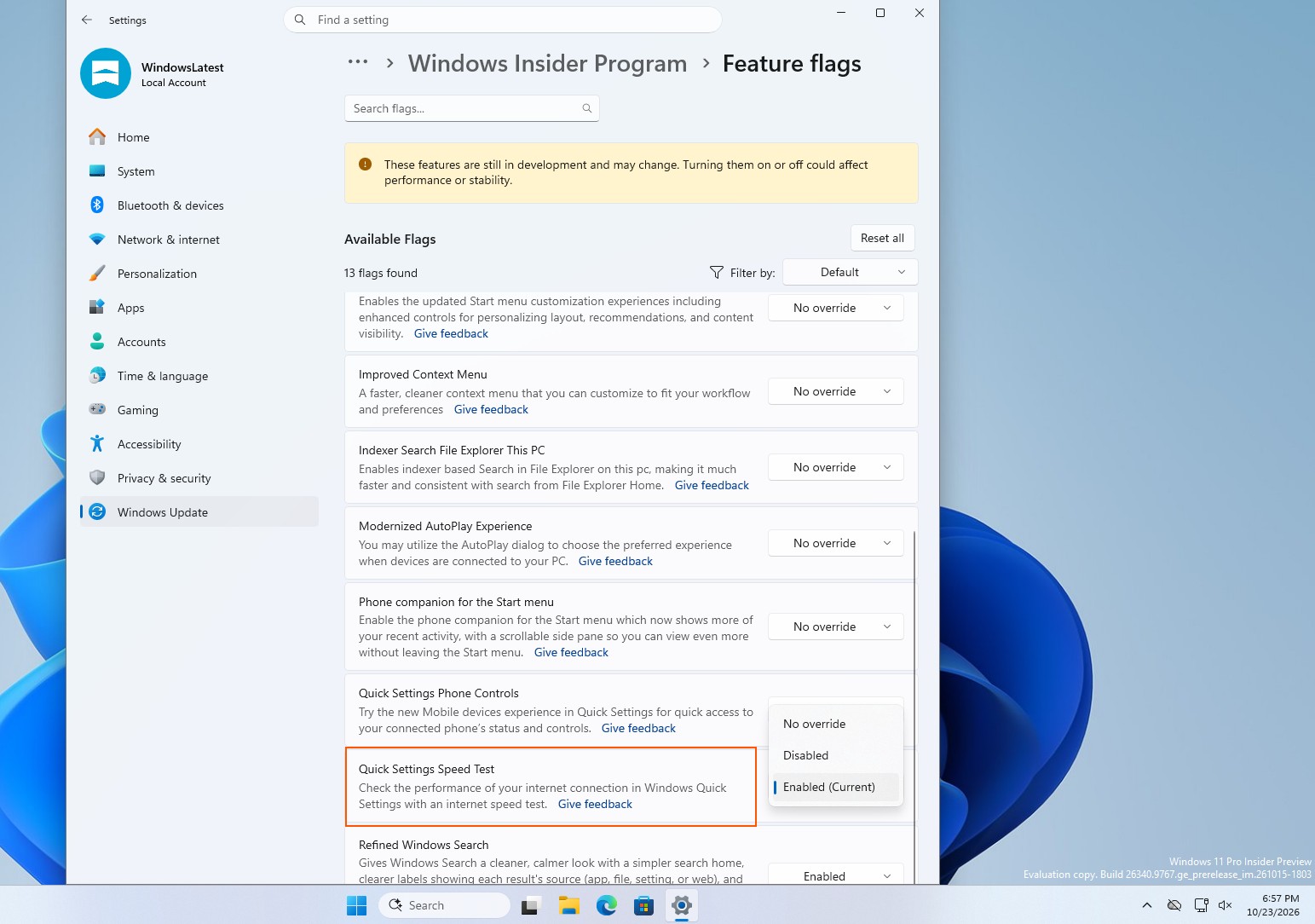
Even after installing the build, the new speed test did not initially appear for me. I had to navigate to Settings > Windows Update > Windows Insider Program > Feature flags and set Quick Settings Speed Test to Enabled. MS is using a Controlled Feature Rollout, and it has not announced when the feature will become available on regular Windows 11 PCs.
Critics may argue that the shortcut should have worked this way from the beginning. I agree, but MS has finally corrected it, and I feel more confident in Windows 11 than ever before.
MS has not said when the feature will reach regular PCs, but I hope it ships soon because it worked reliably throughout repeated testing.
Windows Latest depends on readers like you. Make us your Preferred source on Google Discover and Google Search, and help our independent reporting reach more people.
