Microsoft Support Page Accidentally Uses Windows 10 UI to Demonstrate Night Light Feature
In an unexpected move, Microsoft’s support account, @MicrosoftHelps, mistakenly shared a graphical depiction of the Night Light feature using Windows 10’s user interface in an X post. This misstep comes despite Windows 10 reaching its official end-of-support date.
While Windows 10 was officially retired on October 15, 2025, Microsoft seems to be inadvertently keeping the operating system in the spotlight, even as it continues to push users towards upgrading to Windows 11.
Windows 10 UI Featured in an X Post Instead of Windows 11
The @MicrosoftHelps account serves as Microsoft’s official customer service and support handle on X. The account frequently posts Windows-related tips and tricks, often accompanied by graphical representations rather than real-life screenshots.
Though the account is primarily intended to address user queries via replies or tags, its initial responses are automated, which is a common practice.
On October 21, 2025, just days after Windows 10’s end-of-support date, the support page shared a GIF demonstrating how to enable the Night Light feature. However, the GIF prominently displayed Windows 10’s Action Center—a feature absent in Windows 11, which instead uses a Quick Settings panel and a Notifications Center.
The GIF’s ALT text humorously read, “Graphical depiction of turning on the night light setting on a Windows PC,” unintentionally suggesting that Windows 10 remains Microsoft’s default operating system.
Users Express Nostalgia and Confusion Over Windows 10 UI
The post quickly gained traction, amassing nearly half a million views. Many users expressed confusion, with some mistaking the depicted UI as a new, unreleased feature for their devices.
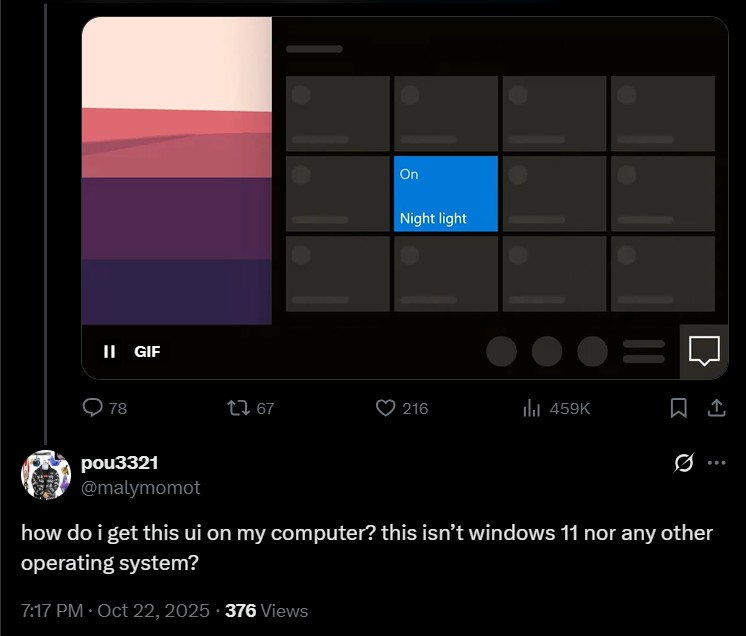
The top comment under the post read, “How do I get this UI on my laptop? This isn’t Windows 11, and there’s no other supported version.”
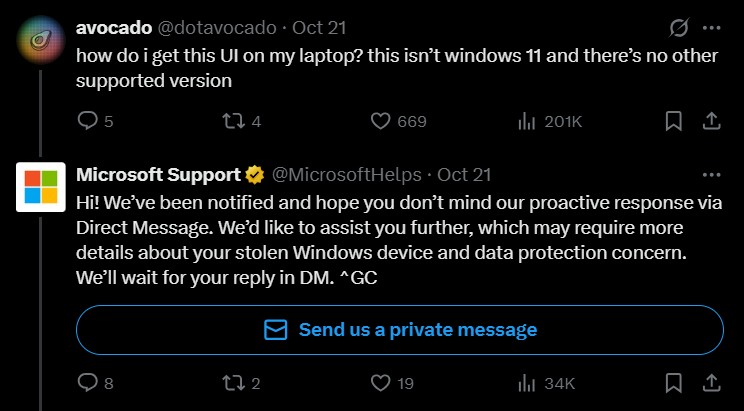
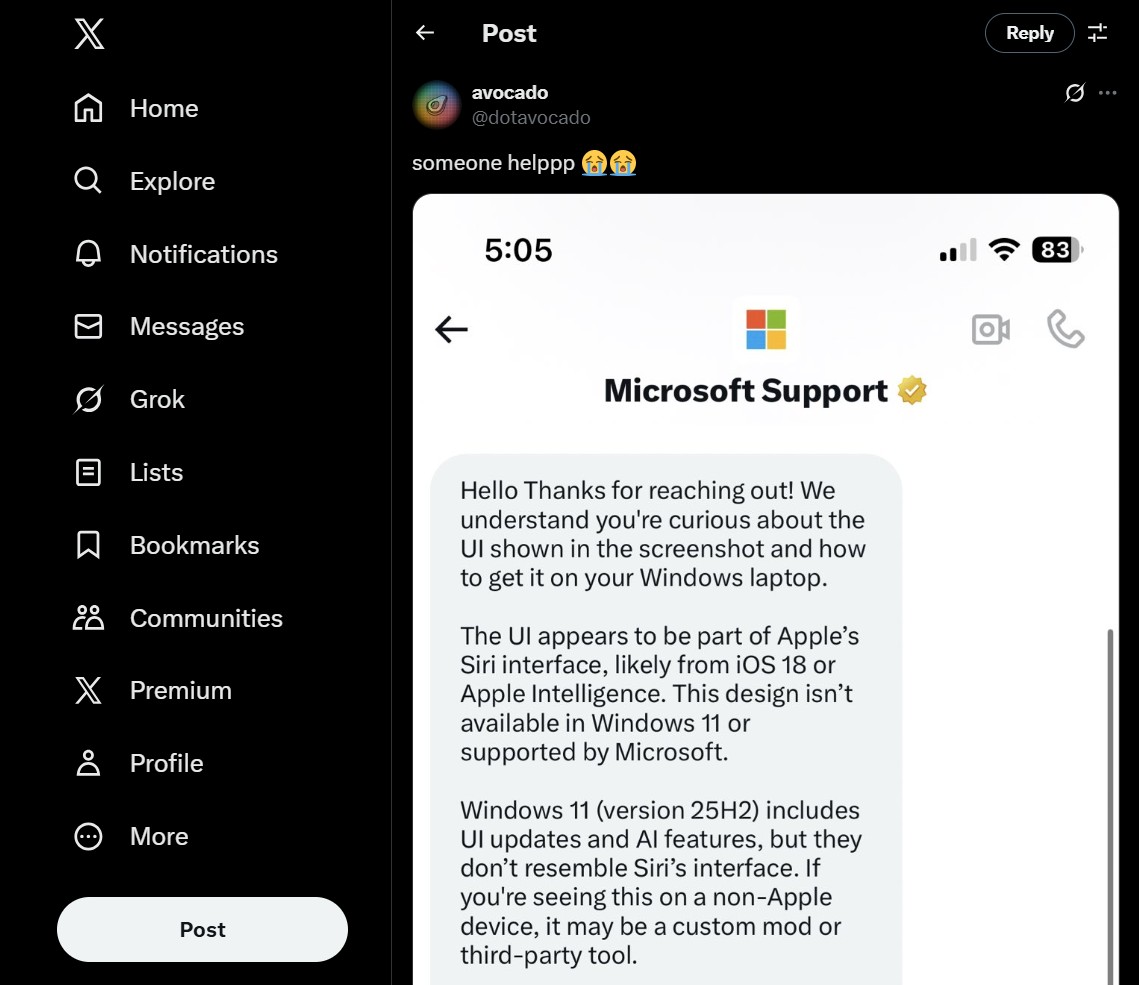
Adding to the hilarity, Microsoft Support’s automated reply misinterpreted the query. The bot assumed the user’s question was about a stolen Windows device and even sent a direct message suggesting the user was referring to Apple’s Siri interface.
This incident highlights the limitations of AI-powered support bots. Some users humorously suggested that Microsoft should consider upgrading its bot to use Copilot Vision for better context understanding.
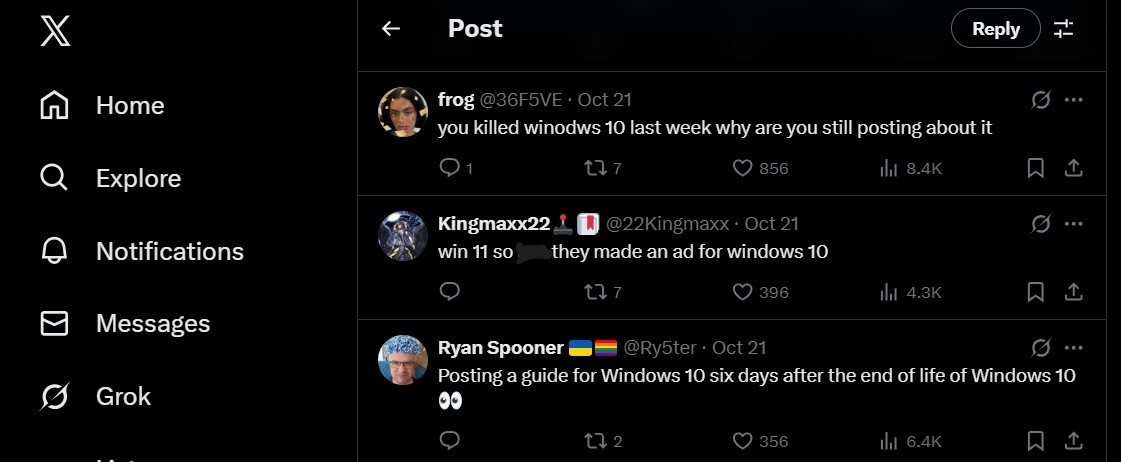
Not all responses were lighthearted, though. Some users criticized Microsoft for continuing to post Windows 10-related content despite the operating system’s retirement.
Why Use Windows 10 UI for a Windows 11 Feature?
While Windows 10 remains beloved by many, its popularity doesn’t justify Microsoft showcasing its UI when Windows 11 now holds a significantly larger market share, according to the Steam hardware and software survey.
The likely explanation is that the person responsible for the post didn’t have access to updated graphical assets for Windows 11’s Night Light feature. The GIF used appears to be an older file, possibly dating back to Night Light’s initial introduction in Windows 10.
Interestingly, the post included a link redirecting users to a Windows 11 display support page, further adding to the confusion.
How to Enable Night Light in Windows 11
Enabling Night Light in Windows 11 is straightforward. Simply open the Quick Settings panel, locate Night Light, and click to activate it. The screen will take on a warmer hue.
If the option is not visible in Quick Settings, navigate to Settings > Display and toggle Night Light on.
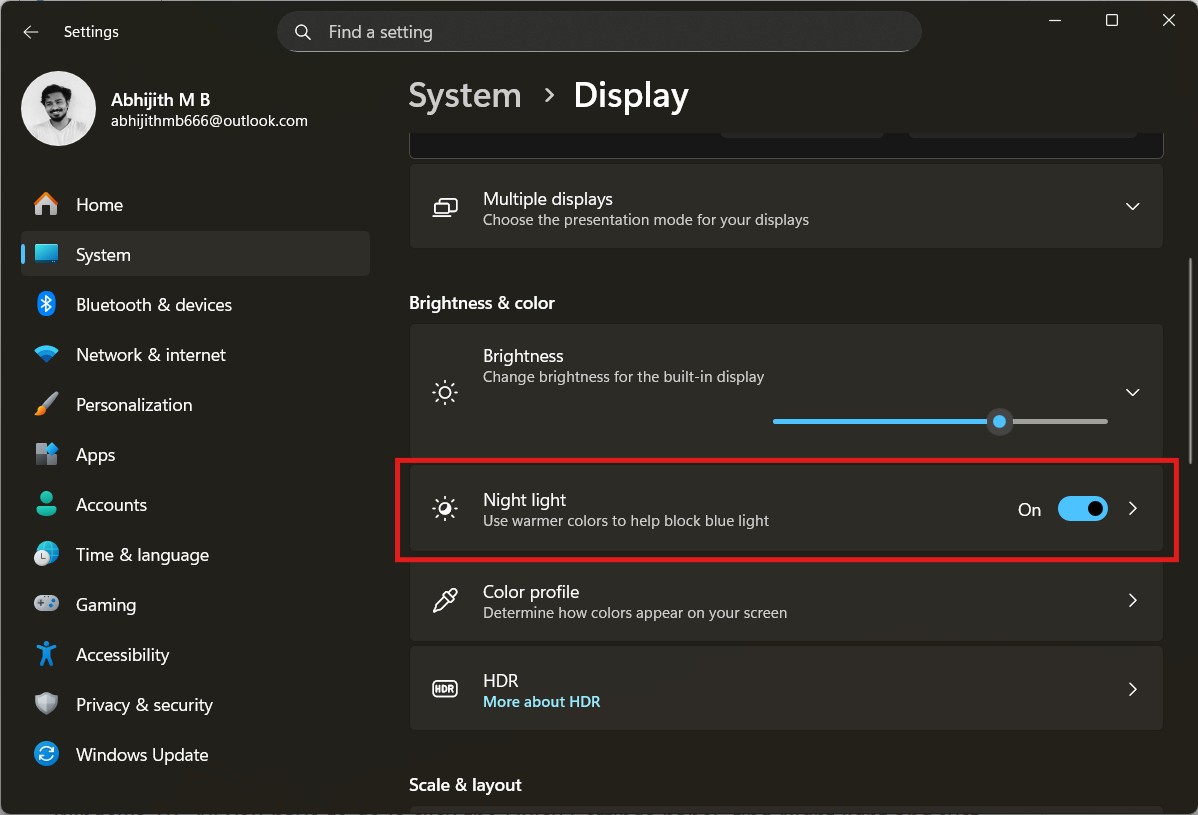
Clicking the arrow next to the toggle allows for customization. You can enable Night Light immediately or schedule it for specific hours. The “Sunset to sunrise” option adjusts Night Light based on your region’s sunset time.
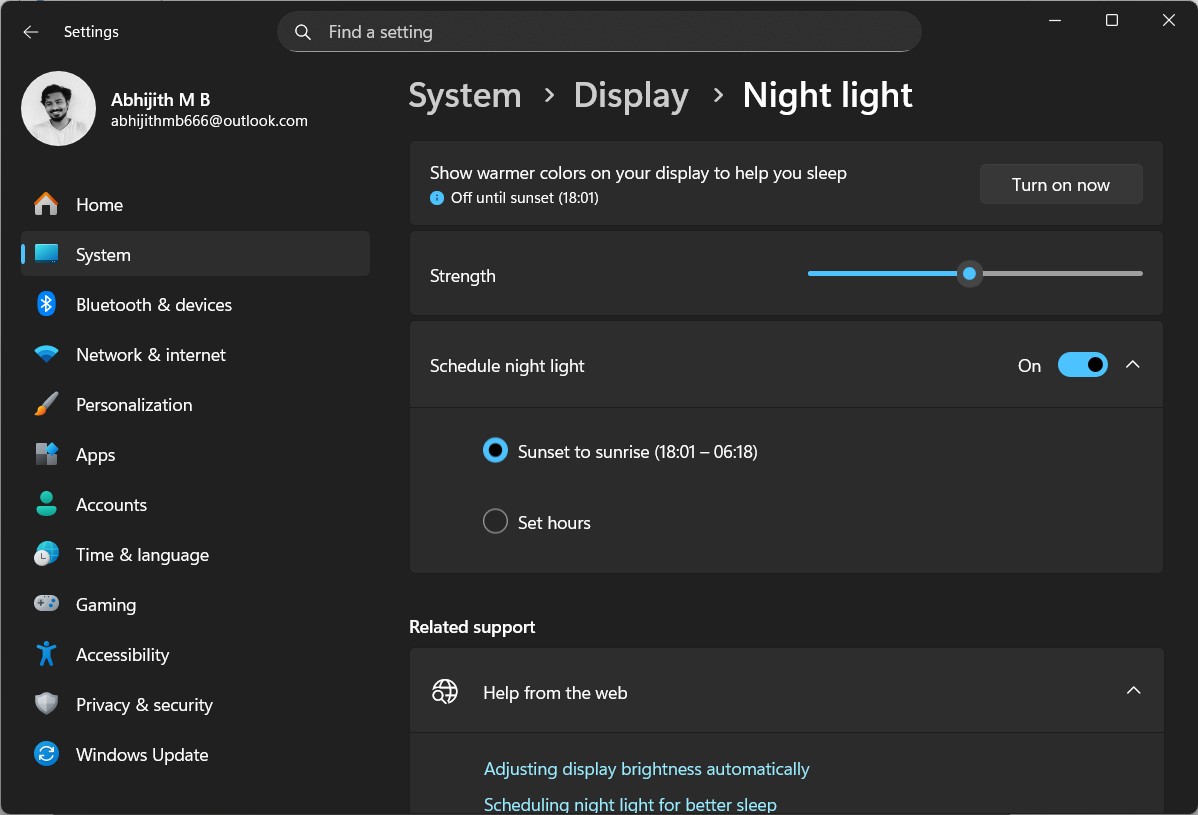
You can also adjust the intensity of the warmth. Increasing it results in a more orange hue, which is believed to be less harmful to your eyes compared to standard blue and white light.
Does Night Light in Windows 11 Improve Sleep?
The body’s natural sleep rhythm is influenced by exposure to orange light, like that of a sunset. However, modern lifestyles often involve prolonged exposure to blue light from screens, disrupting sleep patterns.
Windows 11’s Night Light helps mitigate these effects to some degree. For example, when writing this article at night, I enabled Night Light and reduced screen brightness. The subtle shift in lighting made me feel drowsier over time.
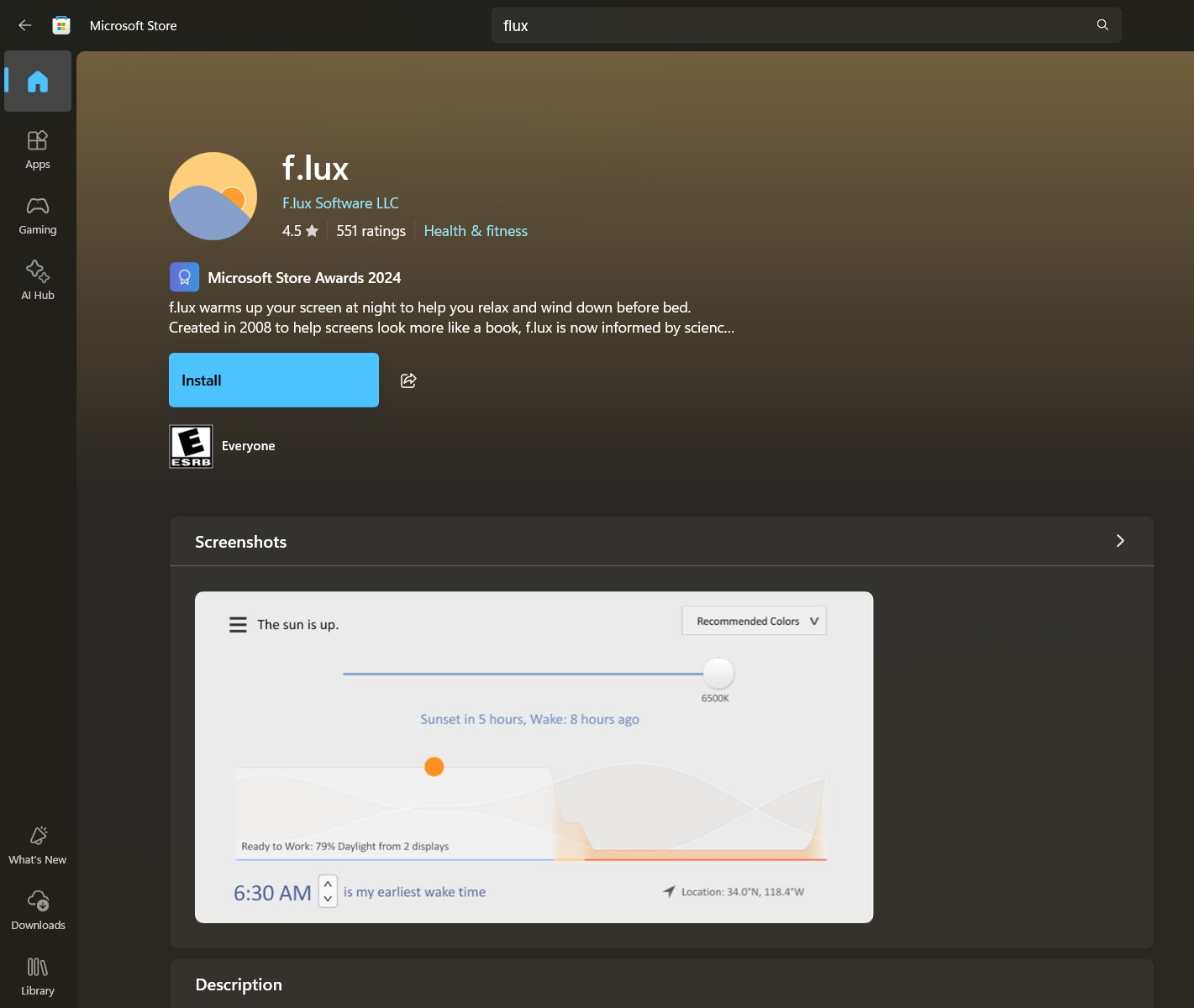
Before Night Light was introduced in Windows 10, I used an app called f.lux, which offers similar functionality. Interestingly, f.lux remains available in the Microsoft Store and even won a Microsoft Store Award in 2024 for the Health & Fitness category, suggesting that users are often unaware of native features.
Microsoft could benefit from focusing on adding more practical, non-AI-driven features that enhance usability without intrusive data collection.
If you’re still using Windows 10, the original post featuring the Night Light feature might feel familiar. However, without enrolling in Windows 10 Extended Security Updates, your system could be at risk. We strongly recommend upgrading or securing your system as soon as possible.