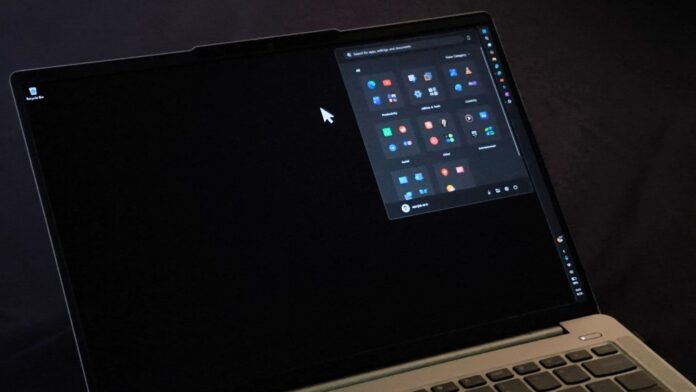
MS’s August optional update, Windows 11 KB5120998, introduces the long-awaited movable taskbar, a resizable Start menu, and a streamlined Search box. However, a rapidly growing number of user reports indicate that it is also disrupting cursor customization and wallpaper settings.
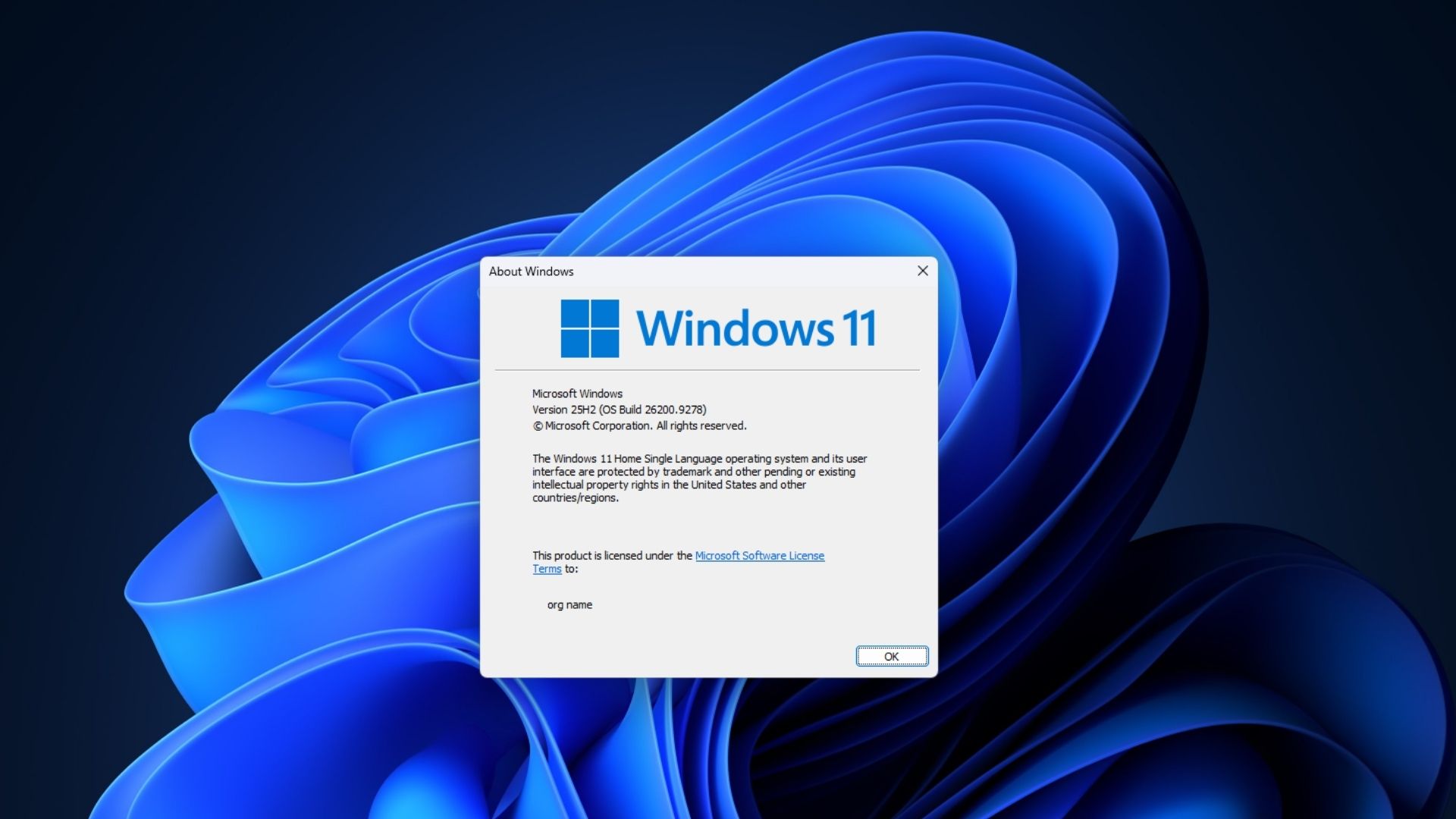
I installed the update, Build 26200.9278, and did not encounter either issue. However, Windows Latest reviewed comments on Feedback Hub and found the problems widespread enough to recommend postponing the update until MS provides a fix.
Custom Cursors Are Reverting to the Default Appearance
As first reported by Windows Latest, the most common complaint involves the mouse pointer reverting to a larger, white, Windows 98-style cursor that cannot be changed back. One user described the issue: “After installing 26200.9278, also known as KB5120998, my custom HiDPI cursor disappeared. Instead, I got a large white cursor.” Rolling back to the previous build resolved the problem for that user.
Other users reported the same behavior in the replies. One person wrote that after the update, “it’s impossible to change the pointer to anything other than the default one,” while another said the cursor “is always white and enlarged” and that the accessibility options for changing it have no effect.
Several users also noted that the cursor’s tail appeared noticeably longer. This may reflect a conflict between the older Aero-style pointer and the new theming behavior.
“After installing the update, the mouse pointer changed to the default ‘None’ mode and cannot be changed to my customized cursors or system cursors such as Windows Black. None of them affect the pointer,” one user wrote in a Feedback Hub post.
In response to the Feedback Hub report, MS confirmed that it had received the complaints and was investigating them.
Uninstalling the Windows update resolved the issue for every user who reported trying that solution. One user wrote, “Same here. Uninstalling KB5120998 fixed it for me,” while another confirmed the same result after removing the patch through Windows Update history.
Wallpaper Resets to Solid Black After Installation
The second major complaint involves desktop backgrounds being removed and replaced with a solid black color. Users who installed the update reported the issue repeatedly. “On both a desktop and a laptop, I got a black wallpaper after installing this and had to reset my own,” one user wrote, followed by several replies reporting the same experience.
Some users encountered both bugs simultaneously. One wrote, “This update set my desktop wallpaper to a single color, black, and I am fairly sure it also made my mouse cursor slightly larger in its normal state.” Another reported that the wallpaper continued reverting to black “after logout or restart,” even after being manually restored, until the update was removed.
Not everyone is affected. Several commenters, including a moderator in the thread, reported no issues across multiple machines. I can personally confirm the same experience. This illustrates why MS rolls out updates gradually: the cursor and wallpaper bugs may be linked to specific hardware, display-scaling settings, or theme configurations rather than affecting every PC that installs Windows 11 KB5120998.
Nevertheless, these problems appear to be more widespread than the minor bugs typically reported after an update.
Other Complaints About the August Optional Update
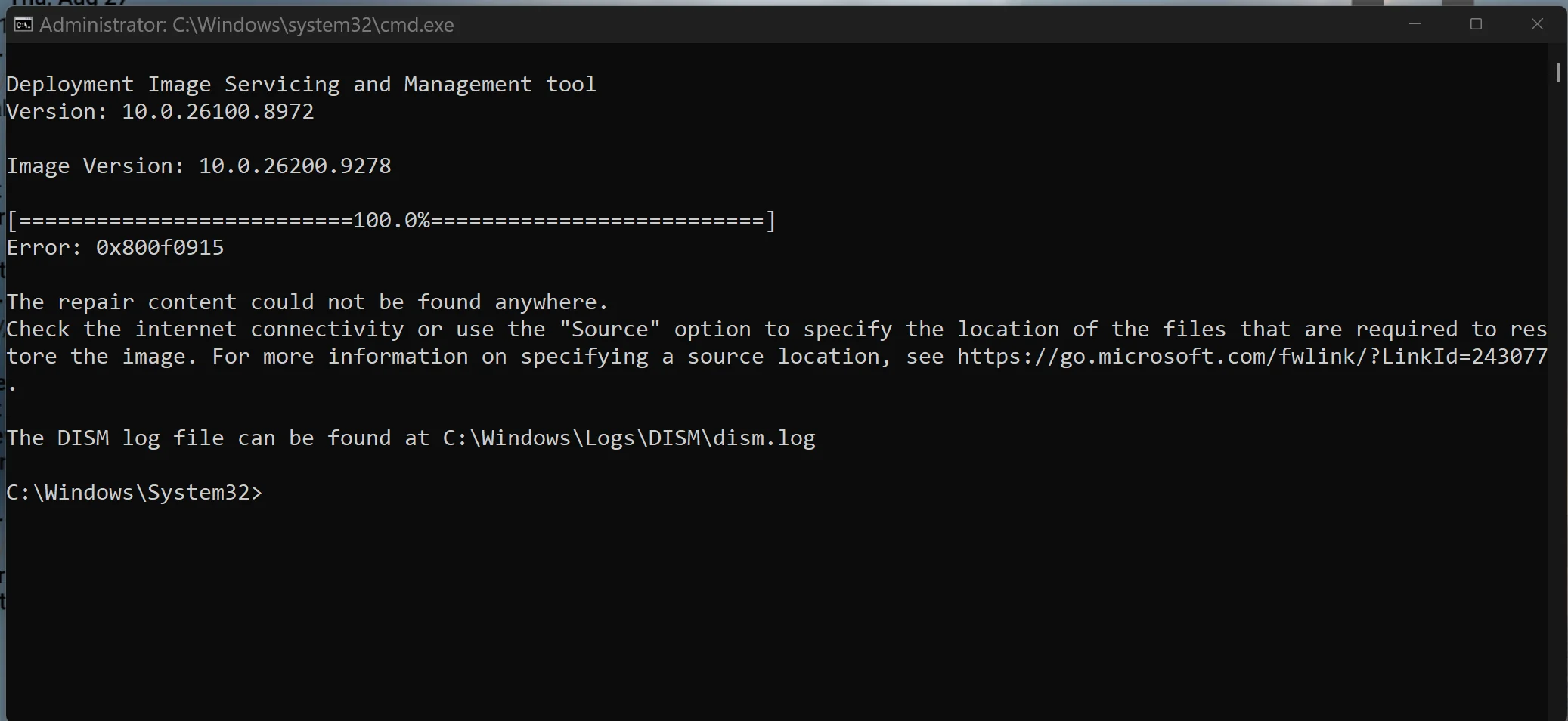
A small number of users also reported DISM error 0x800f0915 when attempting to repair their system images after installing the update. This error has circulated for months across several earlier Windows 11 builds and is generally caused by DISM being unable to access a valid repair source, rather than by a problem introduced with KB5120998. It may therefore be a separate, ongoing issue.
Jen Gentleman, a MS software engineer, responded in the thread and reminded users that Windows 11 KB5120998 is optional. She noted that users who skip it will receive the same changes in the next mandatory update and asked affected users to submit detailed reports through Feedback Hub.
MS did not specifically mention the cursor or wallpaper bugs and has not yet formally listed either one as a known issue, aside from a “we’ve got it” notification in Feedback Hub.
Windows Latest also identified reports of text appearing noticeably pixelated or blurry after the update, even after users ran ClearType.
If you encounter blurry fonts or any of the issues described above, the currently confirmed remedy is to uninstall the update.
Should You Install Windows 11 KB5120998 Right Now?
Given that both major bugs are widely reported and relatively easy to encounter, and that the only confirmed solution is to uninstall the update completely, the safest choice is to skip it for now. Uninstalling the update also removes the desired taskbar, Start menu, and Search improvements.
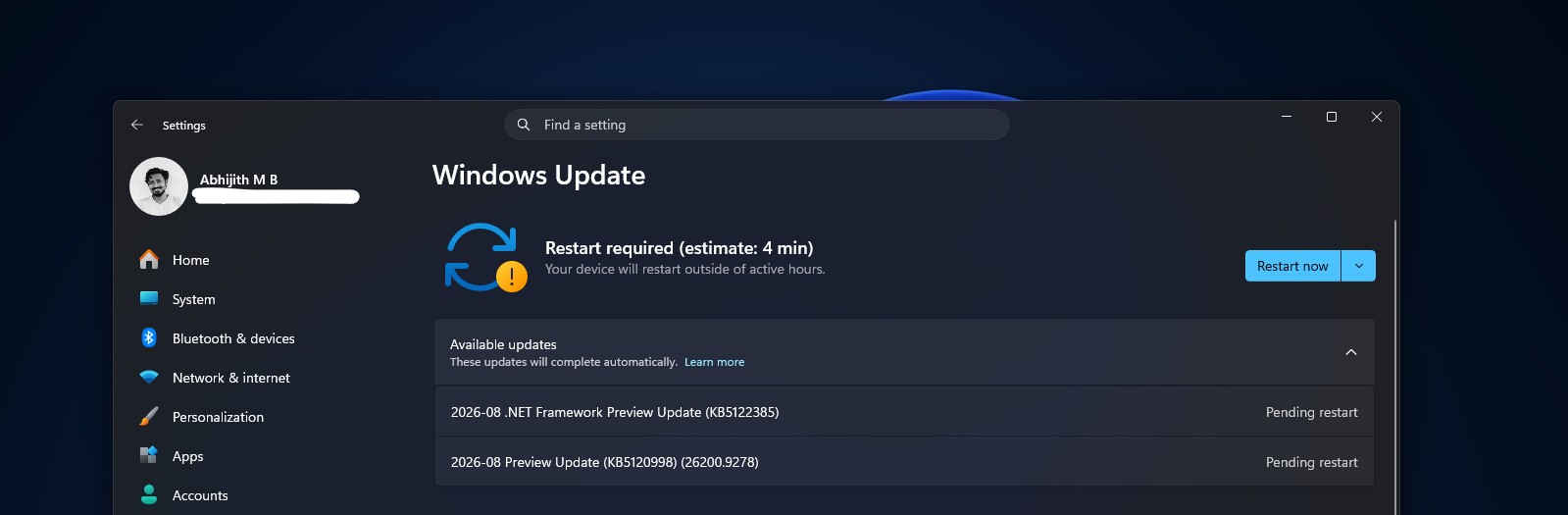
It is also important to understand that these improvements are expected to roll out to all users with the Windows 11 September 2026 Patch Tuesday update, scheduled for September 8. The cursor, wallpaper, and related bugs are not expected to ship with that update, as MS should have time to address them within the next two weeks.
If you have already installed the optional update, KB5120998, and everything is working correctly but the three headline features have not yet appeared, you can force-enable them instead of waiting for the gradual rollout to reach your device.
MS is expected to formally acknowledge these issues through a known-issue notice and will likely roll back the change responsible. MS has previously used Known Issue Rollback (KIR) for similar situations. No timeline has been announced, so the safest approach is to wait until a fix becomes available.
Windows Latest depends on readers like you. Make us your preferred source on Google Discover and Google Search, and help our independent reporting reach more people.
