Unlock Windows 11’s Movable Taskbar, Resizable Start Menu, and Bing-Free Search
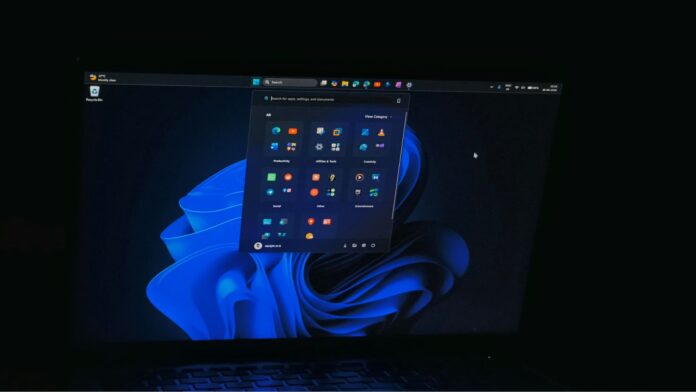
Windows 11’s August optional update, KB5120998, is now available. It introduces three highly anticipated changes for all PCs: the ability to move the taskbar to any side of the screen, a resizable Start menu, and an option to disable Bing in Windows Search. These features have been available in Insider builds for some time.
You can install KB5120998 today, but these three features may not appear immediately. Although MS is distributing the update to everyone, the features are being enabled in stages. As a result, most users may not notice any changes immediately after installation. Fortunately, there is a safe way to enable all three features now.
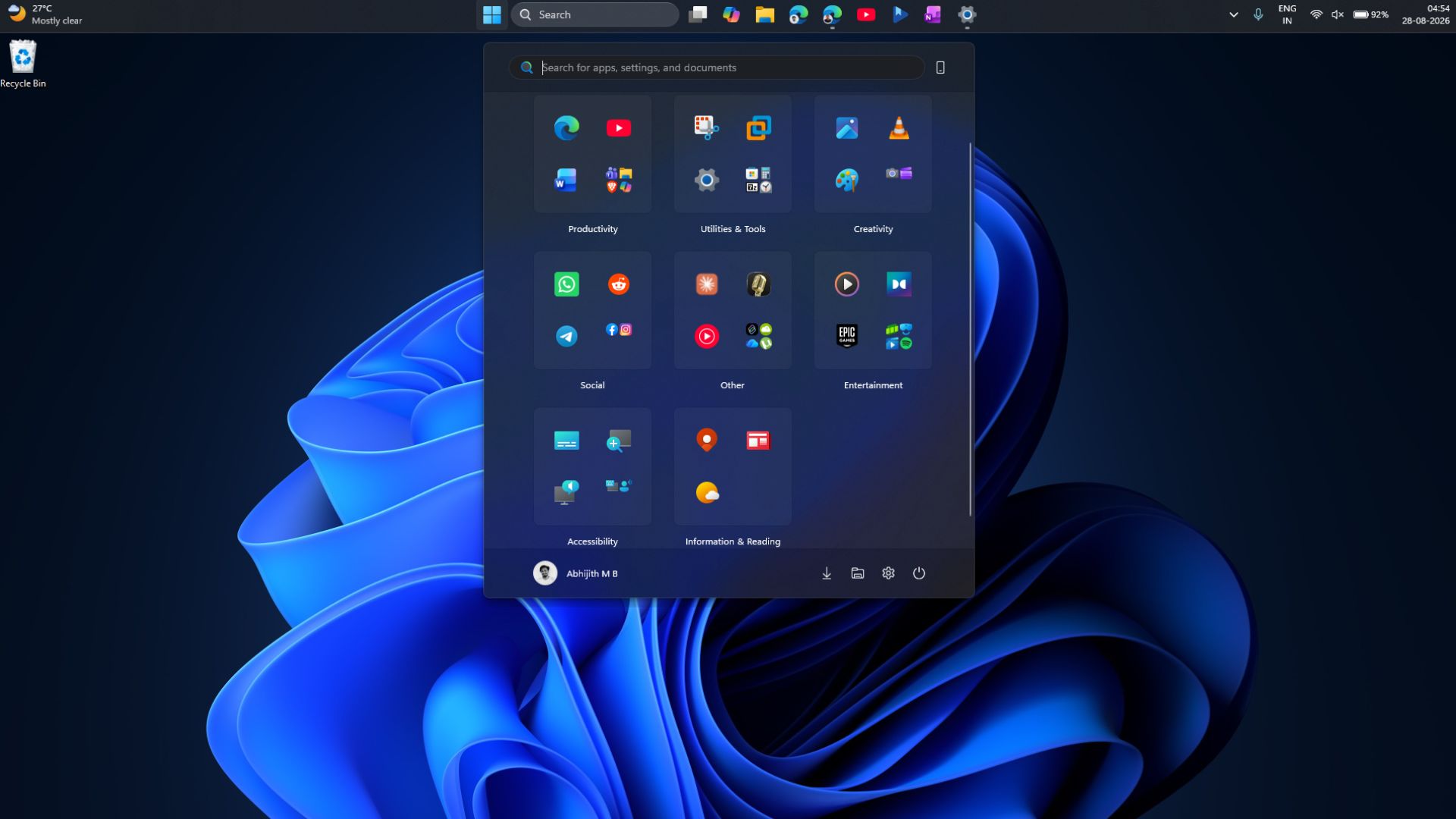
An optional update, also known as a preview update, allows MS to test new features on real PCs before including them in the following month’s mandatory Patch Tuesday release. Installation is voluntary, so you can wait for the mandatory cumulative update or install KB5120998 now and manually enable the features with a small tool called ViVeTool.
How to Enable the Major Features in the Windows 11 August Optional Update
Begin by installing KB5120998. Go to Settings > Windows Update, select Check for updates, and then click the Download & install button next to the 2026-08 Preview Update.
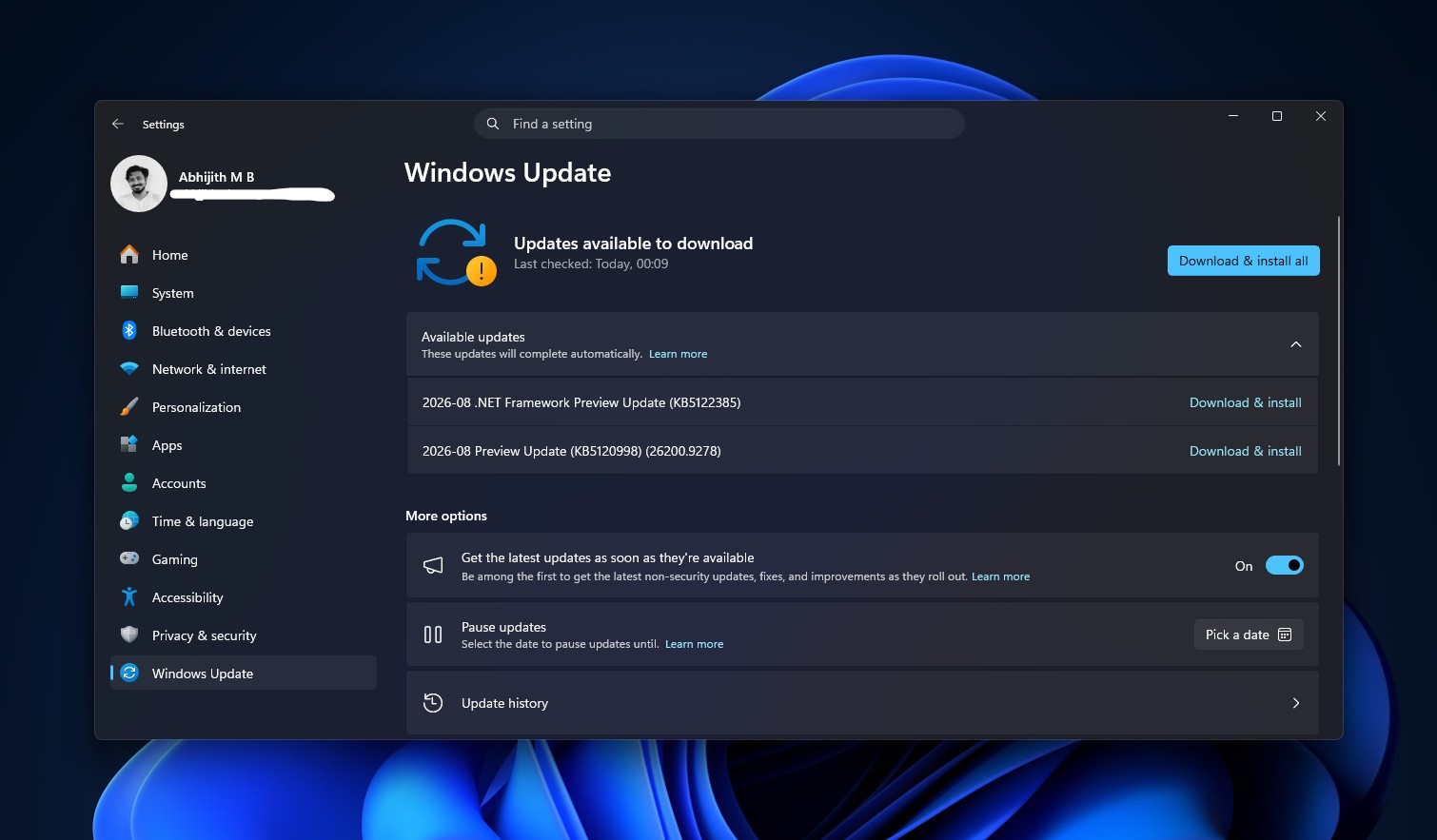
If Windows Update does not offer it yet, you can download the offline .msu installer directly from the KB5120998 coverage. Restart your PC after the installation finishes.
After restarting, check Settings > Personalization > Taskbar > Taskbar behaviors and Settings > Personalization > Start. If you see a Taskbar position option or a Start menu size drop-down menu, the features have already reached your PC, and you can proceed directly to the relevant sections below.
If you do not see anything new, this is expected.
MS distributes new Windows features through Controlled Feature Rollout, or CFR. The code for all three features is already present on your PC after KB5120998 is installed, but MS keeps it remotely disabled on most devices while monitoring the initial group of PCs for crashes and bug reports.
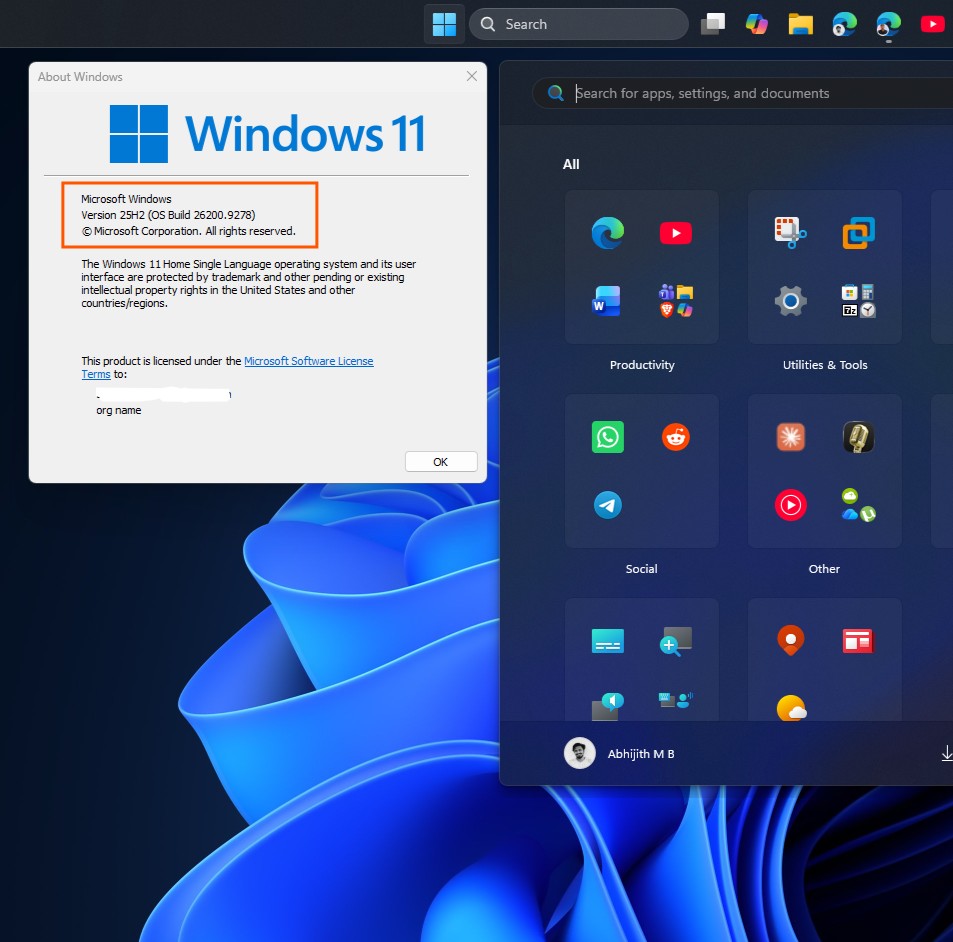
Your device already contains the features; MS simply has not enabled them for you yet. You can activate them manually by following the instructions below.
ViVeTool is a small, free command-line tool that lets you change these feature flags instead of waiting for MS’s servers. It only modifies feature flags already built into Windows. It does not install hidden components or alter your data, and every change can be reversed using the same method.
Download and Prepare ViVeTool
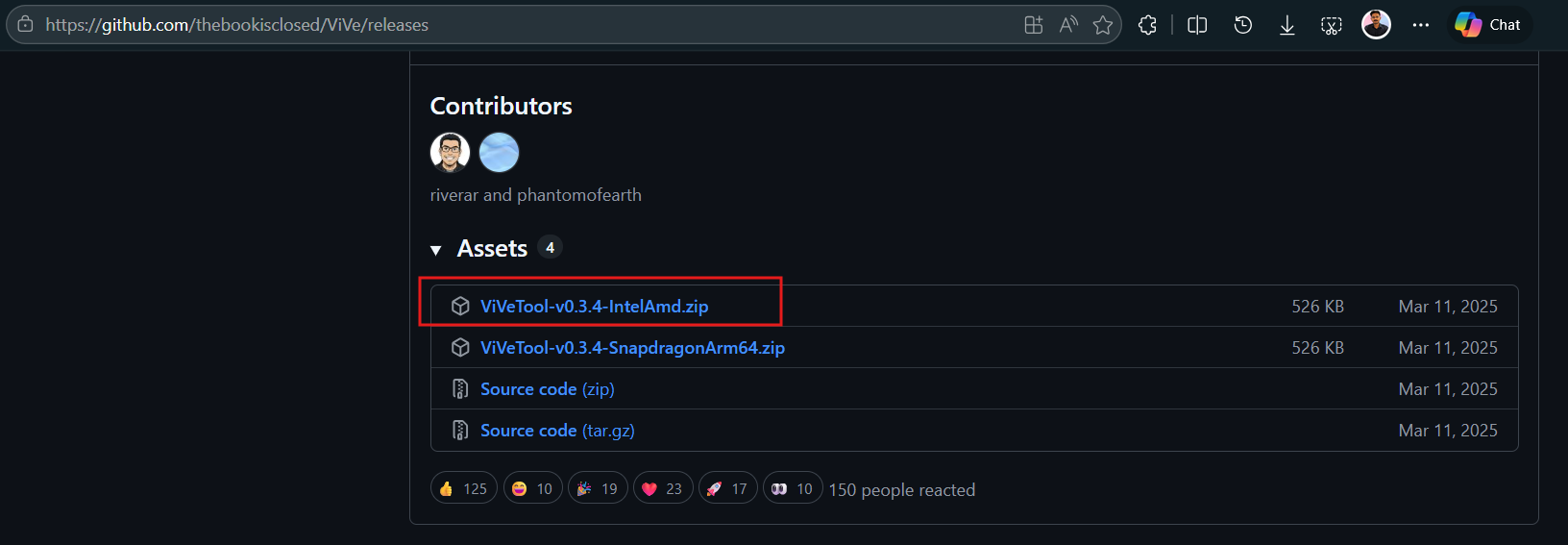
Download ViVeTool. Credit: Windows Latest
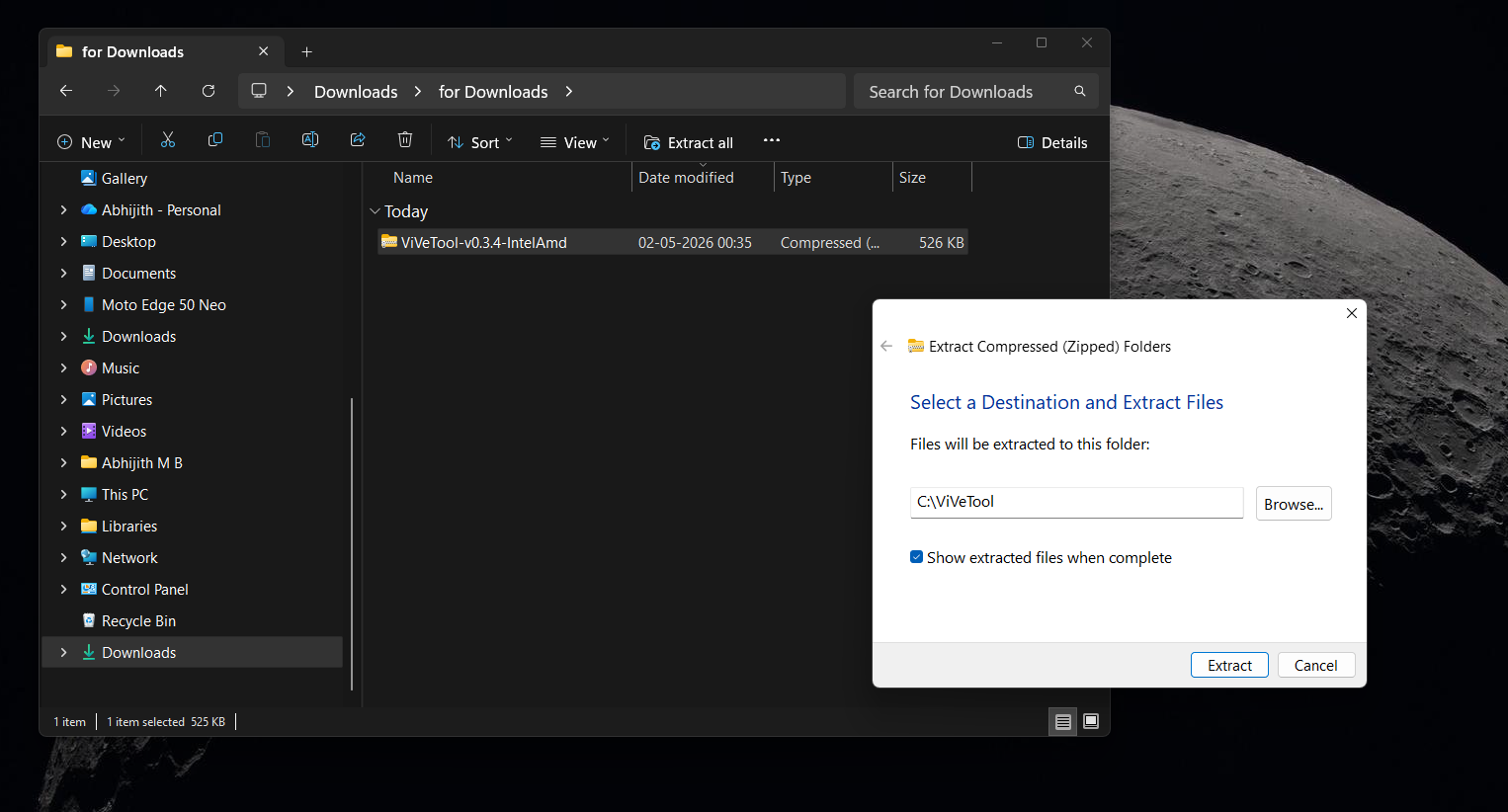
Extract the ViVeTool .zip file to the C drive. Credit: Windows Latest
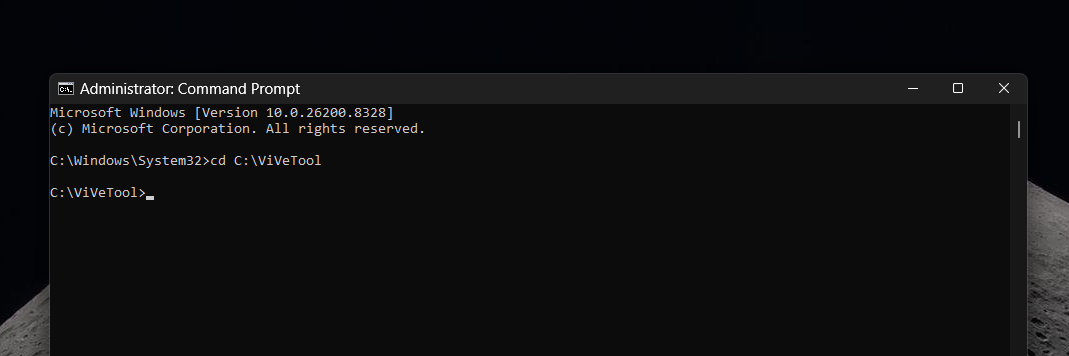
Open ViVeTool in Command Prompt. Credit: Windows Latest
ViVeTool typically uses a separate ID for each feature. In this case, however, one master ID enables the entire feature bundle from this update with a single command.
After completing Step 4 above, enter the following command and press Enter:
vivetool /enable /id:61161244
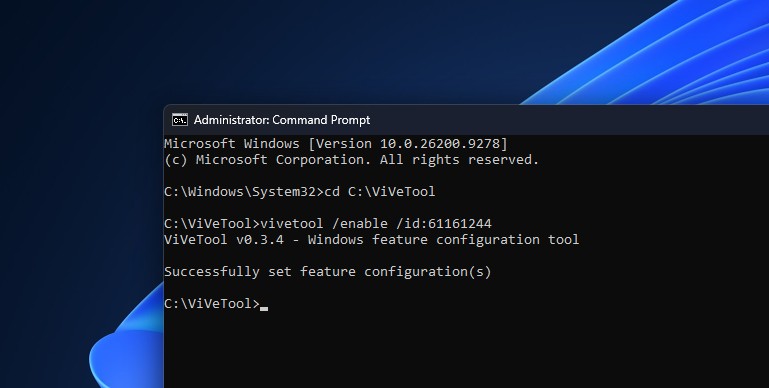
You should see the message “Successfully set feature configuration(s)”. A restart would normally follow, but this ID may not enable every feature. Before restarting, copy and paste the following command as well:
vivetool /enable /id:62353331,62762248,61754985
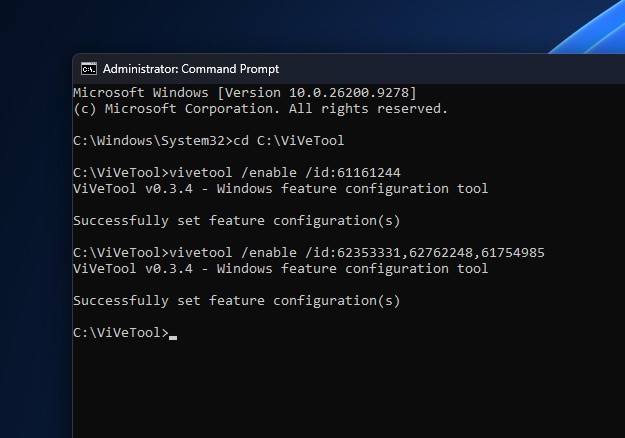
Feature IDs correspond to specific Windows builds and may stop working after MS permanently integrates a feature into Windows. For now, you can also disable these features by replacing enable with disable in the commands above.
How to Move and Shrink the Windows 11 Taskbar
Once the feature is active—either because CFR has reached your PC or because you used the ViVeTool commands above—the Windows 11 taskbar can finally be repositioned for the first time since the operating system launched in 2021.
Before the Update
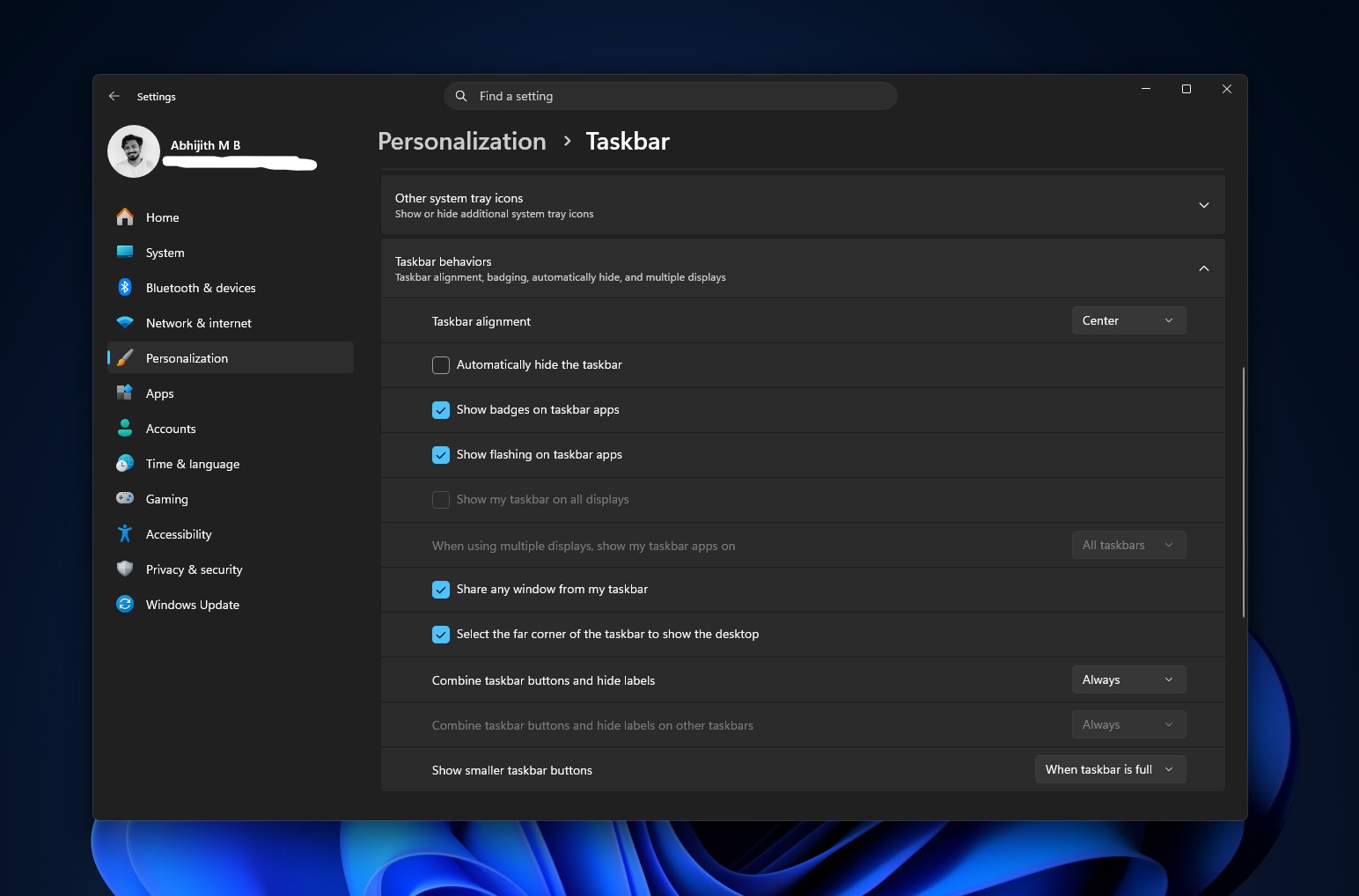
After the Update
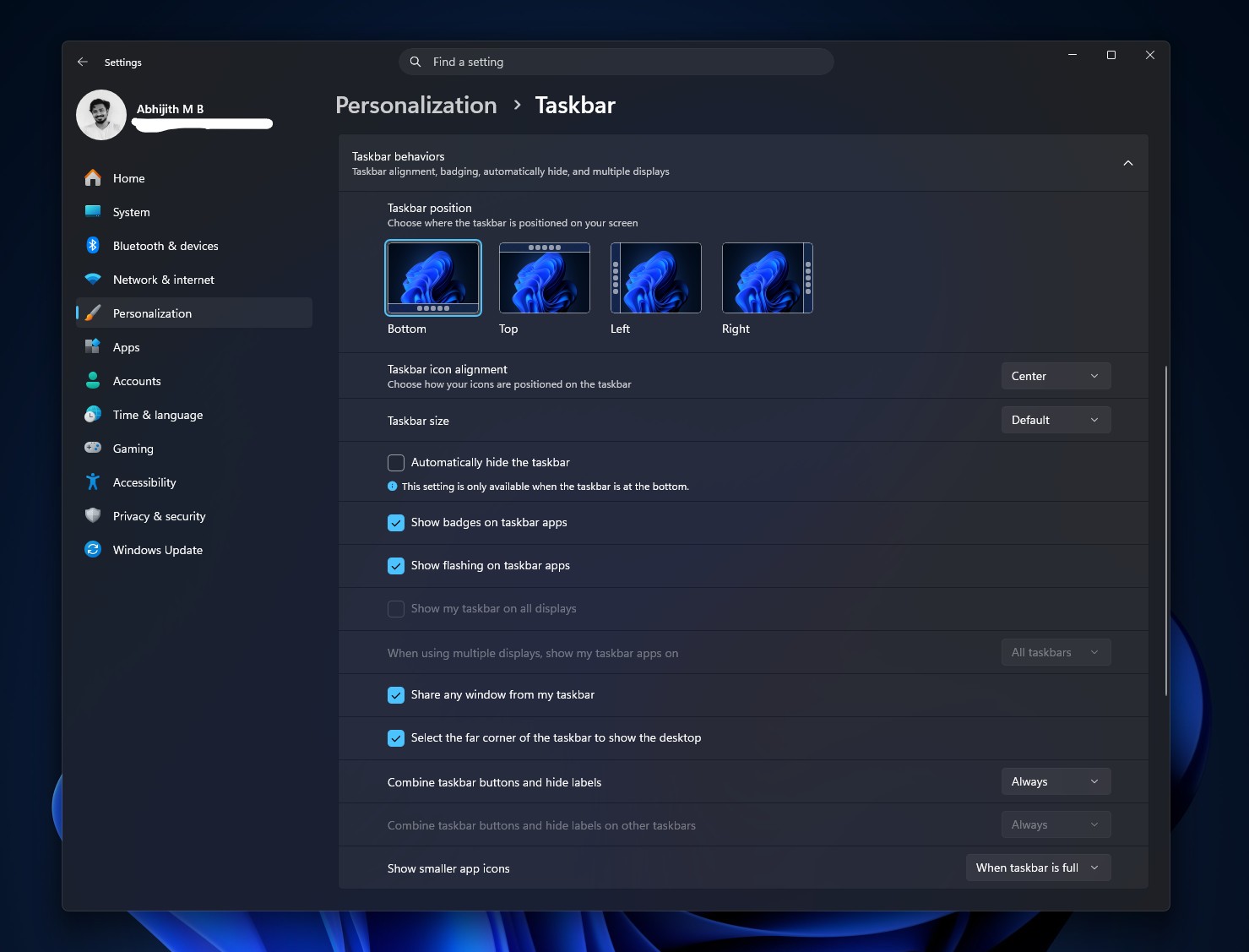
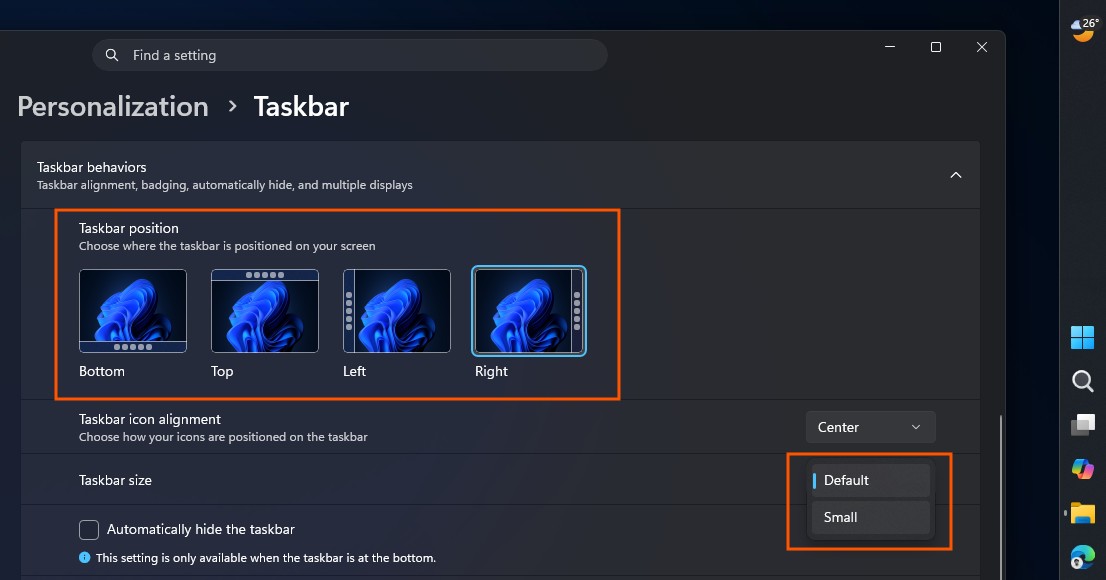
For now, the search box and the smaller taskbar option work only when the taskbar remains at the top or bottom of the screen. Moving the taskbar to either side disables those two options until MS expands support. Icon alignment options adjust automatically according to the taskbar’s position, while animations, tooltips, and flyouts correctly follow its new location.
Either way, I have now switched to a smaller vertical taskbar, and this is my identity now.
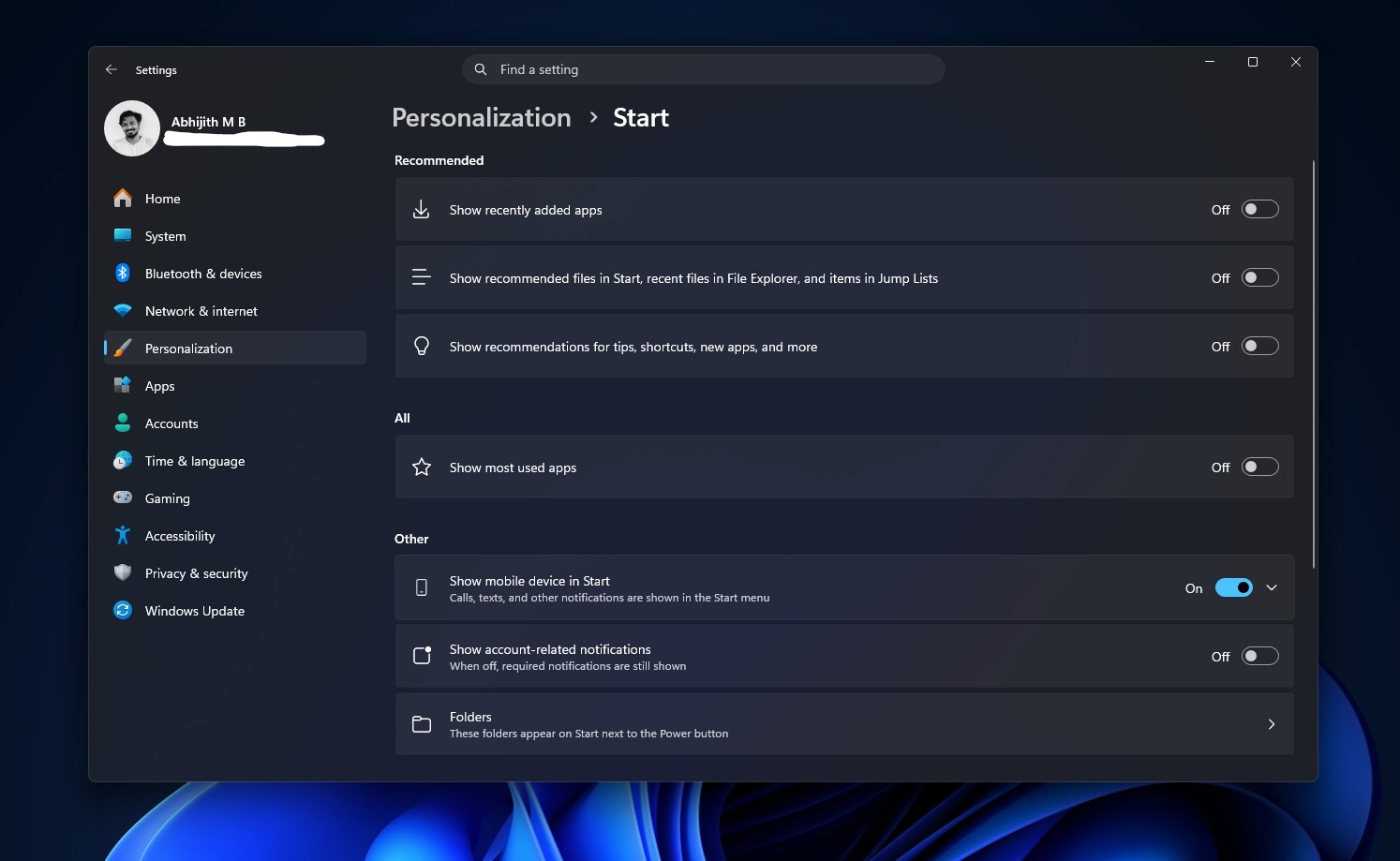
How to Resize and Customize the New Windows 11 Start Menu
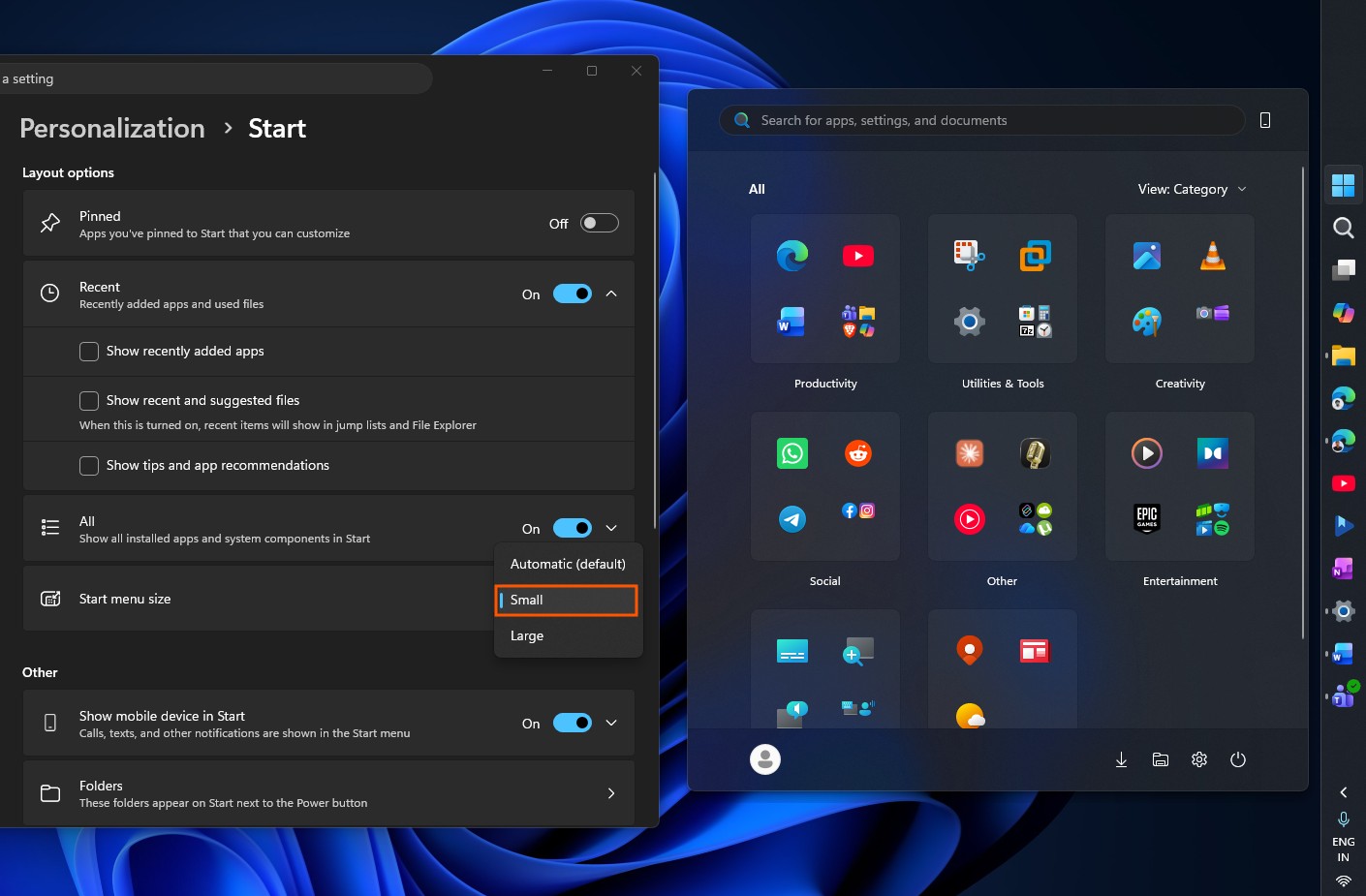
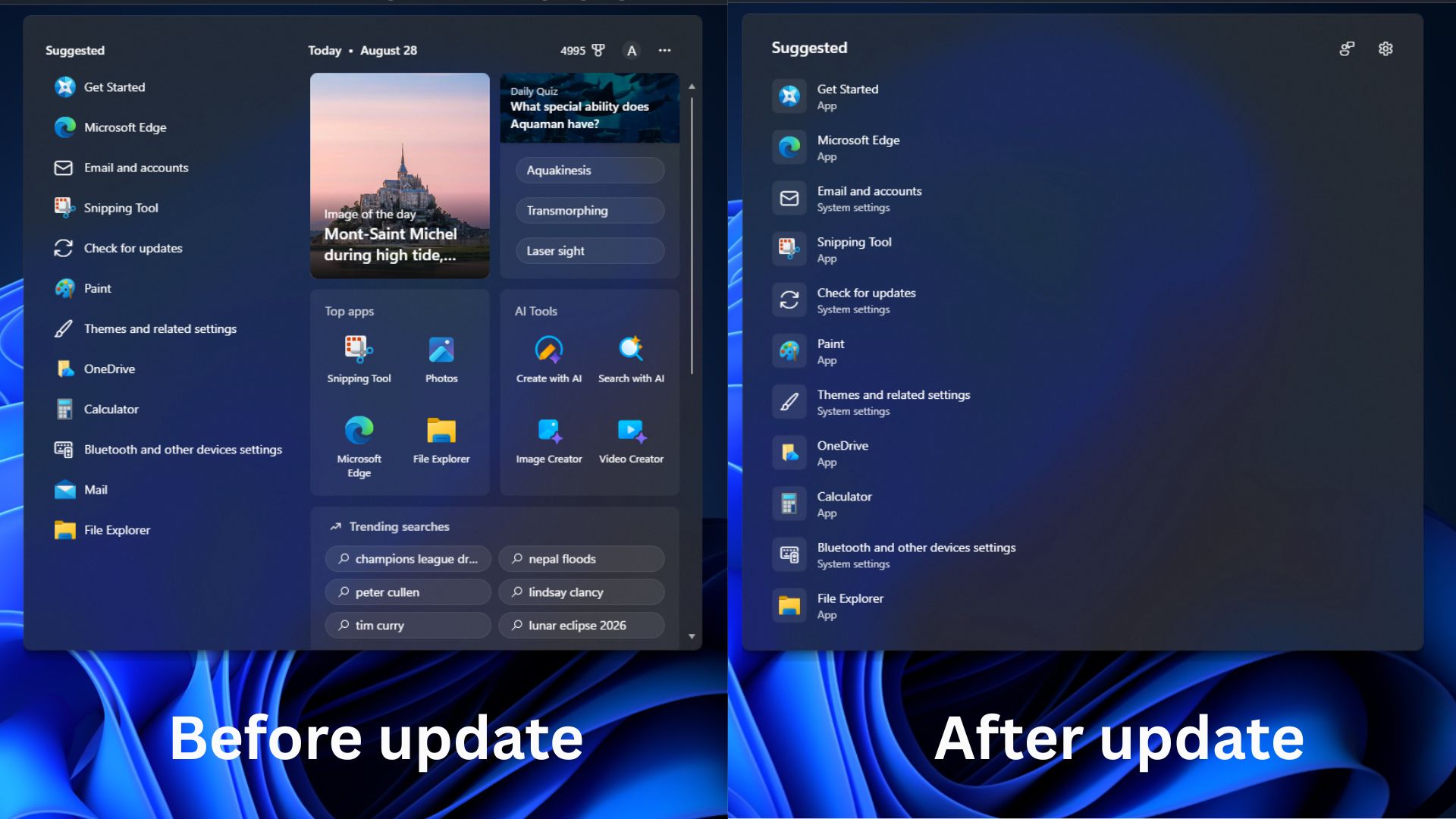
The Start menu changes address a concern that Windows Latest has raised since November: the redesigned Start menu could occupy up to 70 percent of the screen on smaller laptops.
Before the Update
After the Update
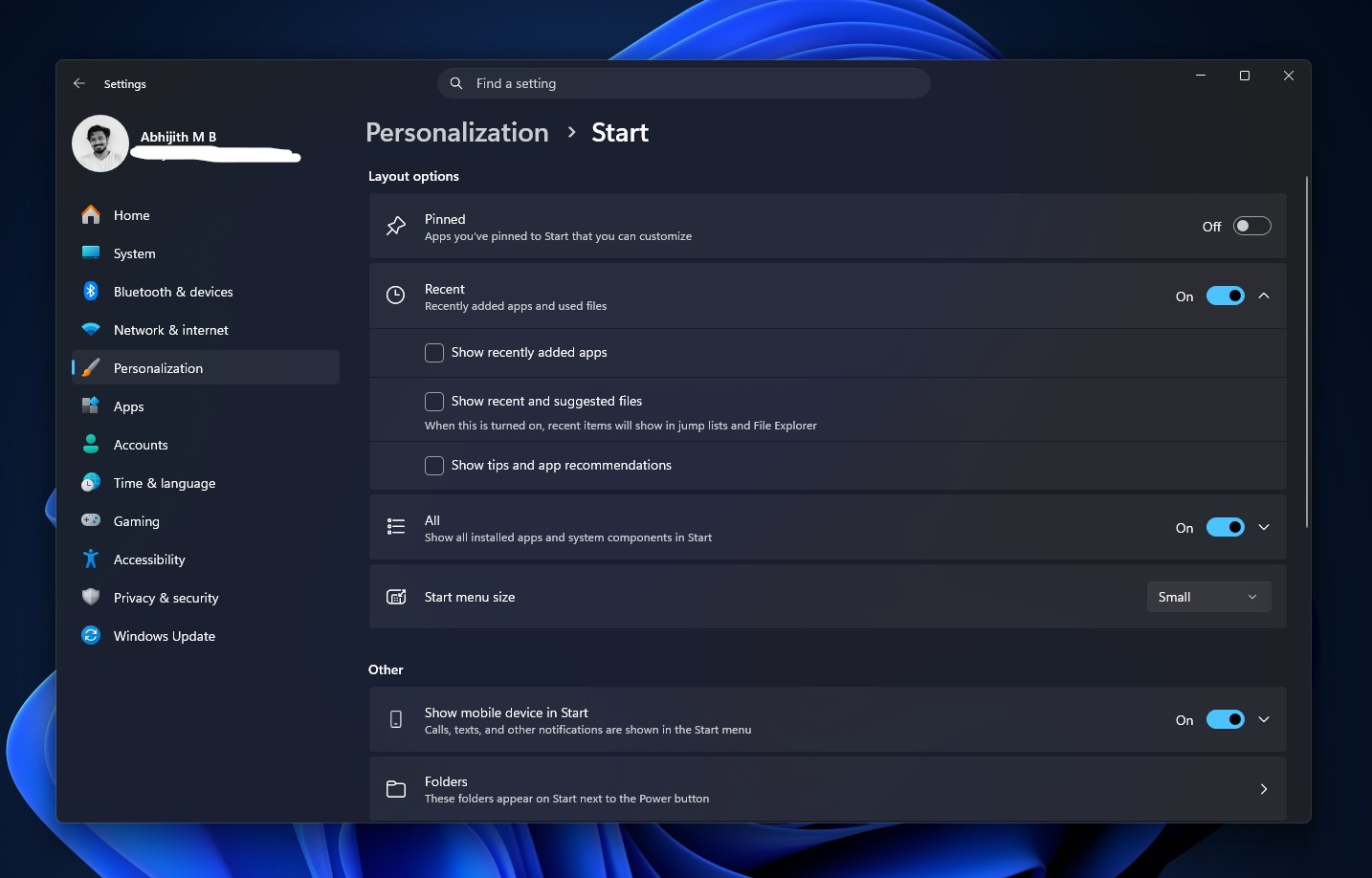
How to make the Start menu smaller in Windows 11. Credit: Windows Latest
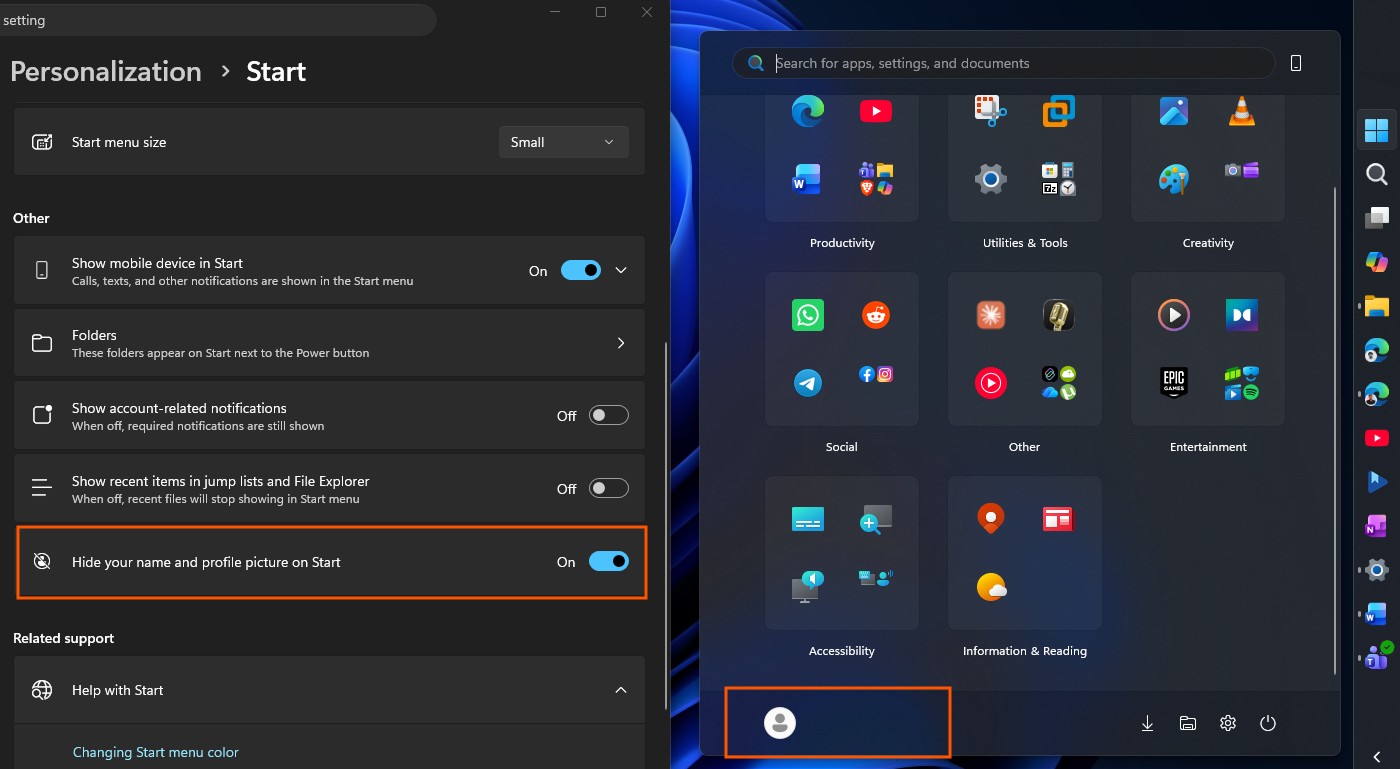
How to hide your name and profile picture on the Start menu. Credit: Windows Latest
The Recommended section has also been renamed Recent throughout Settings and the Start menu. MS has also separated it from File Explorer’s jump-list history. Disabling Recent in the Start menu no longer clears the recent files list in File Explorer, which previously occurred as an unrelated side effect.
How to Disable Web Searches and MS Store Results in Windows Search
The option to disable Bing and Store results may be reason enough to install the update. Windows Search can now operate without web results or Store suggestions, displaying only your apps, settings, and files.
Before the Update
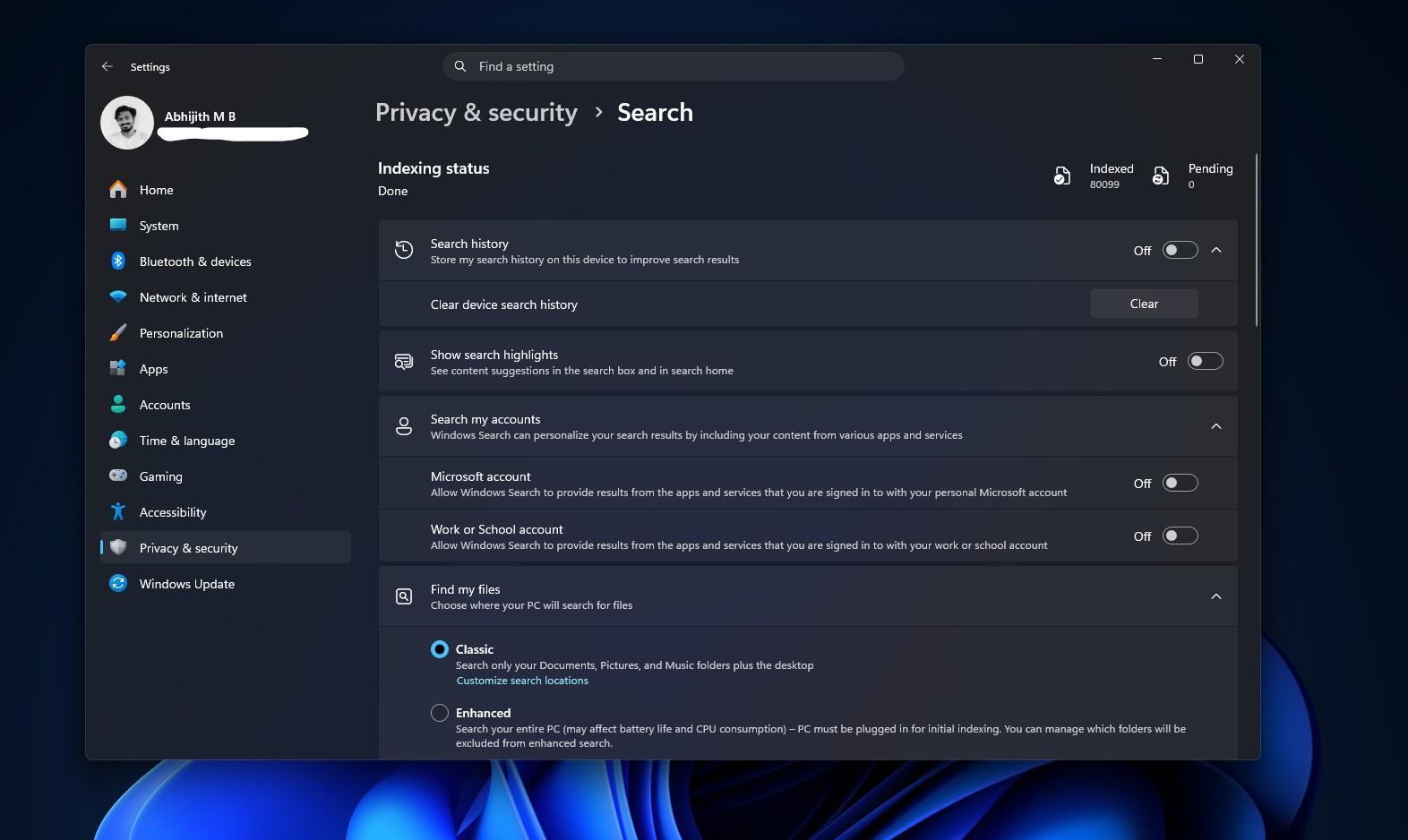
After the Update
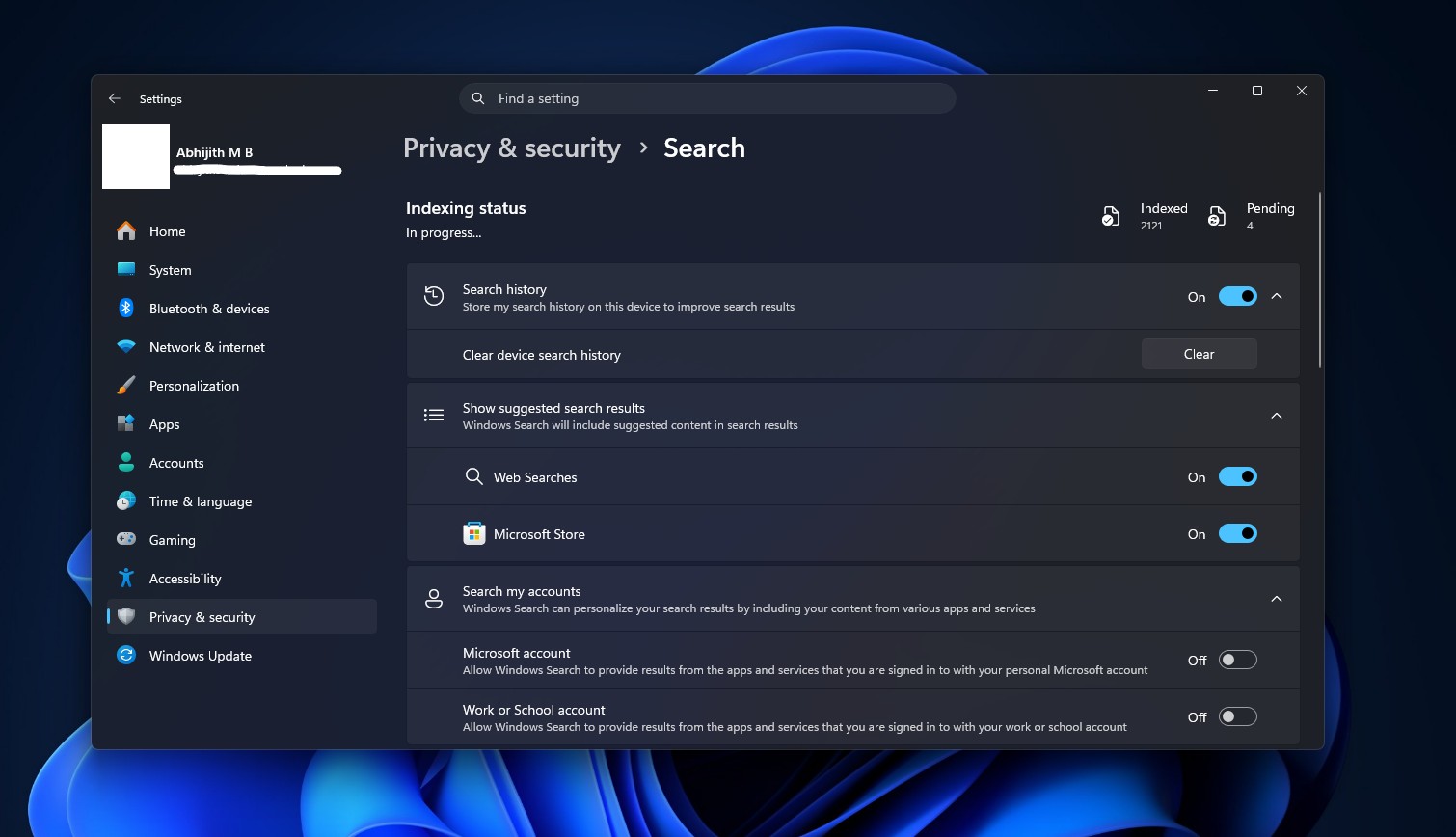
How to disable Bing and Store results in Windows Search. Credit: Windows Latest
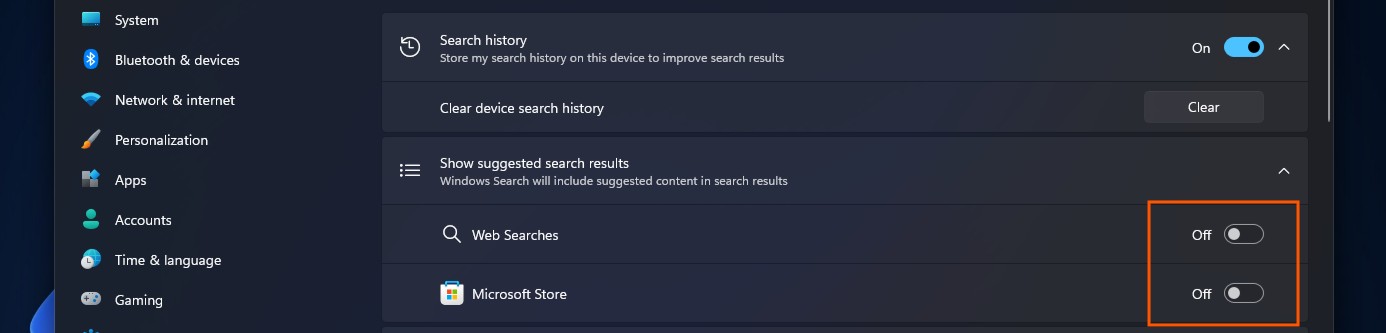
With both toggles disabled, Search returns only content stored on your PC. Queries without a local match return no results instead of defaulting to a web result.
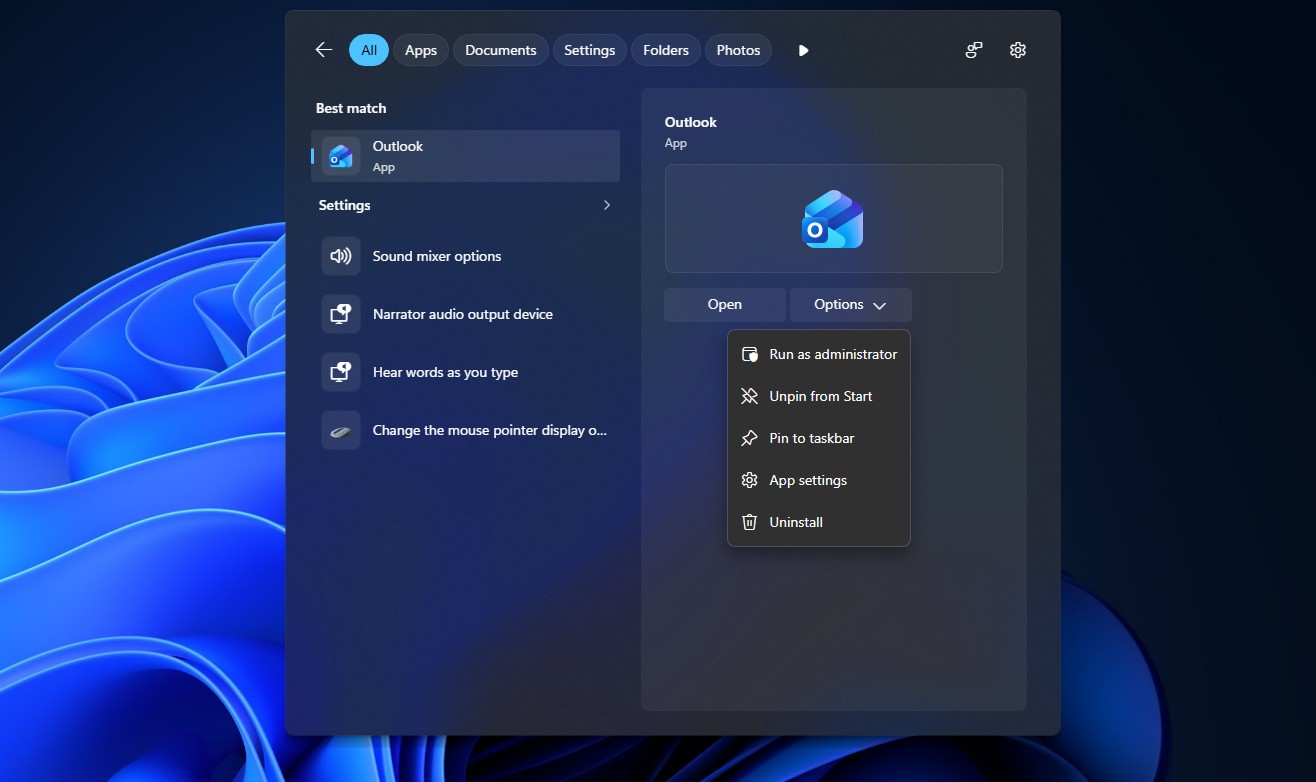
Search Home is also less cluttered, prioritizing your recent searches instead of promotional tiles and the MSN feed. This is the new default, so no toggle is required.
Each result also includes a label identifying it as an app, file, setting, web result, or Store suggestion before you open it.
When Will These Features Arrive Without ViVeTool?
MS does not publish a timeline for completing a Controlled Feature Rollout, and availability varies by feature, hardware, and region. Based on previous optional updates, taskbar repositioning and the Start menu changes each took approximately three to five weeks to reach most PCs after the initial rollout began. The new Windows Search experience has generally expanded more quickly after leaving the Experimental ring.
The safest option is to wait for the next mandatory Patch Tuesday update on September 8, 2026. MS will include all features from the August optional rollout in that release, although the same CFR limitations will still apply. Personally, I have already installed the optional update and run all the ViVeTool commands on my primary PC, and I have not encountered any issues so far.
Have you been waiting for these updates to reach your PC?
Windows Latest depends on readers like you. Make us your Preferred Source on Google Discover and Google Search, and help our independent reporting reach more people.
