Windows 11 KB5124008 Adds a Smaller Taskbar, Bing-Free Search, and Faster File Explorer
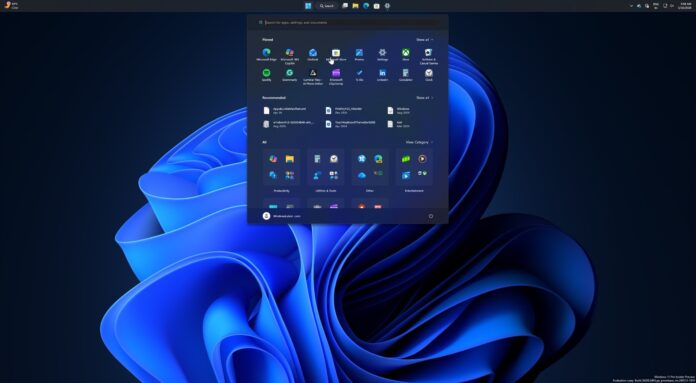
Windows 11 KB5124008 is now available with at least five highly requested features, including a smaller taskbar and Bing-free Windows Search. This major release also improves File Explorer loading times. In addition to Windows Update, MS has published direct download links for KB5124008 offline installers in the .msu format.
KB5124008 is classified as a Patch Tuesday update, so it should install automatically unless Windows Update has been deferred through Group Policy or paused through Windows Update controls. If active hours are configured manually or managed automatically by Windows, the update will not install during that period.
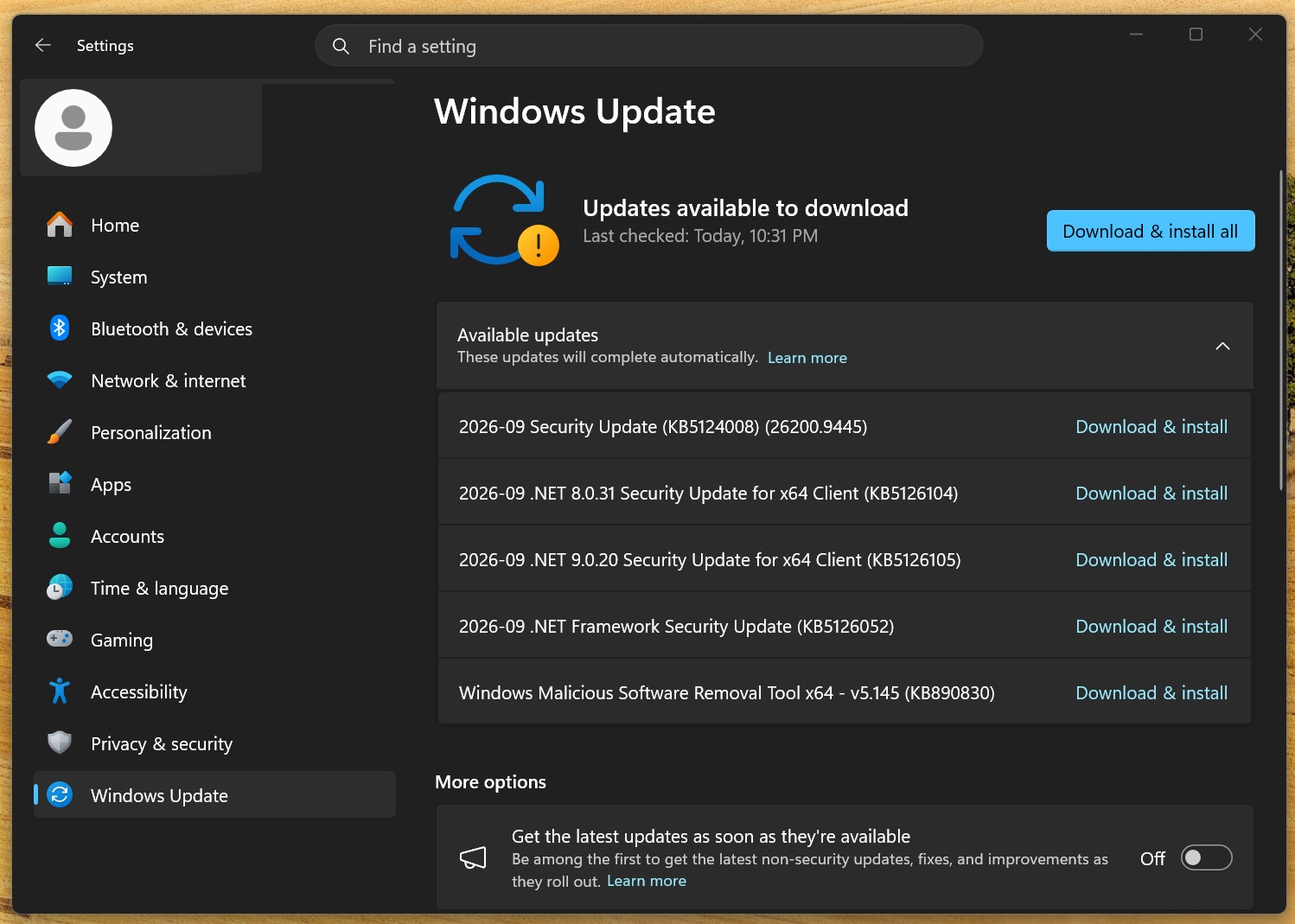
On our PCs, the cumulative update appears as “2026-09 Security Update (KB5124008) (26200.9445).” Installation time depends on the hardware and whether previous updates have been installed or skipped. Systems with the August 2026 optional update already installed should complete the process relatively quickly.
Installing the September 2026 Update advances Windows 11 25H2 to Build 26200.9445, while systems running version 24H2 move to Build 26100.9445. This is the second-to-last update for Windows 11 24H2, as support for the 2024 operating system version ends in October 2026, alongside 15 other MS products this year.
MS has also published .NET Framework updates, with availability depending on the installed version. As usual, there is a new security tool update titled “Windows Malicious Software Removal Tool x64 – v5.145 (KB890830).”
Download Links for Windows 11 KB5124008
Windows 11 KB5124008 direct download links: 64-bit and ARM64 packages are available through the MS Update Catalog. These links are intended for users who prefer downloading .msu installers for local installation. However, Windows Update in Settings is recommended because it generally provides a faster installation and a smaller download.
To download Windows 11 Build 26200.9445, open Settings > Windows Update and check for updates.
Note: In Windows Latest testing, the September 2026 Update took up to 30 minutes to download on some PCs and another 15 minutes to complete installation. The reason for the delay remains unclear, and MS has been contacted with the findings. For now, the September Patch Tuesday update can be installed safely.
What Is New in Windows 11 Build 26200.9445 and Build 26100.9445?
All features listed below are rolling out gradually. They may not appear immediately, although they can be force-enabled by users who do not want to wait.
The Taskbar Can Be Moved to the Top or Sides
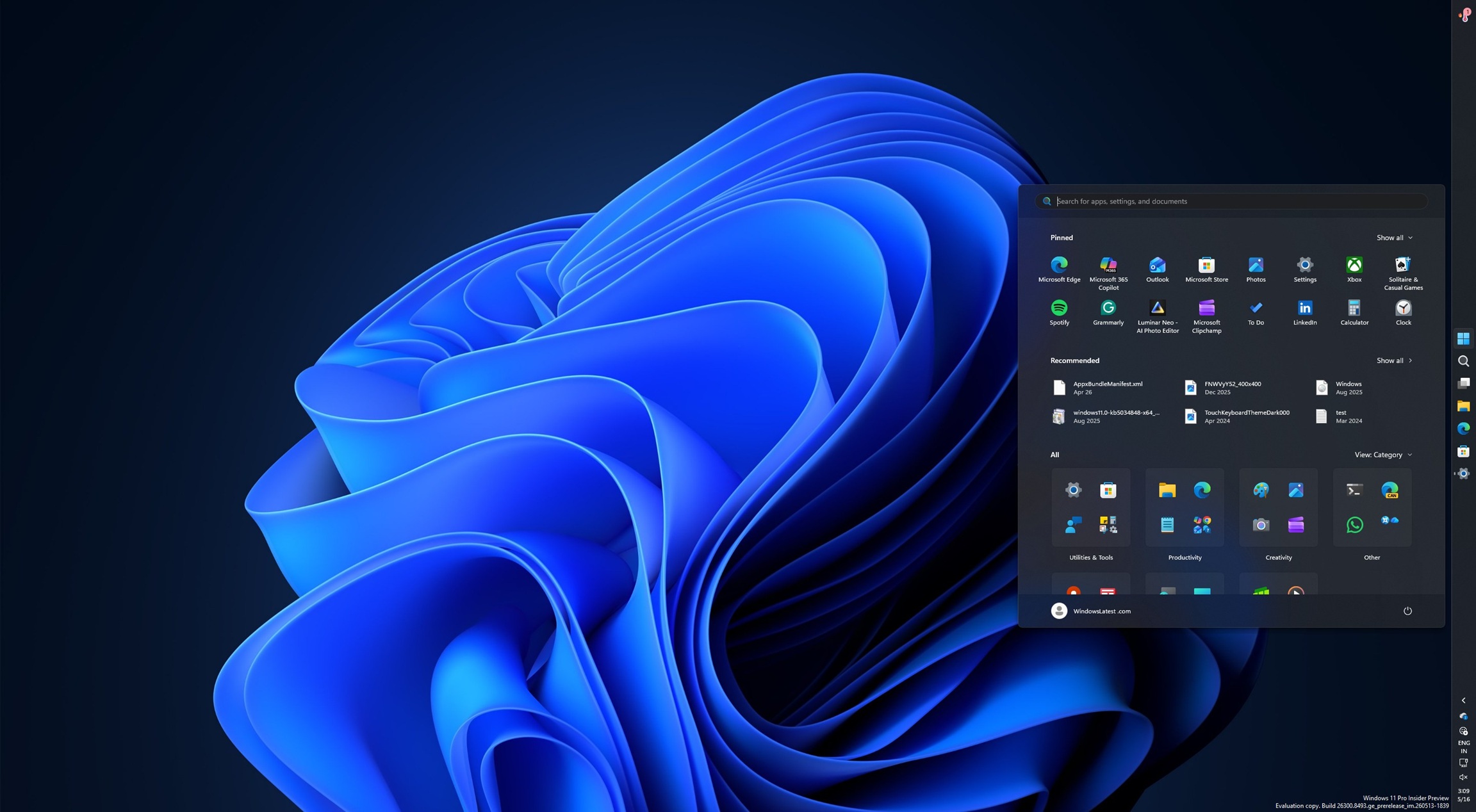
After nearly five years, Windows 11 is restoring several Windows 10-era features, including the ability to move the taskbar to the sides or top of the screen.
With Windows 11 KB5124008, MS has enabled the movable taskbar. It can be configured through Settings > Personalization > Taskbar.
MS told Windows Latest that the feature is being released in stages, so it may not appear immediately. Once available, it can be enabled through Settings.
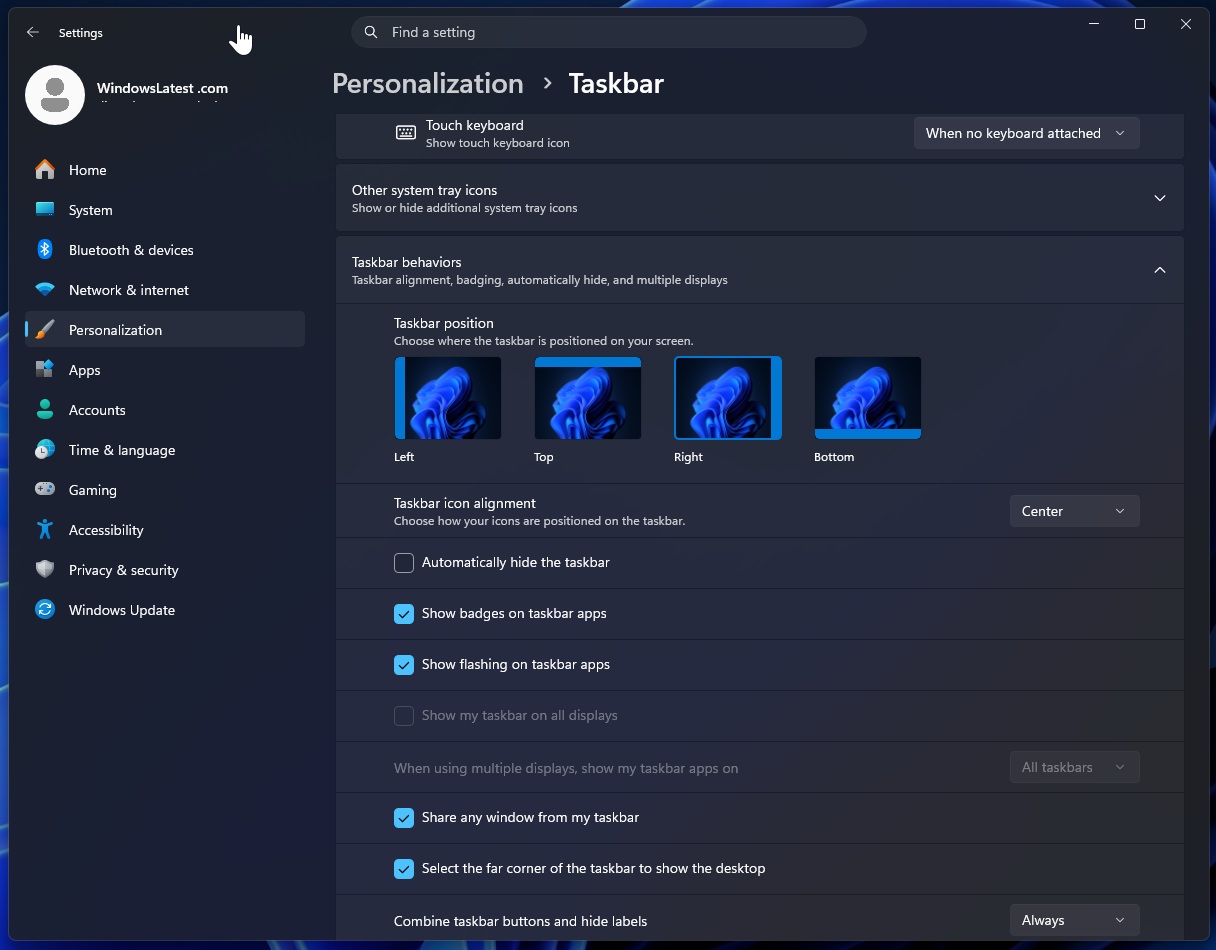
There is no alternative way to determine whether the feature has been enabled because Windows 11 does not allow users to unlock and drag the taskbar around the screen as Windows 10 did. Personalization options remain limited to Settings.
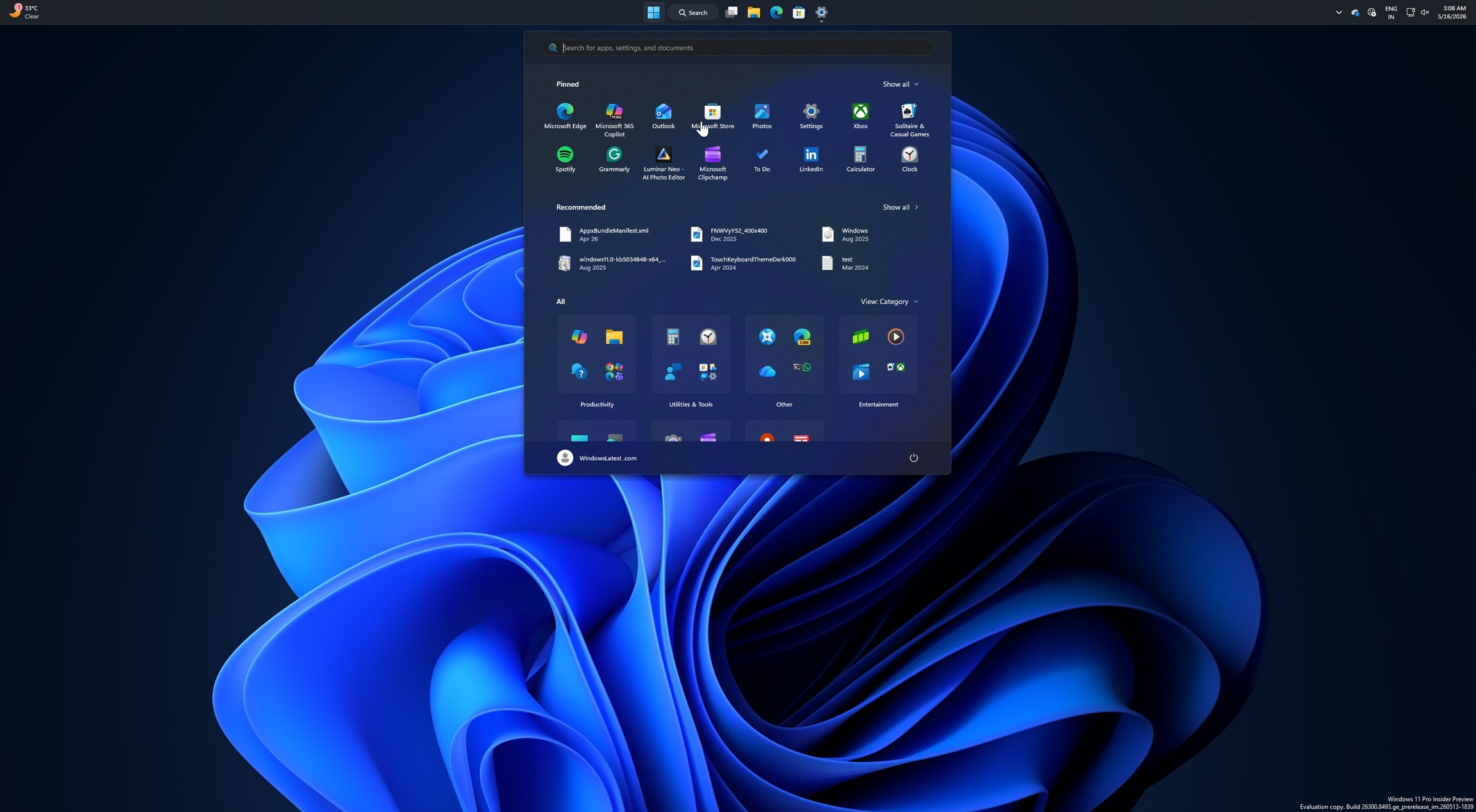
When the taskbar is moved to the top, the Start menu and Search interface adapt to the new position. The experience resembles Windows 10 and functionality that could previously be enabled through third-party applications, but it is now officially supported.
The delay does not appear to have resulted from a newly resolved software limitation. MS simply did not prioritize a movable taskbar over other projects. After years of user criticism, the company responded to one of the most frequently requested changes. There have been no fundamental changes to the underlying taskbar code that suddenly made repositioning possible.
When Windows 11 launched five years ago, MS was asked why users could not move the taskbar, reduce its size, or resize the Start menu. At the time, the company said these capabilities would disrupt the interface flow.
MS explained: “When you think about having the taskbar on the right or the left, all of a sudden, the reflow and the work that all of the apps have to do to be able to have a wonderful experience in those environments is just huge.” The video containing that statement was published in 2021 and is no longer available.
MS also rebuilt the taskbar from scratch for Windows 11, which contributed to the absence of other features, including the ability to make the taskbar smaller.
Windows 11 Now Has a Truly Smaller Taskbar
Windows 11 previously offered a “Show smaller taskbar buttons” option, but it reduced only the icon size rather than the taskbar itself. This was a significant difference rather than merely an unclear label.
Previously, enabling the option on the Taskbar behaviors page in Settings made the icons smaller while the taskbar continued to occupy the same amount of space.
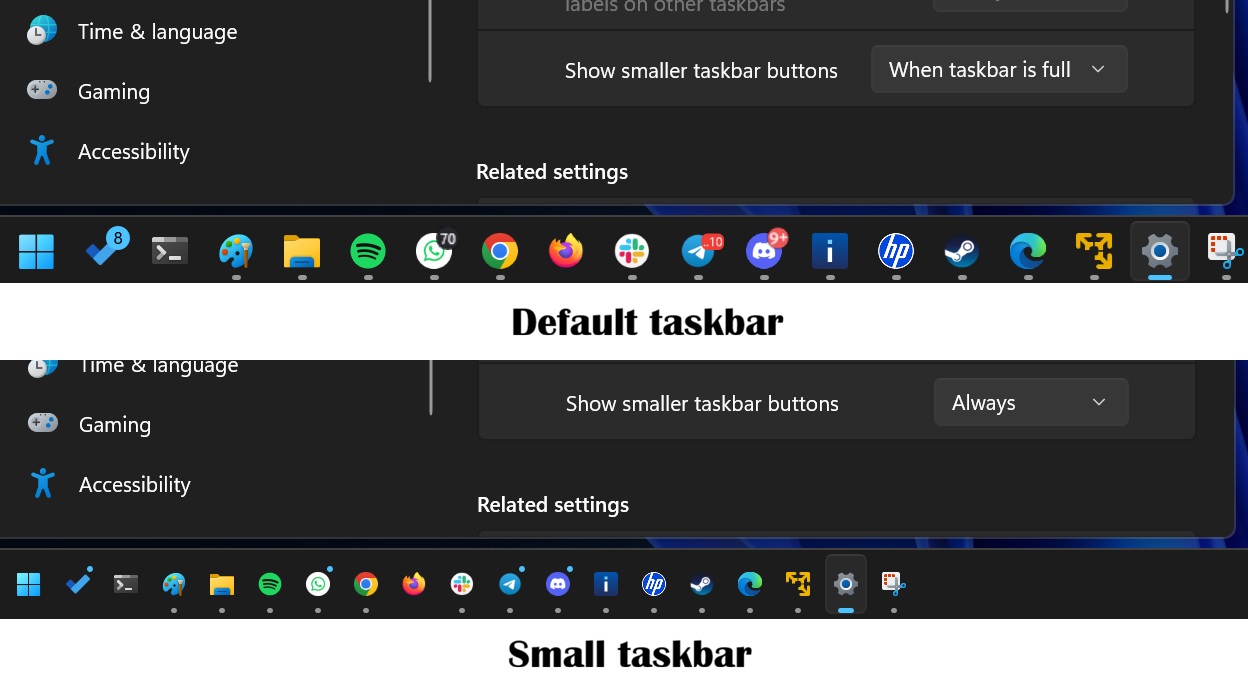
Windows 10 handled this differently. Enabling smaller taskbar buttons also reduced the size of the taskbar, which provided more room for applications.
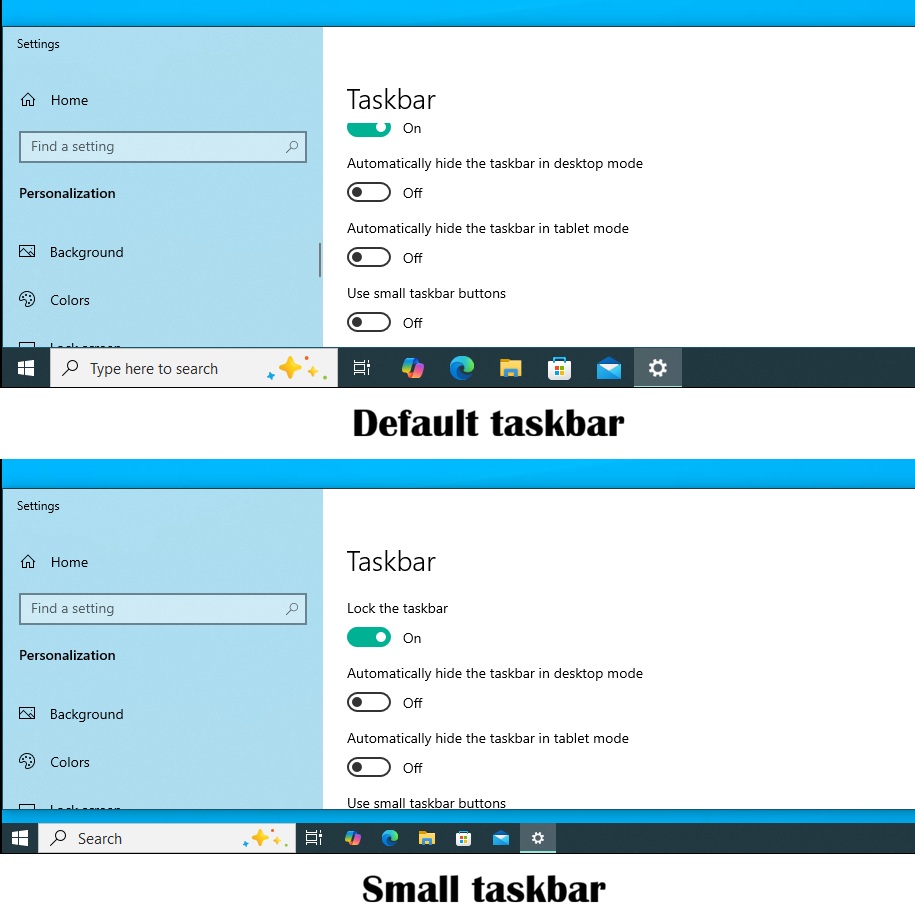
With Windows 11 KB5124008, MS is restoring the same behavior. Windows 11 now provides a genuine smaller taskbar experience.
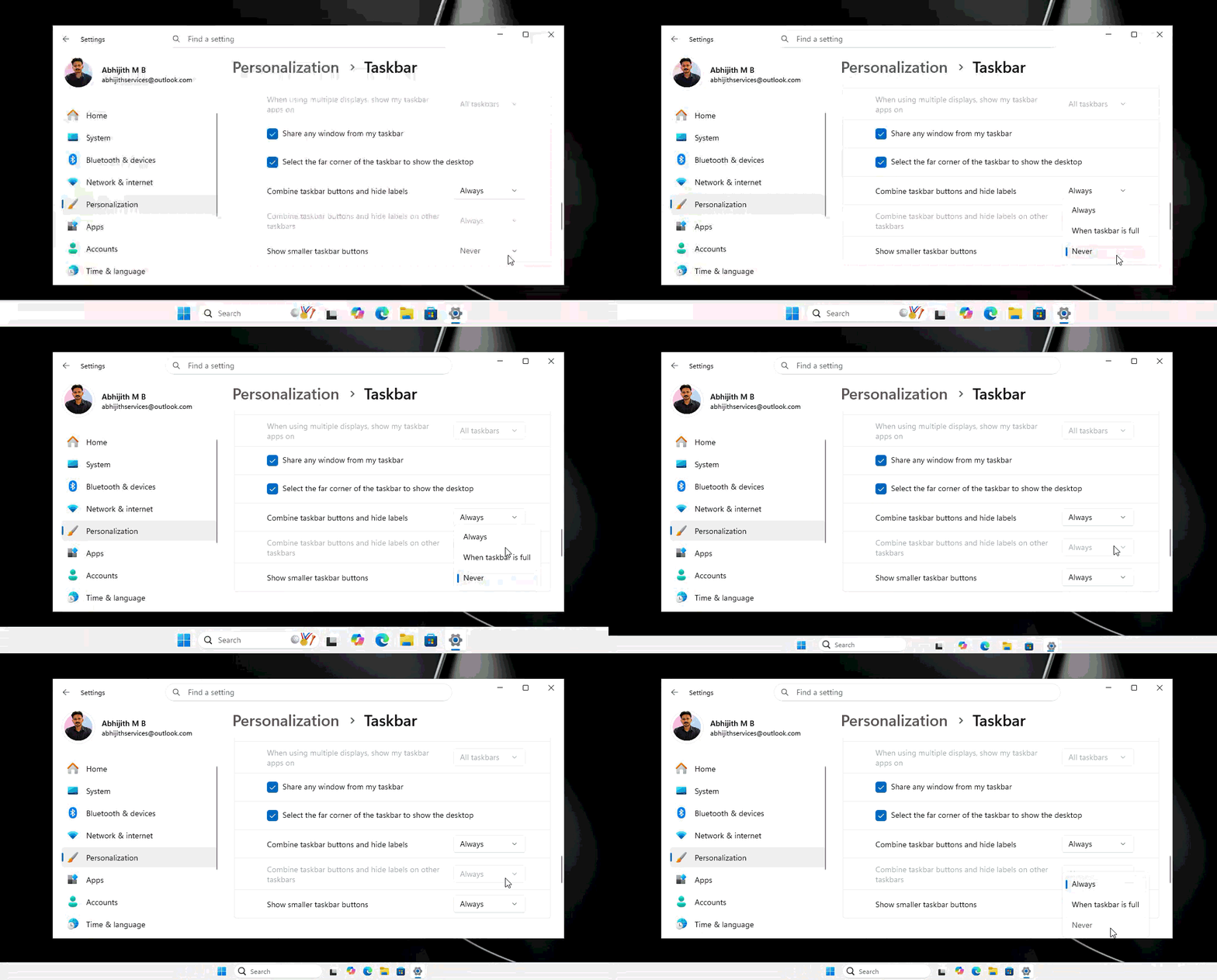
As on Windows 10, reducing the size of the taskbar buttons now also makes the taskbar itself smaller.
Other options remain unavailable. Windows 10 included a “Lock the taskbar” feature. When unlocked, the taskbar could be moved and resized by dragging it with the pointer. Windows 11 locks the taskbar by default, and it remains unclear when comparable customization options will arrive.
At IFA 2026, MS confirmed that it is working to add more customization options to Windows 11. The company also acknowledged that it was adding some features back “again,” indirectly referencing its decision to remove Windows 10-era capabilities.
The Start Menu Can Be Resized
Users with 13- or 14-inch laptops who installed recent Windows updates enabling the Categories layout may have noticed that the Start menu can occupy most of the screen unless display scaling is adjusted manually.
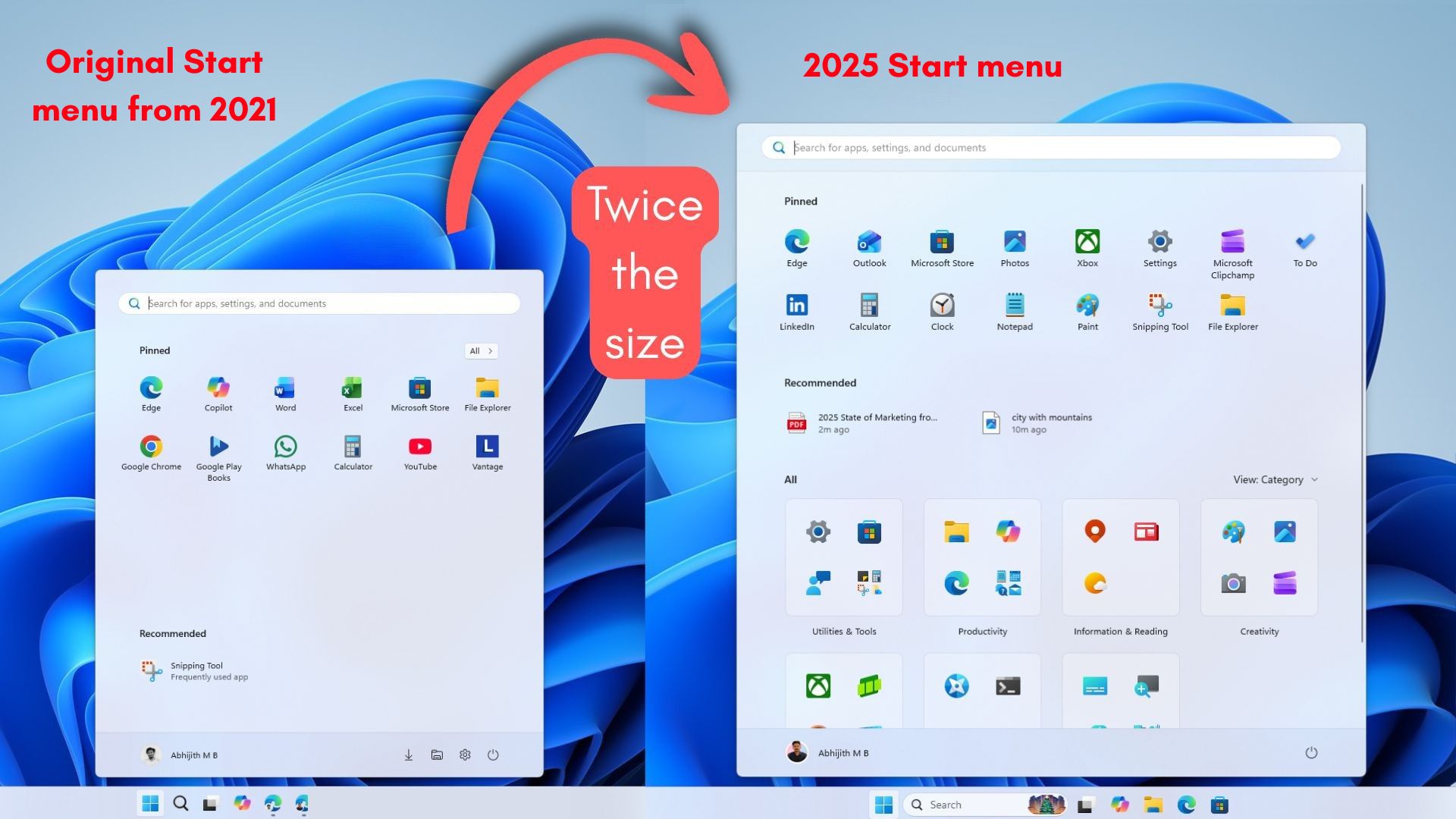
Reducing display scaling makes the entire Windows interface smaller, including the Start menu, but it is not an ideal solution for an oversized Start menu.
Windows 11 KB5124008 restores a resizable Start menu with three options:
- Large: The Start menu occupies more than 70% of the screen, providing additional space for pinned applications or the Recommended feed.
- Small: The Start menu uses a more compact layout.
- Automatic: Windows selects the size according to the display and scaling settings.
These options do not provide the same controls available in Windows 10, where users could drag to resize the Start menu, reduce its dimensions, display only the applications list, remove Live Tiles, or switch to a full-screen layout.
Those features are not currently planned, and MS has not provided further answers. Users should not expect them to arrive soon.
Start Menu Sections Can Be Customized Independently
Earlier in 2026, MS added an option to hide the Recommended feed, but the implementation caused additional problems. Disabling Recommended in the Start menu also disabled the Recent section in File Explorer and the taskbar jump lists available through right-click menus.
Windows 11 KB5124008 decouples this setting and renames it from “Recommended” to “Recent.”
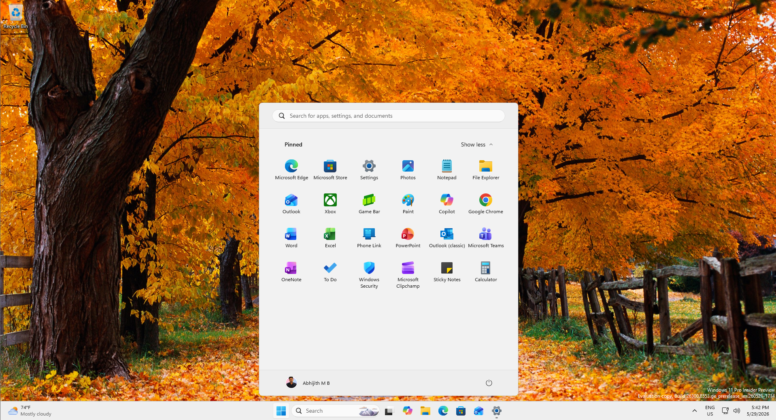
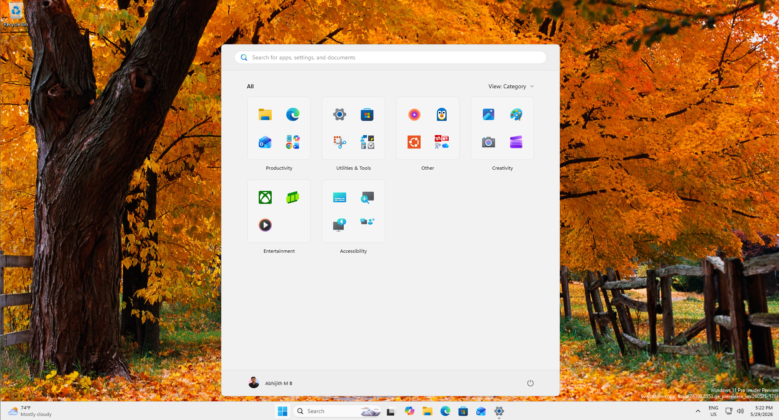
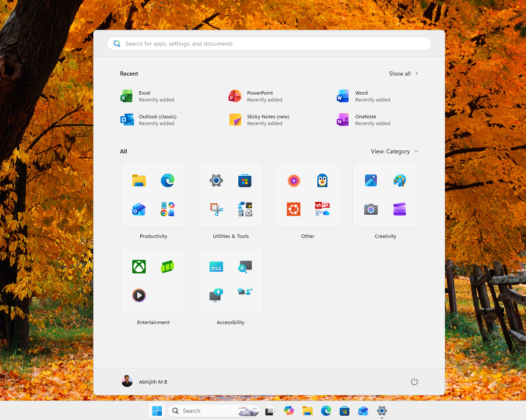
The Start menu layout can now be customized more extensively. Users can hide specific sections such as Pinned and retain only Recent with the All apps list. Alternatively, both Pinned and Recent can be disabled to display only the installed applications list.
Bing and MS Store Results Can Be Removed from Windows Search
Another notable feature in Windows 11 KB5124008 allows users to remove Bing and MS Store results from Windows Search.
Windows previously did not provide an official way to disable Bing in Search, making this change unexpected. The shift follows significant user backlash during 2026.
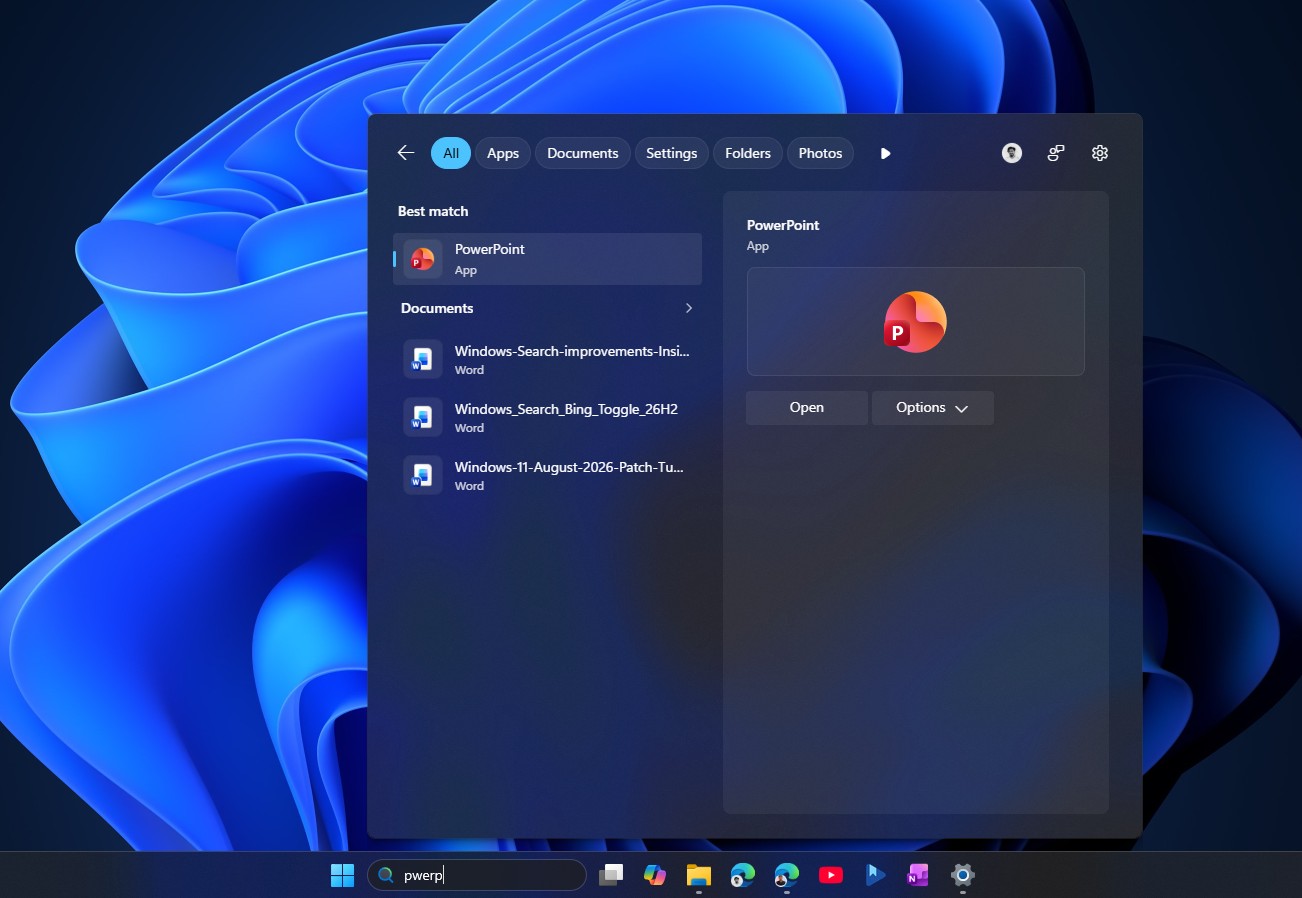
Windows 11 can now completely disable Bing and MS Store results. Searches for images, applications, and files can therefore display only local results, which also makes Search considerably faster. Registry changes and switching the system region to the European Union are no longer required.
After installing Windows 11 KB5124008, users included in the gradual rollout can open Settings > Privacy & security > Search and disable the Web Searches and MS Store toggles.
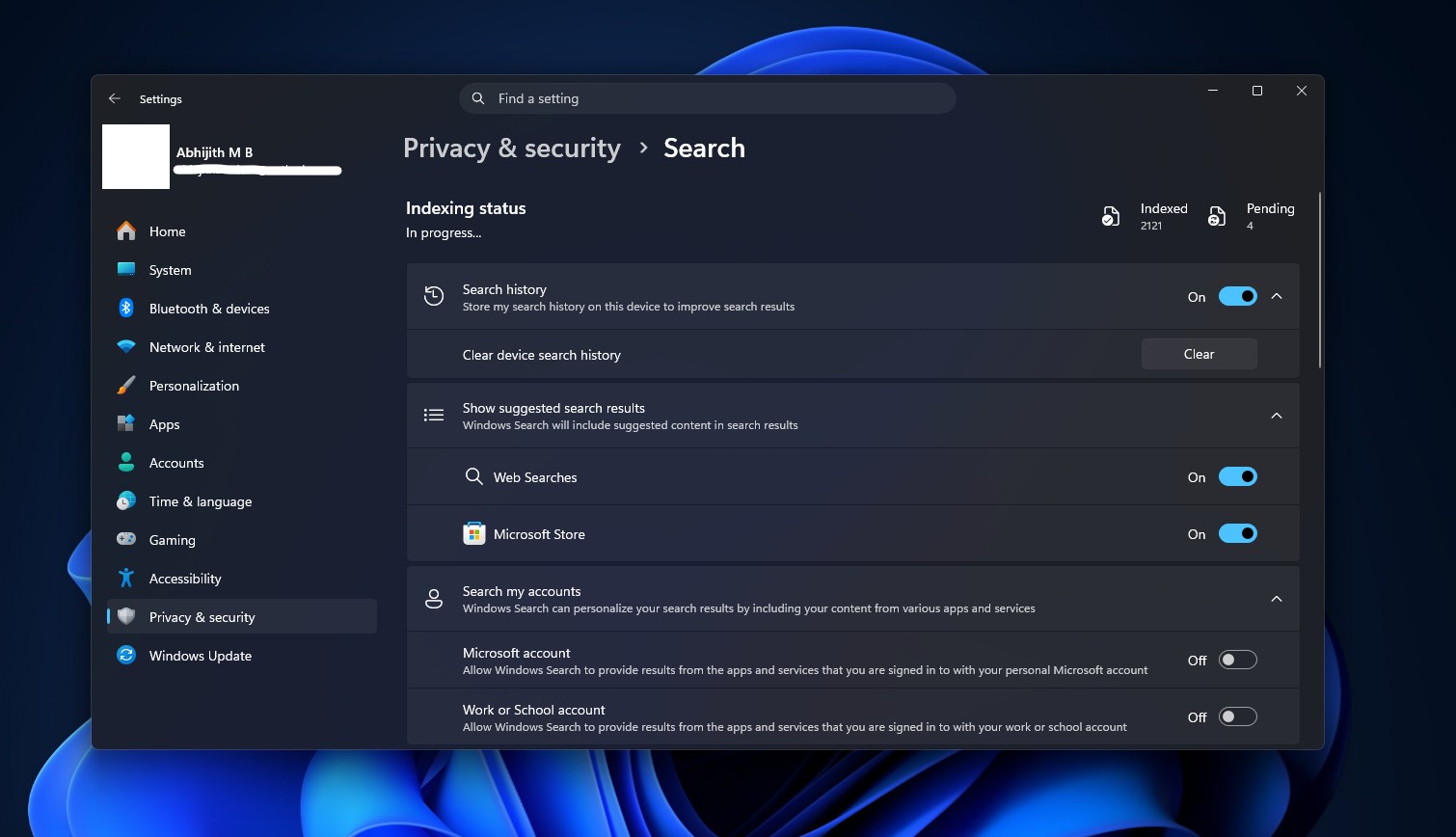
Once these settings are disabled, Windows 11 Search displays only local results.
File Explorer Loads Faster
Windows 11 KB5124008 also improves File Explorer loading times, particularly when Home is configured as the default page.
The Home tab is typically slower than This PC, but performance improves noticeably after installing the September 2026 Update. The difference is most apparent on lower-end PCs with 8GB of RAM. This improvement is unrelated to the preloading feature MS tested previously.
Cursor, Wallpaper, Teams, and Outlook Fixes
MS has fixed a bug that caused the cursor to disappear, change size, or look different from the standard cursor. The issue originated in Windows 11 KB5120998 and affected cursor personalization settings, including pointer styles.
The same August update also caused desktop wallpaper to be replaced with a solid black color. Another resolved issue caused MS Teams and Outlook to crash on Arm-based PCs.
Finally, MS states that Windows 11 KB5120998 expands the rollout of a Secure Boot certificate to more PCs. However, systems with firmware compatibility issues will still not receive it.
Windows Latest depends on readers. Make it your preferred source on Google Discover and Google Search to help its independent reporting reach more people.
